How to Read Data With Modbus TCP
Modbus TCP Master Device connection to Modbus TCP Slave Device:
- Select “Modules” category from menu.
- Select “Driver” to connect Modbus TCP Slave Device.

- In “Drivers” page, click plus '+' button to add new driver.

- Name: Write any name you like to describe connection, for example Modbus_TCP
- Endpoint: This is the endpoint of device which acts like Modbus Slave
- Type: Choose MODBUS TCP for connection type.
- Driver Specific Options: After choosing MODBUS TCP type for connection, default driver specific options will be appear. Set correct port, unitId and other components correctly. If default values are correct, leave it like that.

- Then click “Save” button to establish connection.
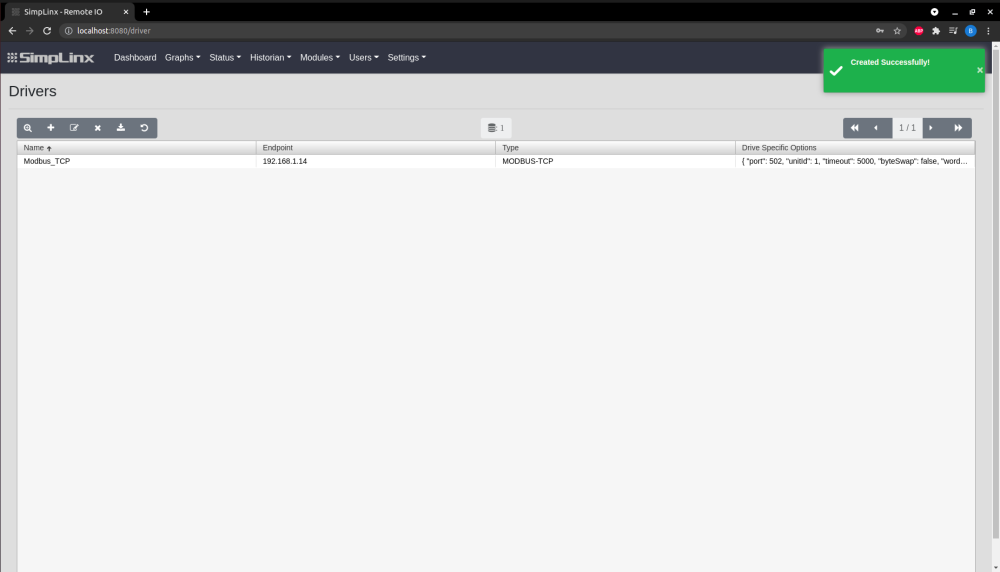
- To see connection established, select “Status” category from menu then click “Driver” option.
- Driver name, last message and status are shown in this page, if connection is completed, green connected bar will be shown.

- After connection established, tag must be added to driver. To do that:
- Select “Modules” from menu, then click “Tag” option.
- In “Tags” page, click plus “+“ button to add new tag.

- “Details” page will be shown after clicked ”+” button.
- In this page:
- Name: Choose any name you like to describe tag.
- Type: Choose proper type for data.
- Address: Write tag address, to use proper tag address scroll down page and look for “Modbus Tag Format”
- Address Prefix: You can write address prefix.
- Conversion Script: In this area, you can do mathematical operations with tag.
- Driver Name: Choose correct Driver for Driver Name. In this example, Modbus_TCP.

- Click “Save” button to add tag.
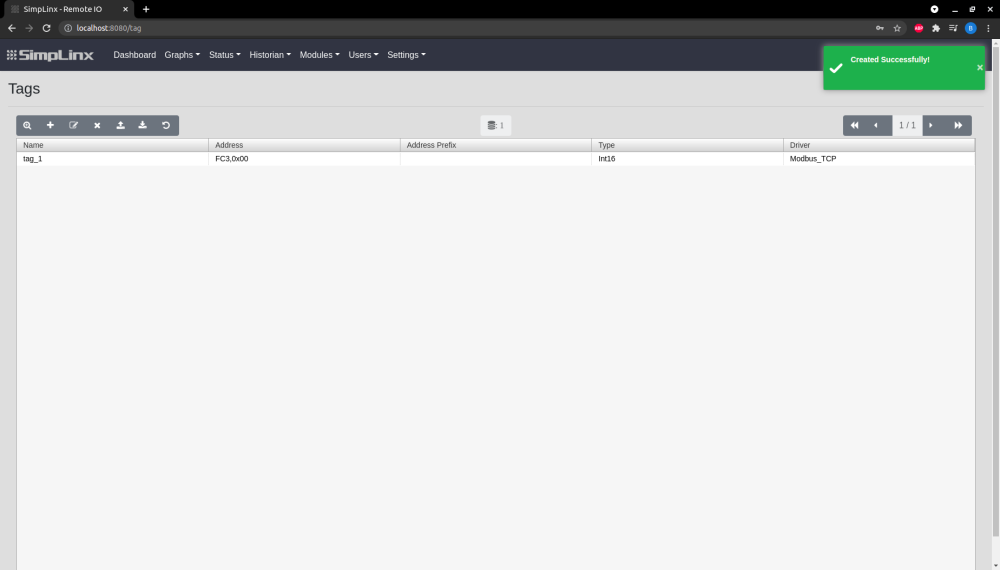
- After adding tag, to see connection established and coming datas, select “Status” category from menu then click “Tag” option.
- In this page: Name, Last Value, Last Message, Last Update Time and Status will be shown
- If tag is added to driver successfuly, green OK message will be appear under Status.
- Last Value: Last data will be shown coming from connection.

TROUBLESHOOTING:
- If connection is not completed successfully, follow these steps to test connection:
- Download Modbus Poll - Modbus Master Simulator
- After setup, click and start Modbus Poll Application.

- There is connection button, click and then select connect.

- After that connection screen pop up,
- Choose Modbus TCP/IP for connection type
- Write IP address and port number
- Then click “OK” button.
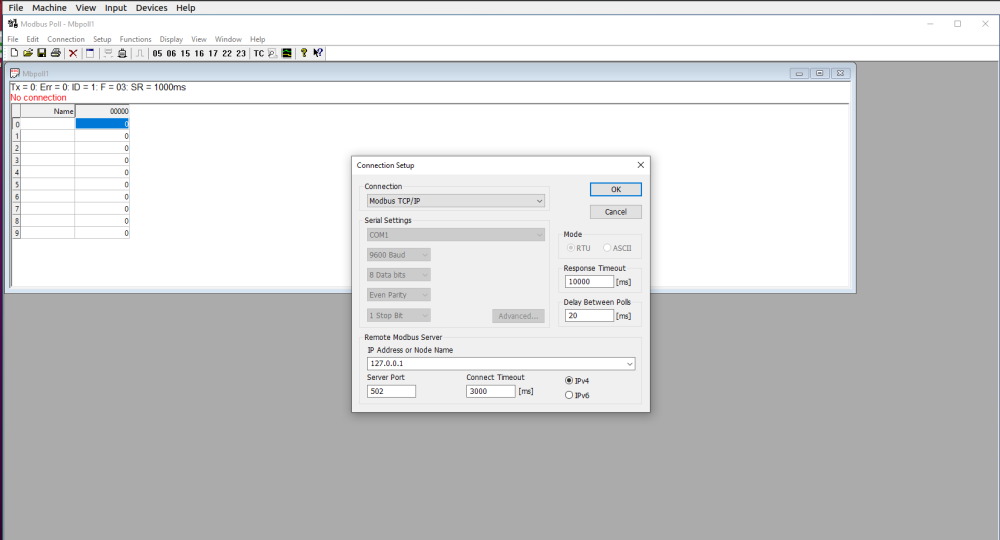
- Modbus master simulator is now connected successfully to Modbus slave device.
