How to Read Data With OPC UA
OPC UA Client connection to OPC UA Server:
- Select “Modules” category from menu.
- Select “Driver” to connect OPC UA Server.

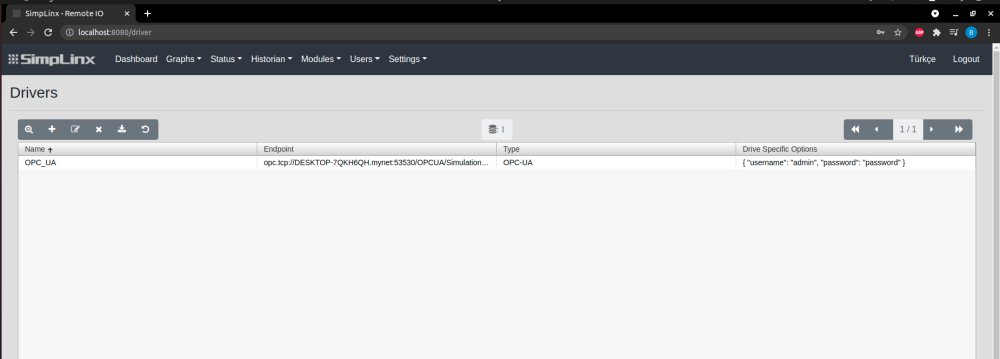
- In “Drivers” page, click plus '+' button to add new driver.

- Name: Write any name you like to describe connection, for example OPC_UA
- Endpoint: This is the endpoint URL of OPC UA Server
- Type: Choose OPC UA for connection type.
- Driver Specific Options: After choosing OPC UA type for connection, set username and password. If Server accept anonymous connections delete username and password in curly braces
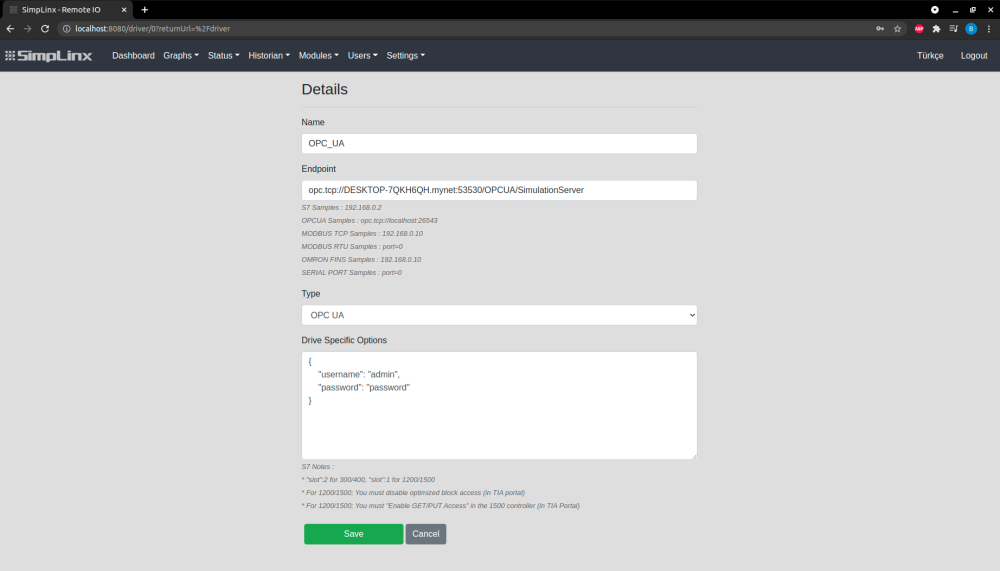
- Then click “Save” button to establish connection.
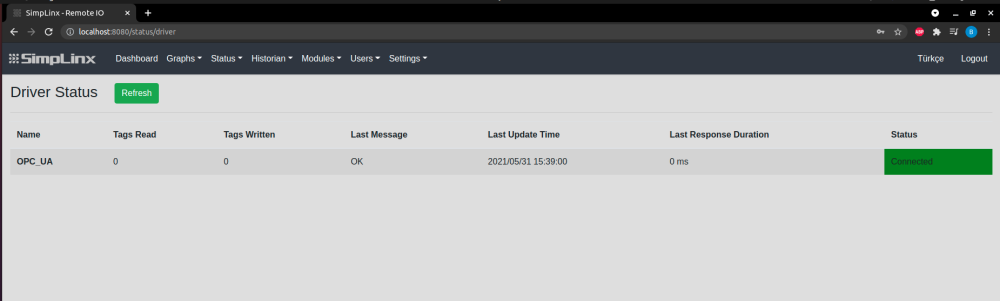
- To see connection established, select “Status” category from menu then click “Driver” option.
- Driver name, last message and status are shown in this page, if connection is completed, green connected bar will be shown.
- After connection established, tag must be added to driver. To do that:
- Select “Modules” from menu, then click “Tag” option.
- In “Tags” page, click plus “+“ button to add new tag.

- “Details” page will be shown after clicked ”+” button.
- In this page:
- Name: Choose any name you like to describe tag.
- Type: Choose proper type for data.
- Address: Write tag address, this address is coming from OPC UA Server.
- Address Prefix: You can write address prefix.
- Conversion Script: In this area, you can do math operations with tag.
- Driver Name: Choose correct Driver for Driver Name. In this example, OPC_UA
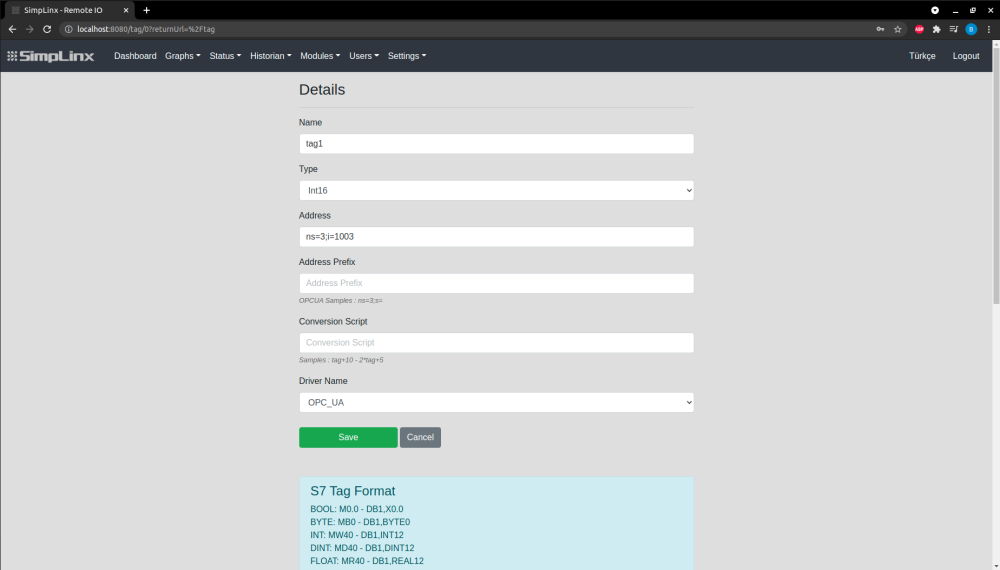
- Click “Save” button to add tag.
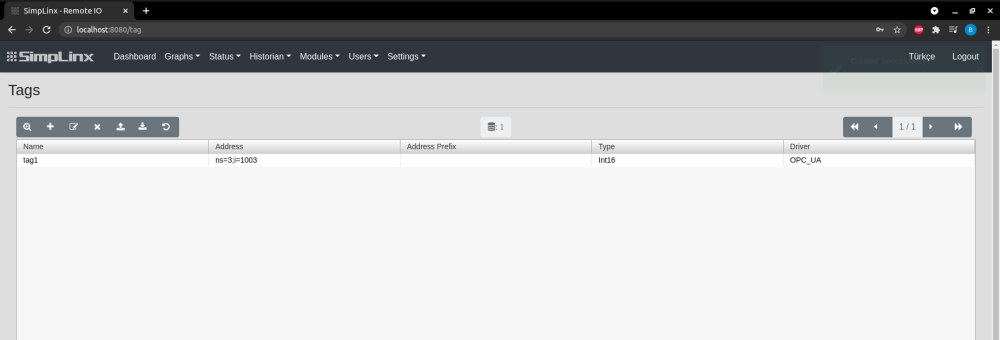
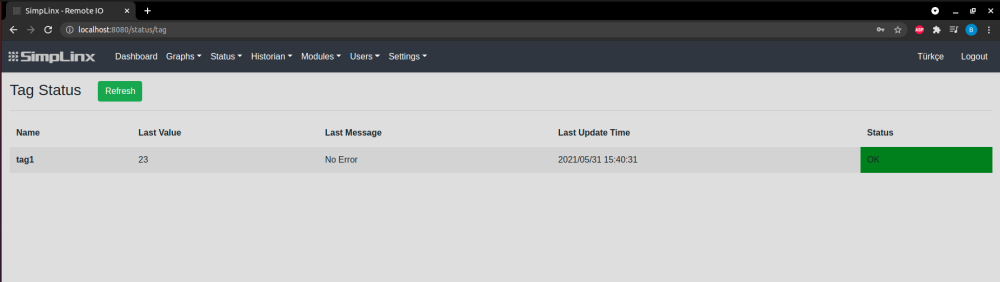
- After adding tag, to see connection established and coming data, select “Status” category from menu then click “Tag” option.
- In this page: Name, Last Value, Last Message, Last Update Time and Status will be shown
- If tag is added to driver successfully, green OK message will be appear under Status.
- Last Value: Last data will be shown coming from connection.
 TROUBLESHOOTING:
- If connection is not completed successfully, follow these steps to test connection:
- Then click “Product website”.
- After registration, click download button.
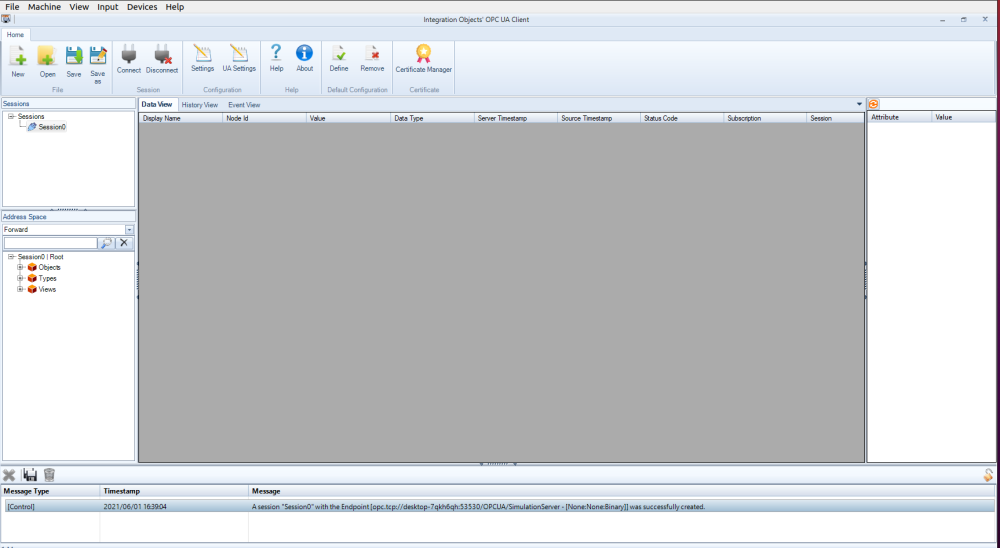
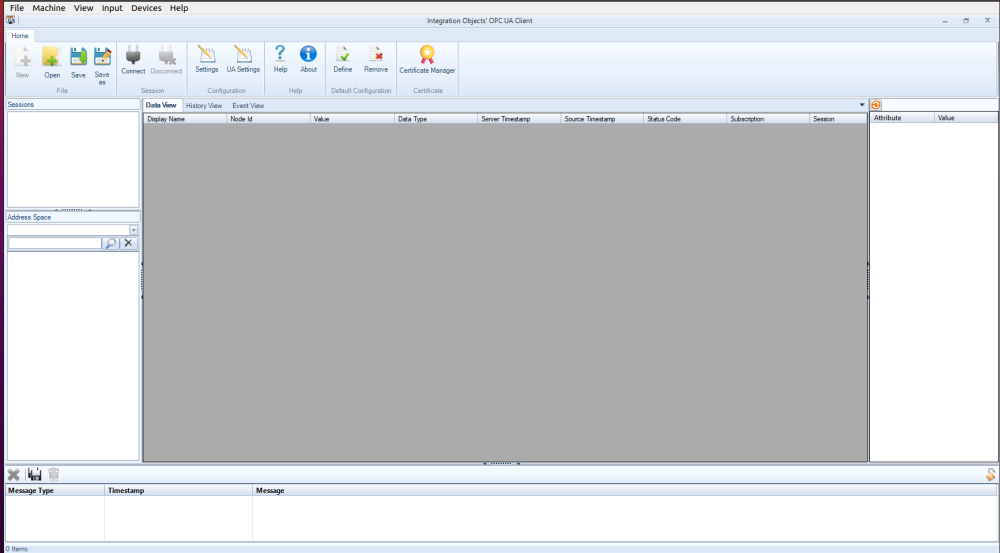
- Open downloaded file and setup app, after finished setup, open OPC UA Client app.
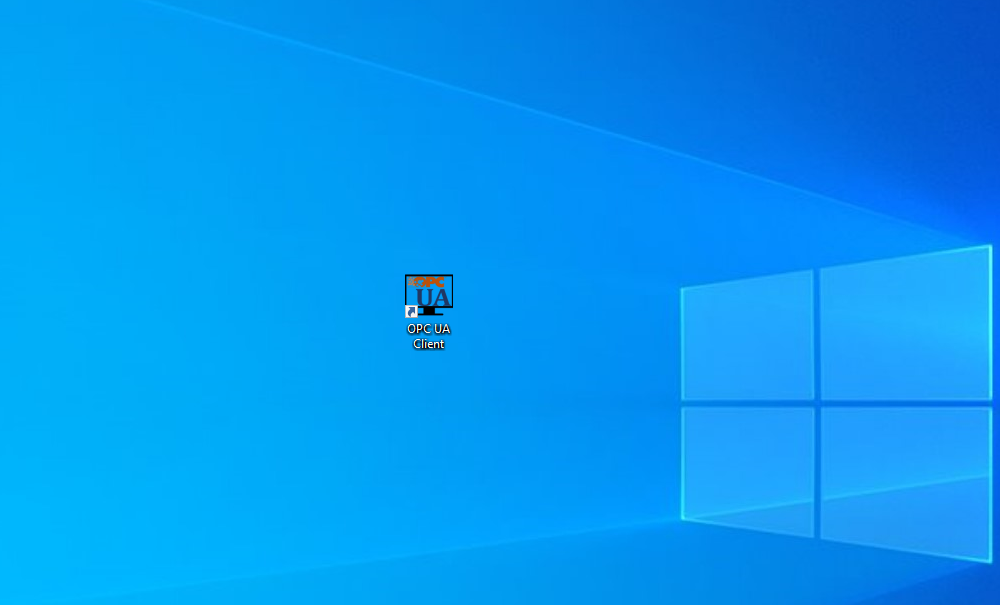
- There is connection button to connect OPC UA Server, click this button
- Write Endpoint URL and fill other necessary fields.
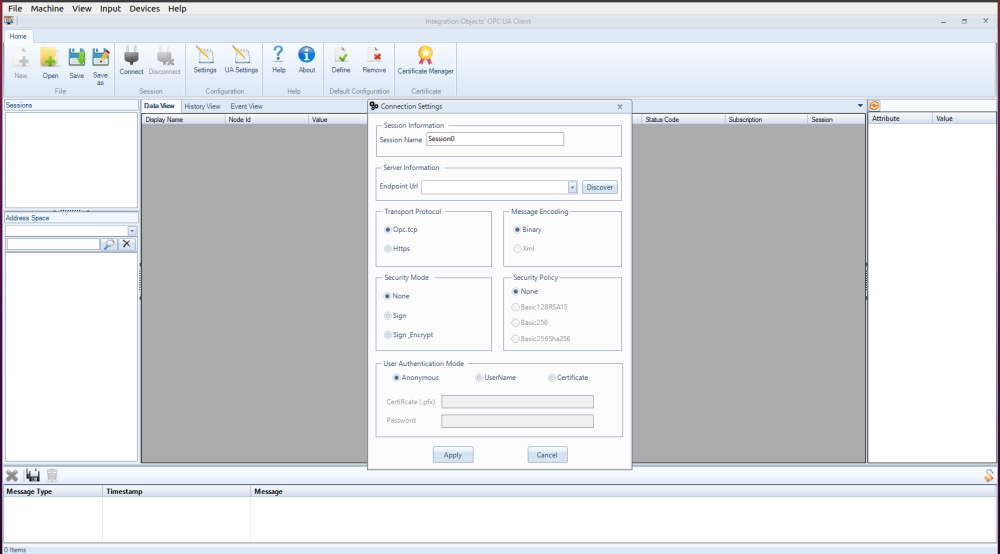
- Click “Apply” button and confirm connection
- If connection is successful, connection message will appear.