
Remote IO — Beijer Electronics Connection
Overview
Section titled “Overview”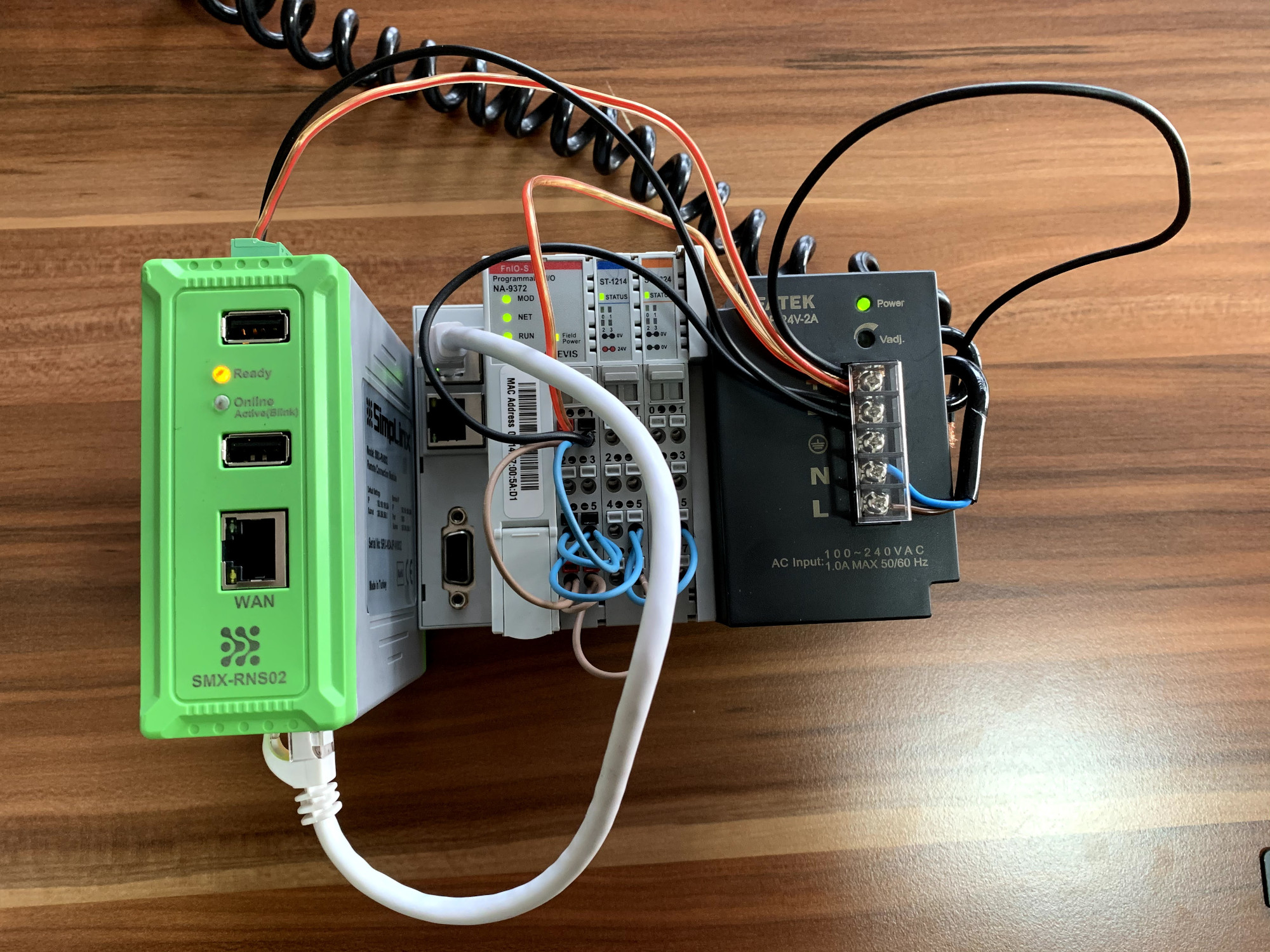 System setup — SMX-RNS20 reading Modbus TCP data directly from Beijer modules (no PLC required)
Beijer Electronics controllers (X2, E-series) support Modbus TCP as a standard communication protocol. Use the SMX-RNS20’s Modbus TCP driver to read coils, discrete inputs, holding registers, and input registers from any Beijer controller that exposes a Modbus TCP server.
For the Beijer NA-9289 adapter, refer to the dedicated manual available in the Downloads section.
Beijer Controller Configuration
Section titled “Beijer Controller Configuration”- In EXOR / Beijer MAKE (or your applicable IDE), enable the Modbus TCP Server on the controller’s Ethernet port.
- Set a static IP address on the same subnet as the SMX-RNS20 LAN port.
- Note the Modbus TCP port (default: 502) and the addresses of registers you want to read.
SMX-RNS20 Remote IO Configuration
Section titled “SMX-RNS20 Remote IO Configuration”- Log in to the SMX-RNS20 web interface and navigate to Remote IO → Connections.
- Click Add Connection and select Driver: Modbus TCP.
- Enter the Beijer controller’s IP address and port (default 502). Set the Unit ID (Slave ID), usually 1.
- Add data points: select Function code (FC01 coils, FC02 discrete inputs, FC03 holding registers, FC04 input registers), set the start address and quantity.
- Save the configuration. The SMX-RNS20 will start polling the Beijer controller at the configured interval.
Screenshots — Remote IO App
Section titled “Screenshots — Remote IO App”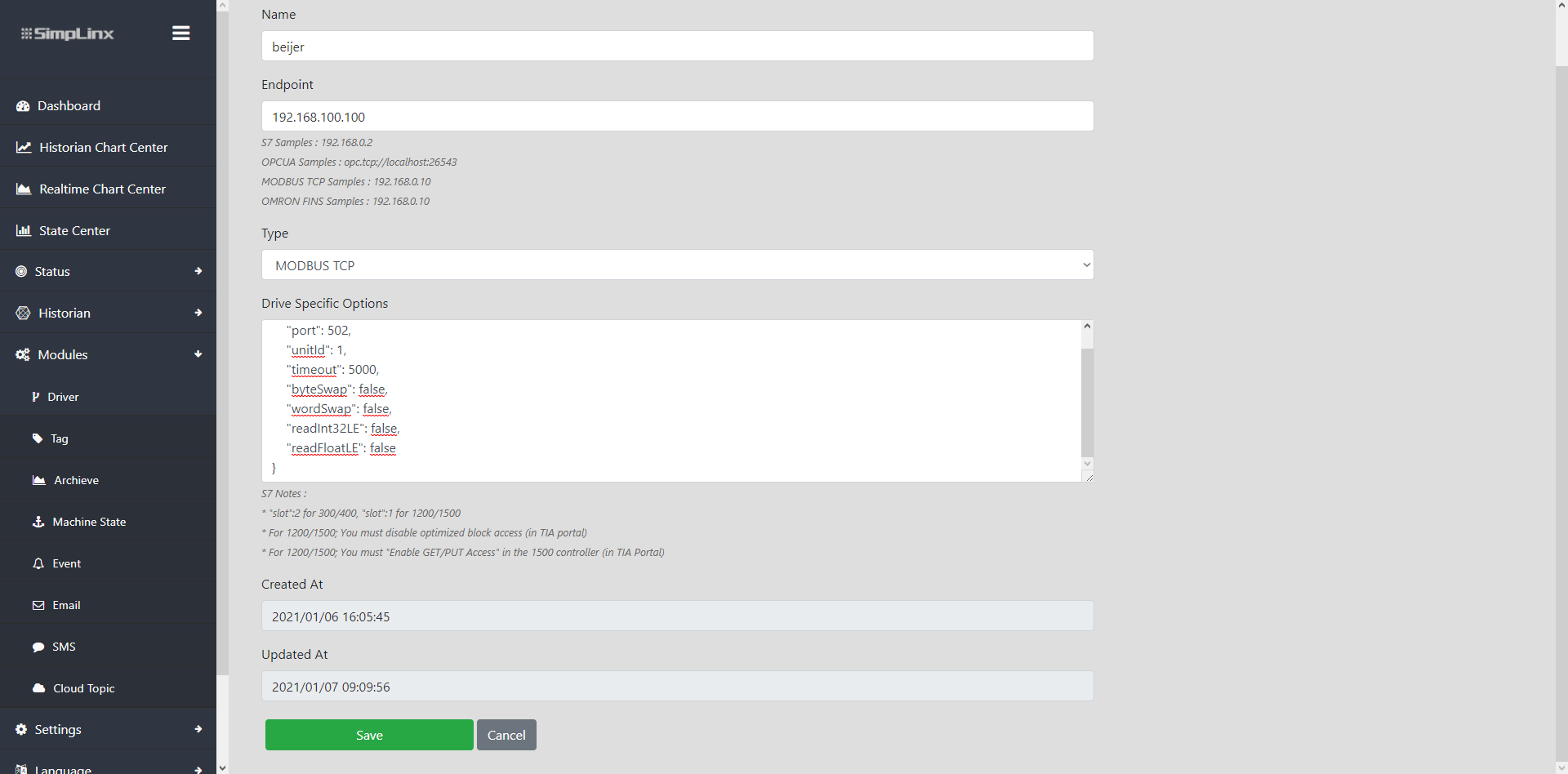 Step 1 — Add a new Modbus TCP driver in the Remote IO application
 Step 2 — Create tags for the Beijer register addresses
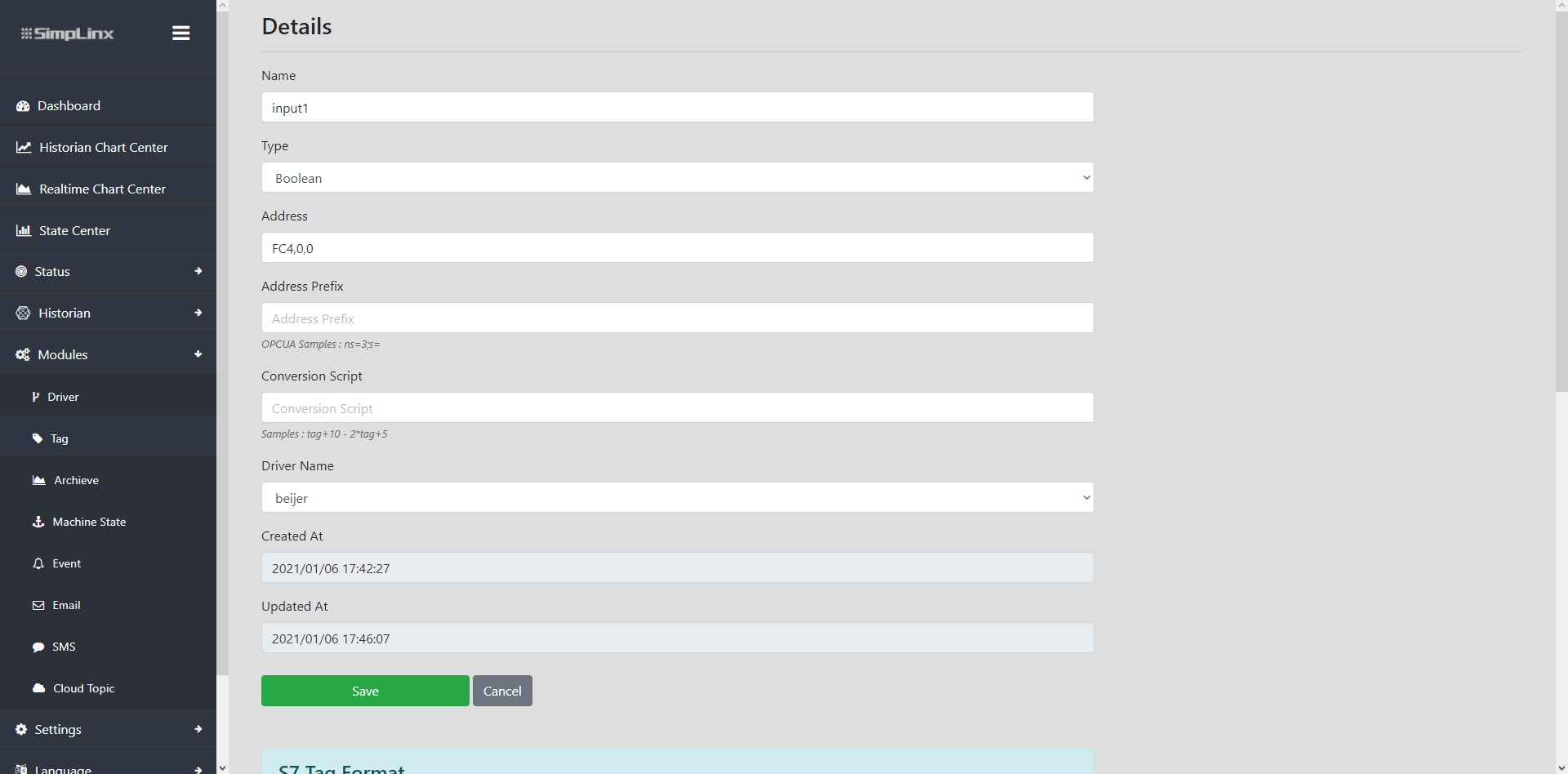 Step 2 (continued) — tag address and type configuration
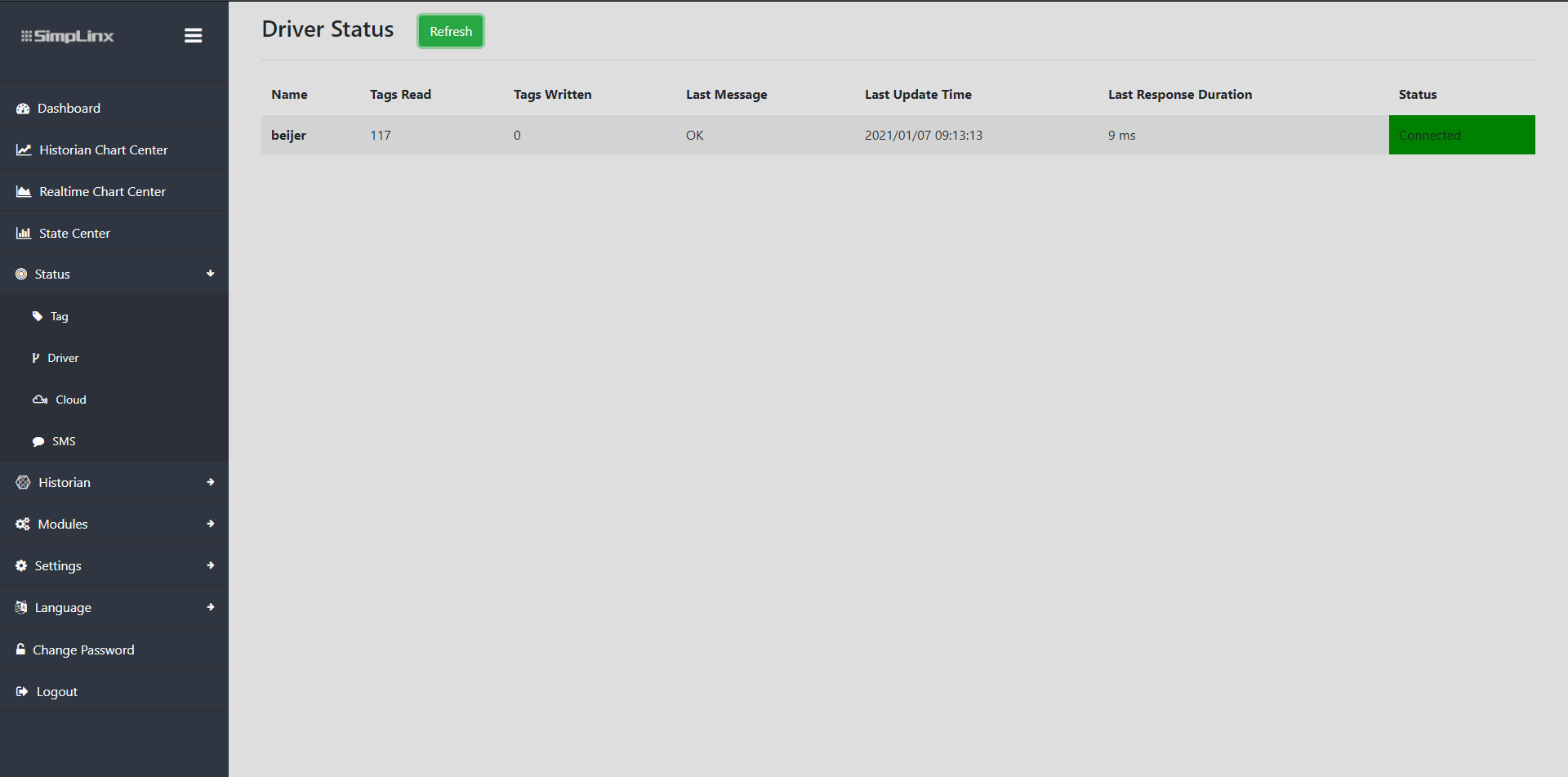 Step 3 — Driver status page confirming connection to Beijer module
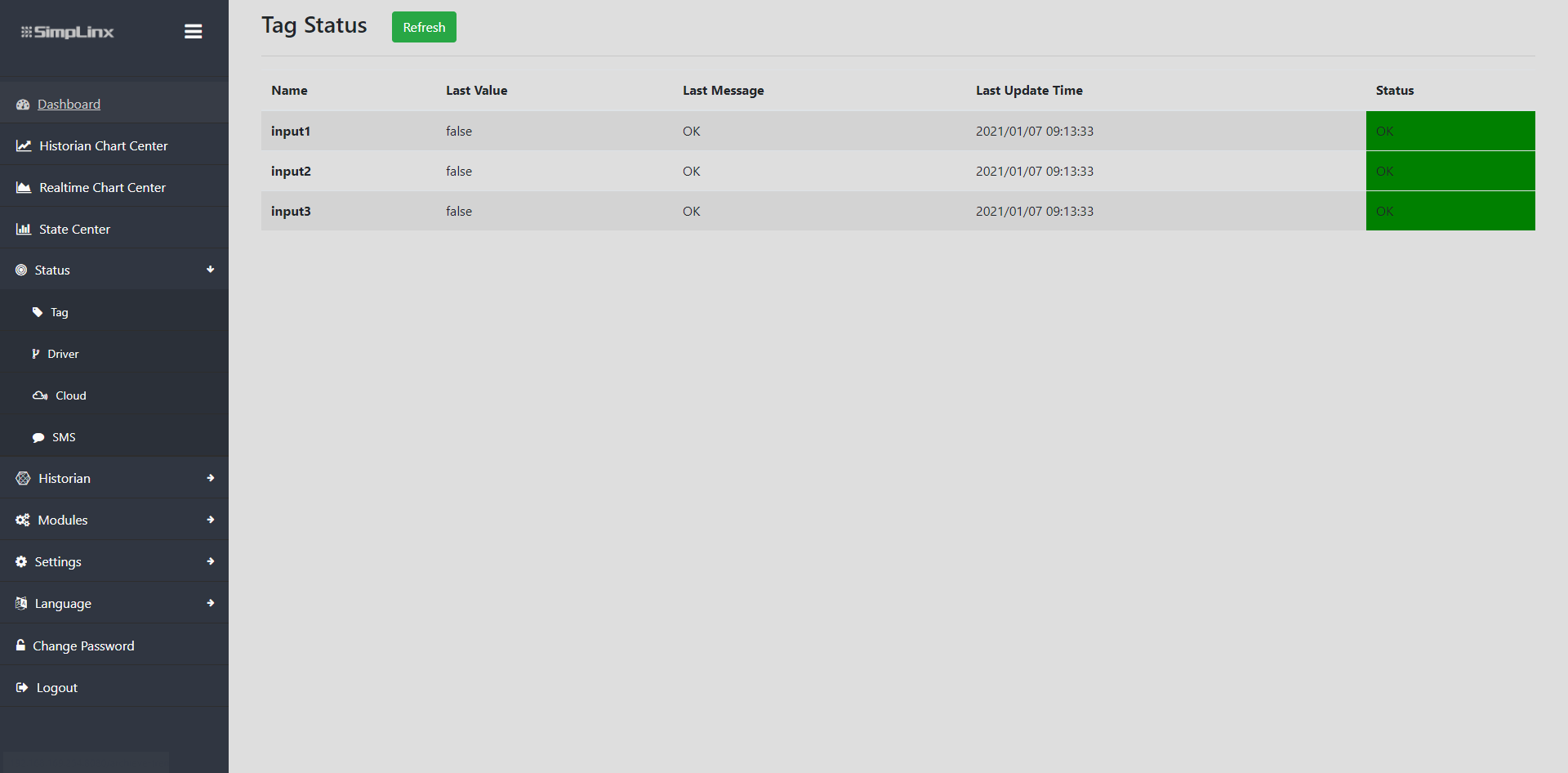 Step 3 — Tag status page with live register values