
Remote IO — LS Electric (XGB) Connection
Overview
Section titled “Overview”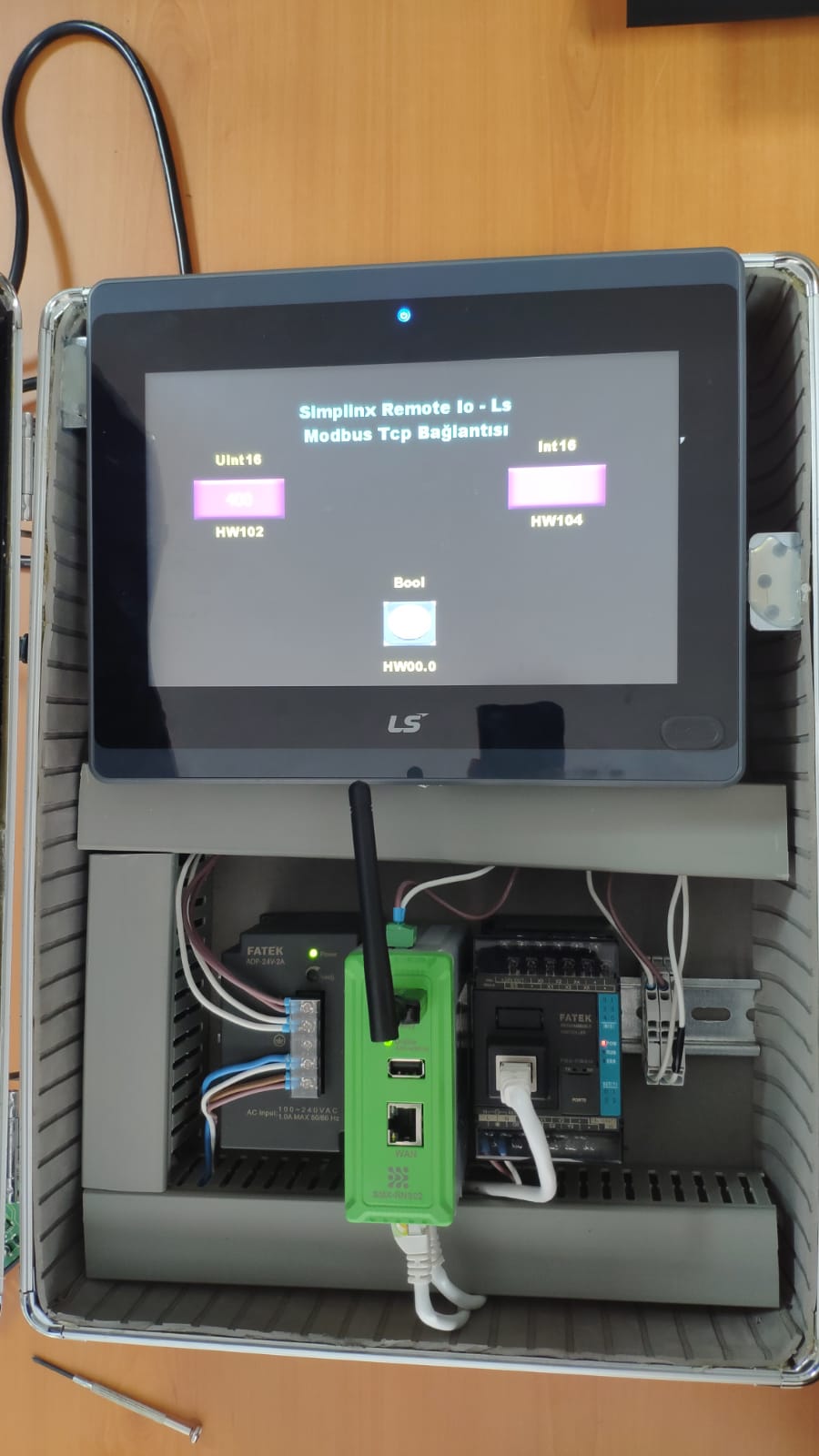 System setup — SMX-RNS20 reading data directly from LS Electric panel via Modbus TCP
LS Electric XGB-series PLCs (XBC, XBM, XEC) support Modbus TCP as a standard Ethernet protocol. This guide covers the configuration needed to read PLC data registers using the SMX-RNS20 Remote IO feature.
PLC Configuration (XG5000)
Section titled “PLC Configuration (XG5000)”- Open XG5000 and navigate to the CPU module’s Ethernet settings.
- Enable the Modbus TCP Server on the built-in Ethernet port. Default port: 502.
- Assign a static IP address to the PLC on the same subnet as the SMX-RNS20 LAN.
- Note the Modbus register addresses for your data. LS Electric uses the following mapping:
%MW0 → Holding Register 0,%MX0 → Coil 0.
SMX-RNS20 Remote IO Configuration
Section titled “SMX-RNS20 Remote IO Configuration”- Log in to the SMX-RNS20 web interface → Remote IO → Connections.
- Click Add Connection and select Driver: Modbus TCP.
- Enter the PLC IP address, port 502, and Unit ID 1.
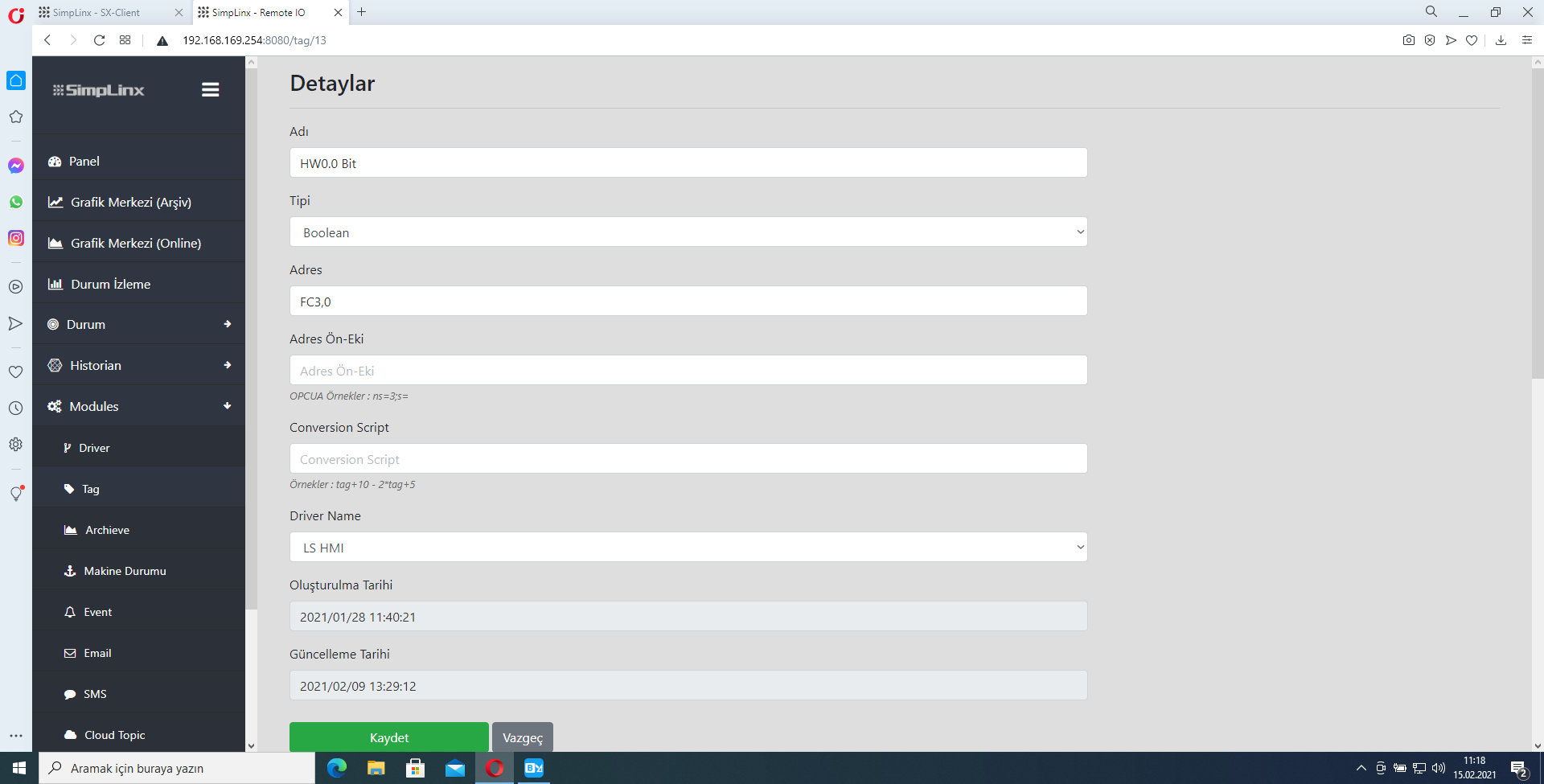
- Add the data points you need (FC03 for holding registers is most common for LS PLCs).
- Save the configuration and verify live data in Remote IO → Monitor.
Screenshots
Section titled “Screenshots”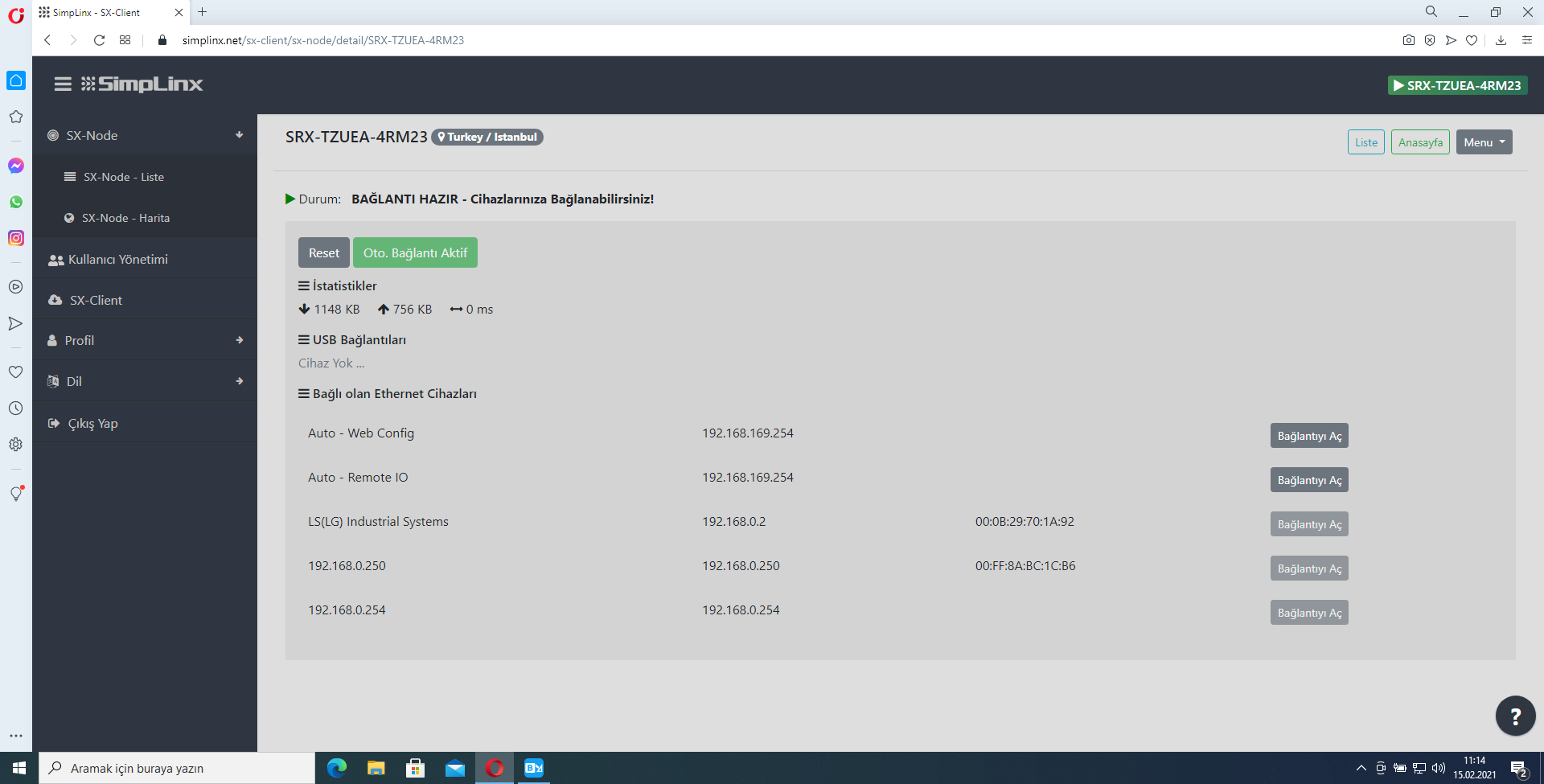 SX-Client — LS Electric panel appears in the connected Ethernet device list
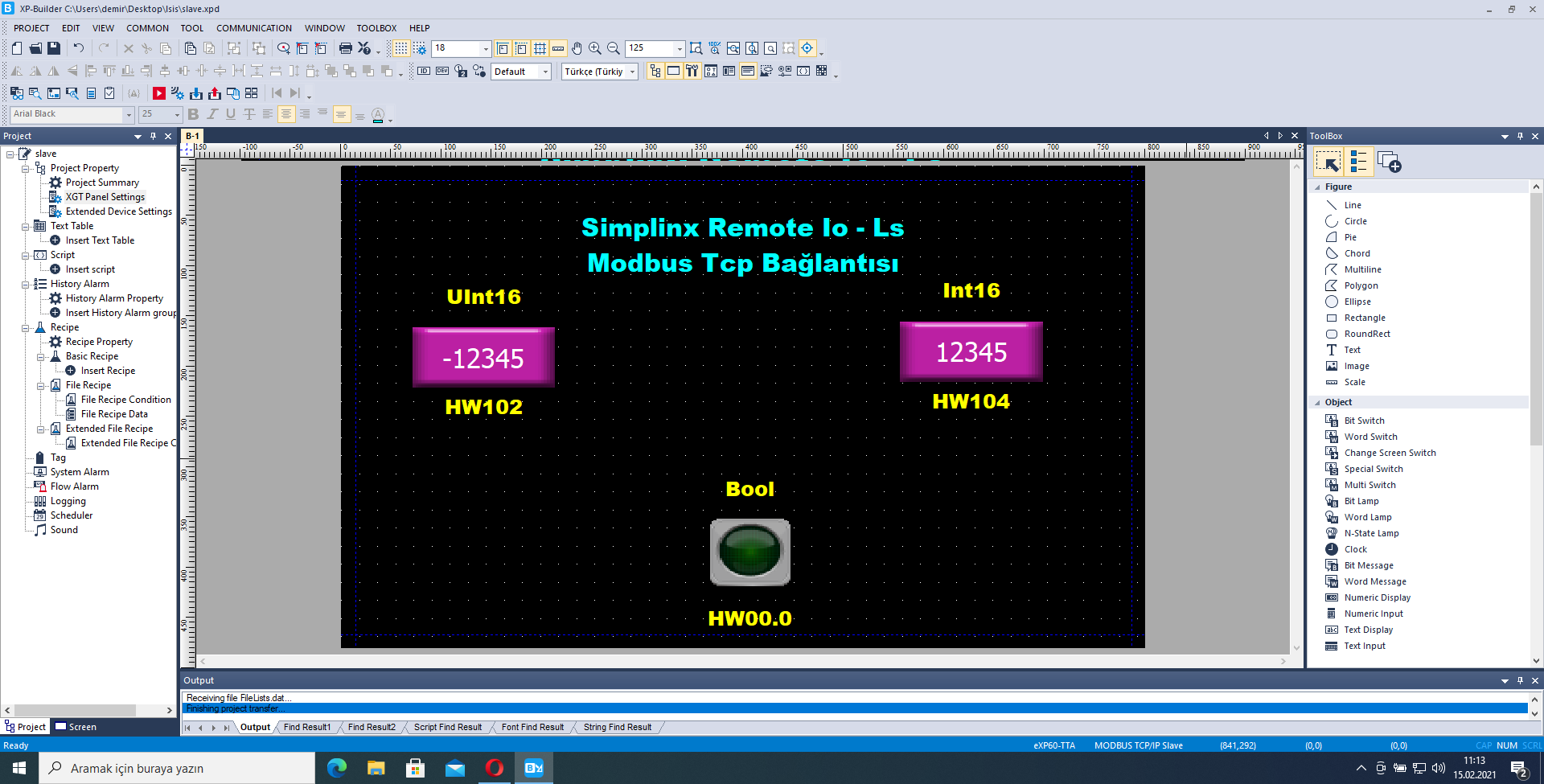 XP Builder — enabling Modbus TCP server on LS Electric panel
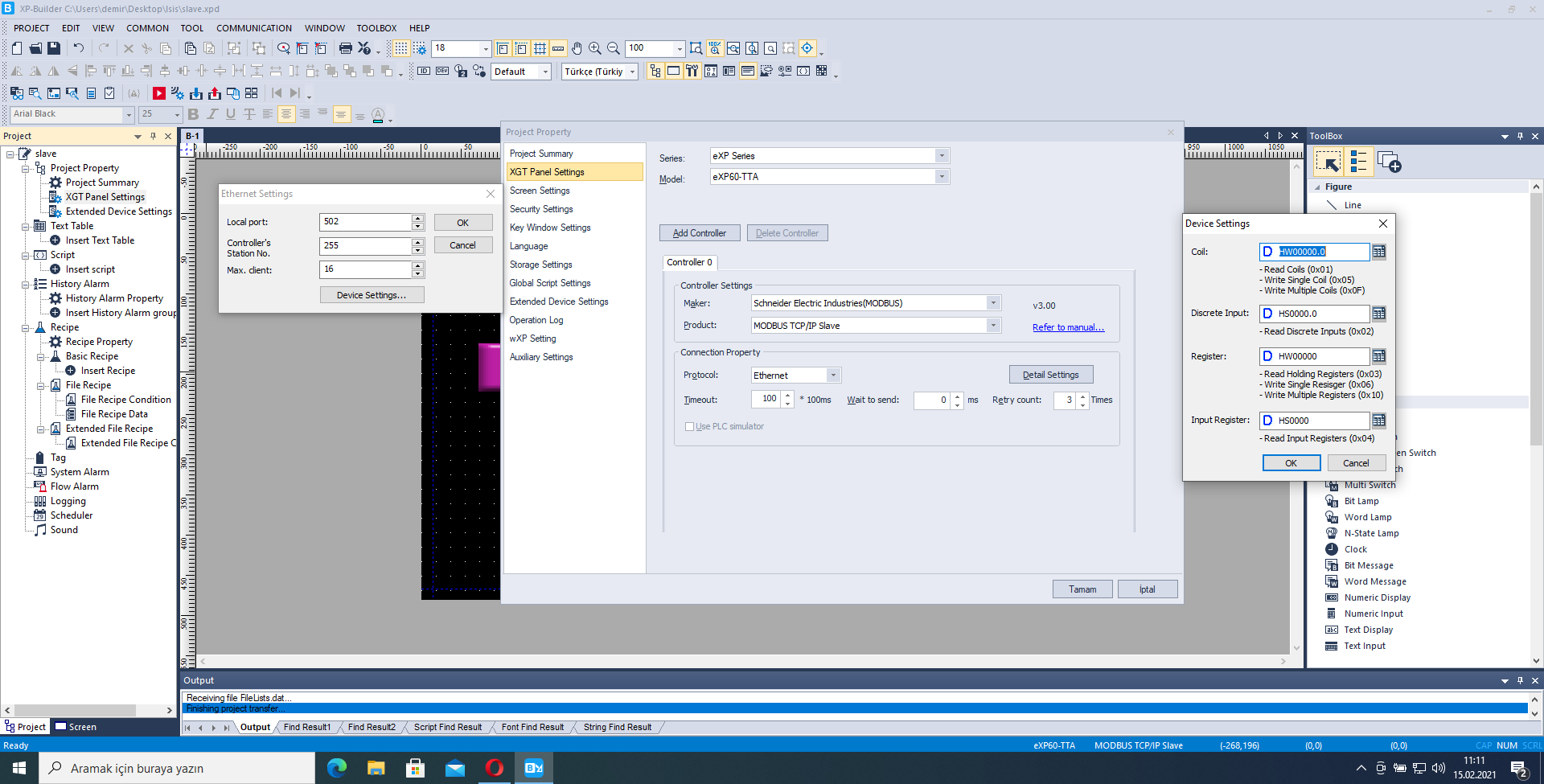 XP Builder — Modbus TCP address mapping
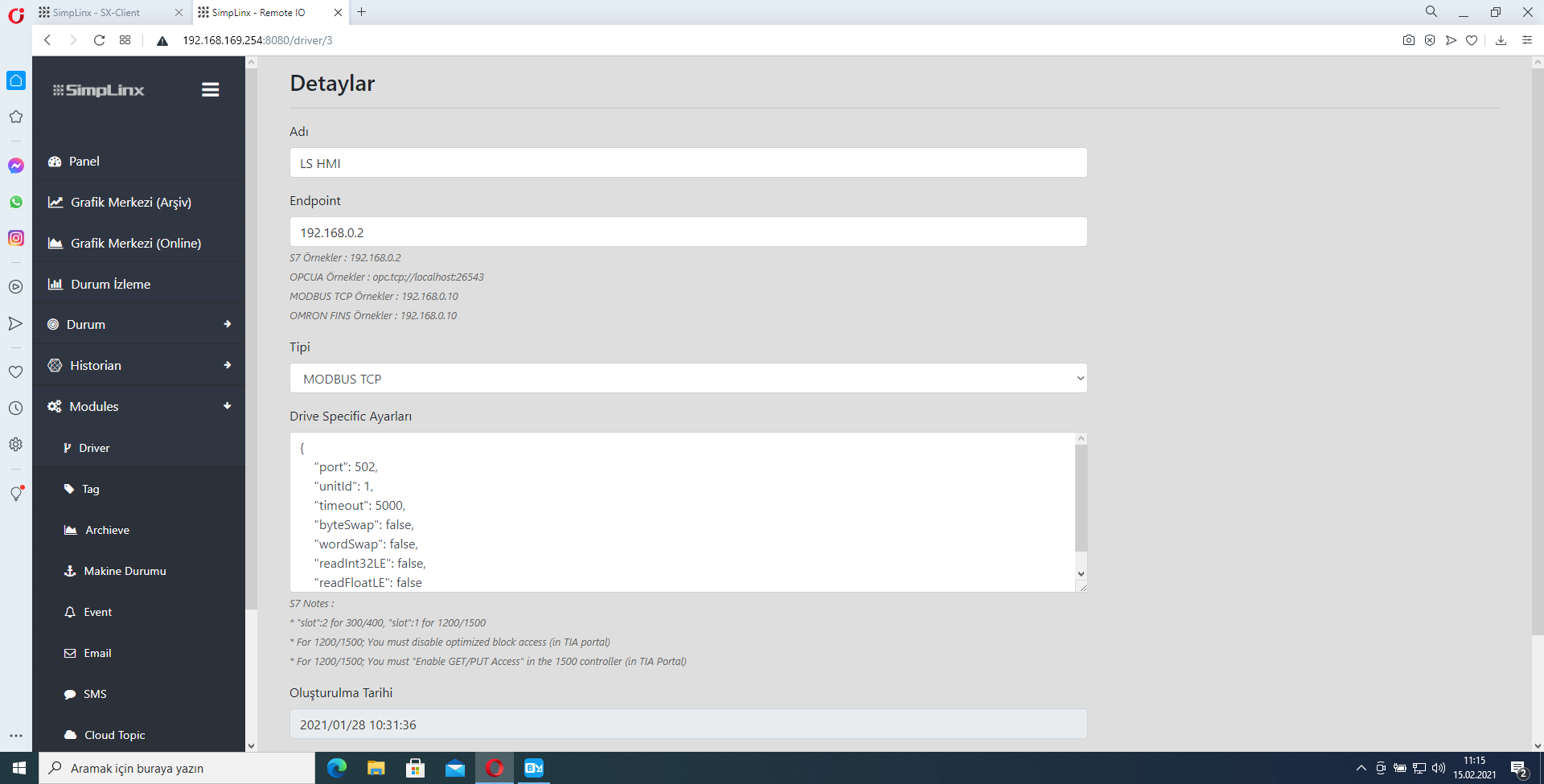 Remote IO — Add new Modbus TCP driver
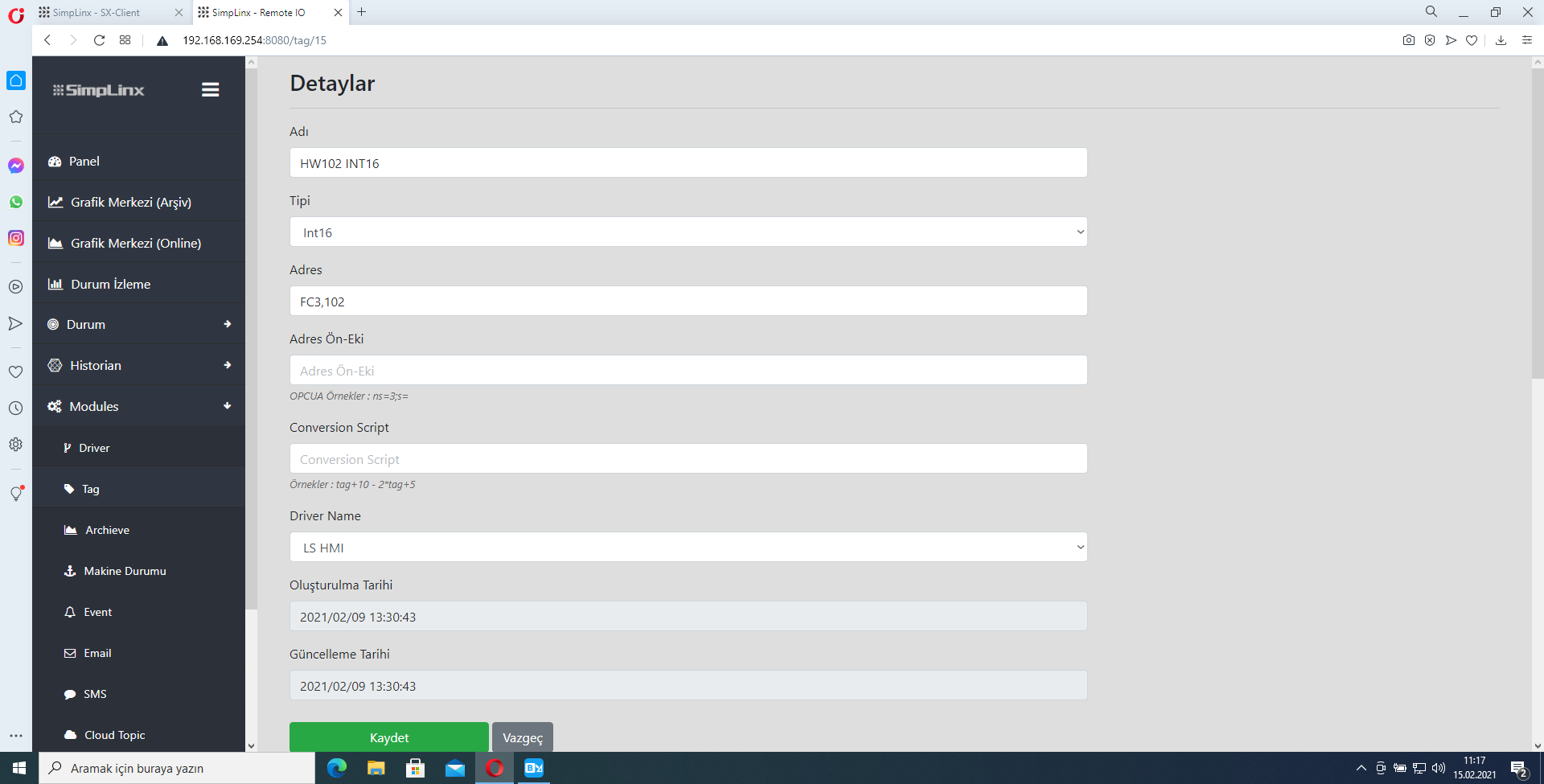 Remote IO — creating tags for LS register addresses (%MW0 → HR0)
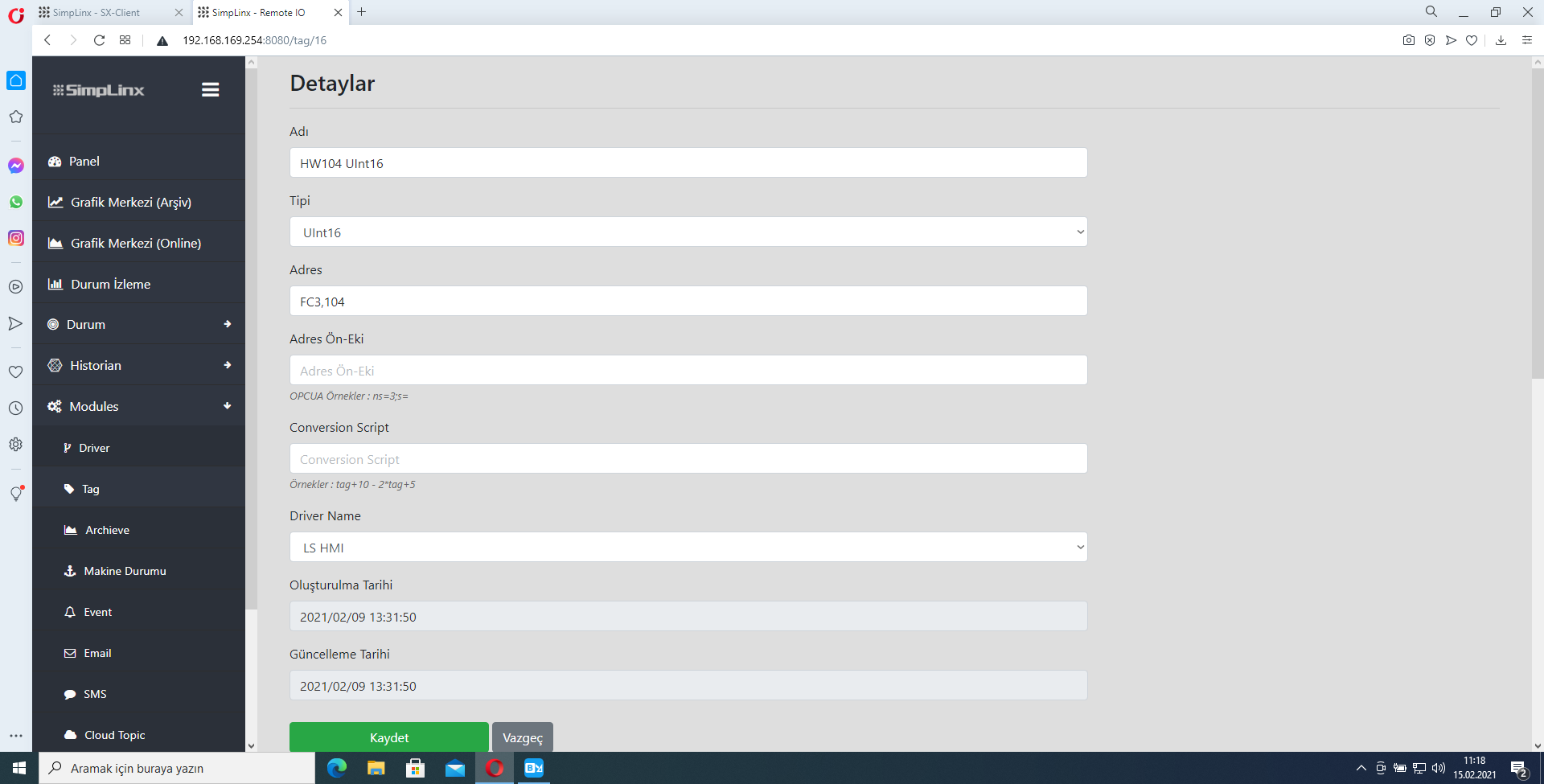 Remote IO — tag address and type configuration
 Remote IO — tag list
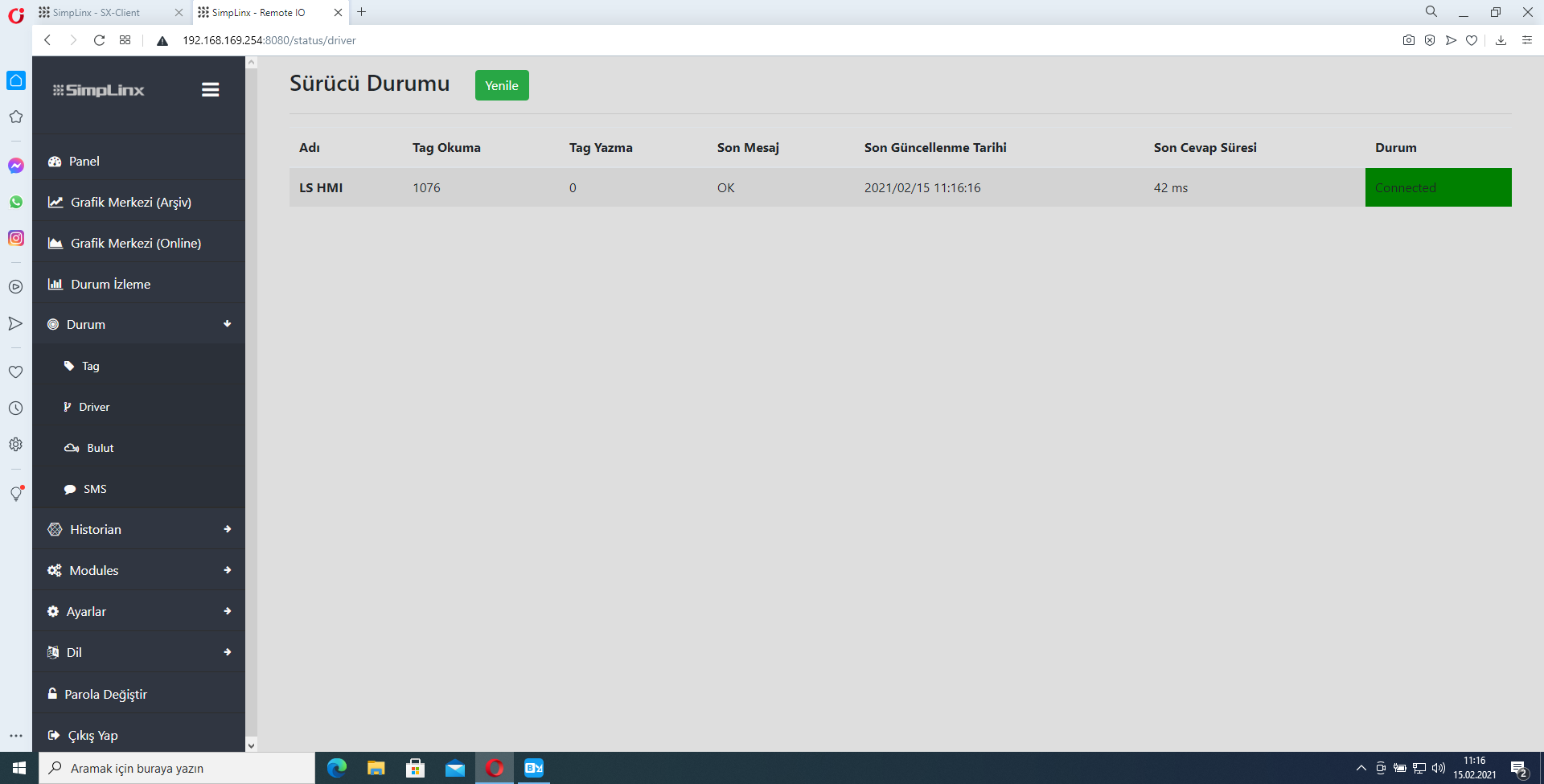 Remote IO — Driver status confirming connection to LS Electric panel
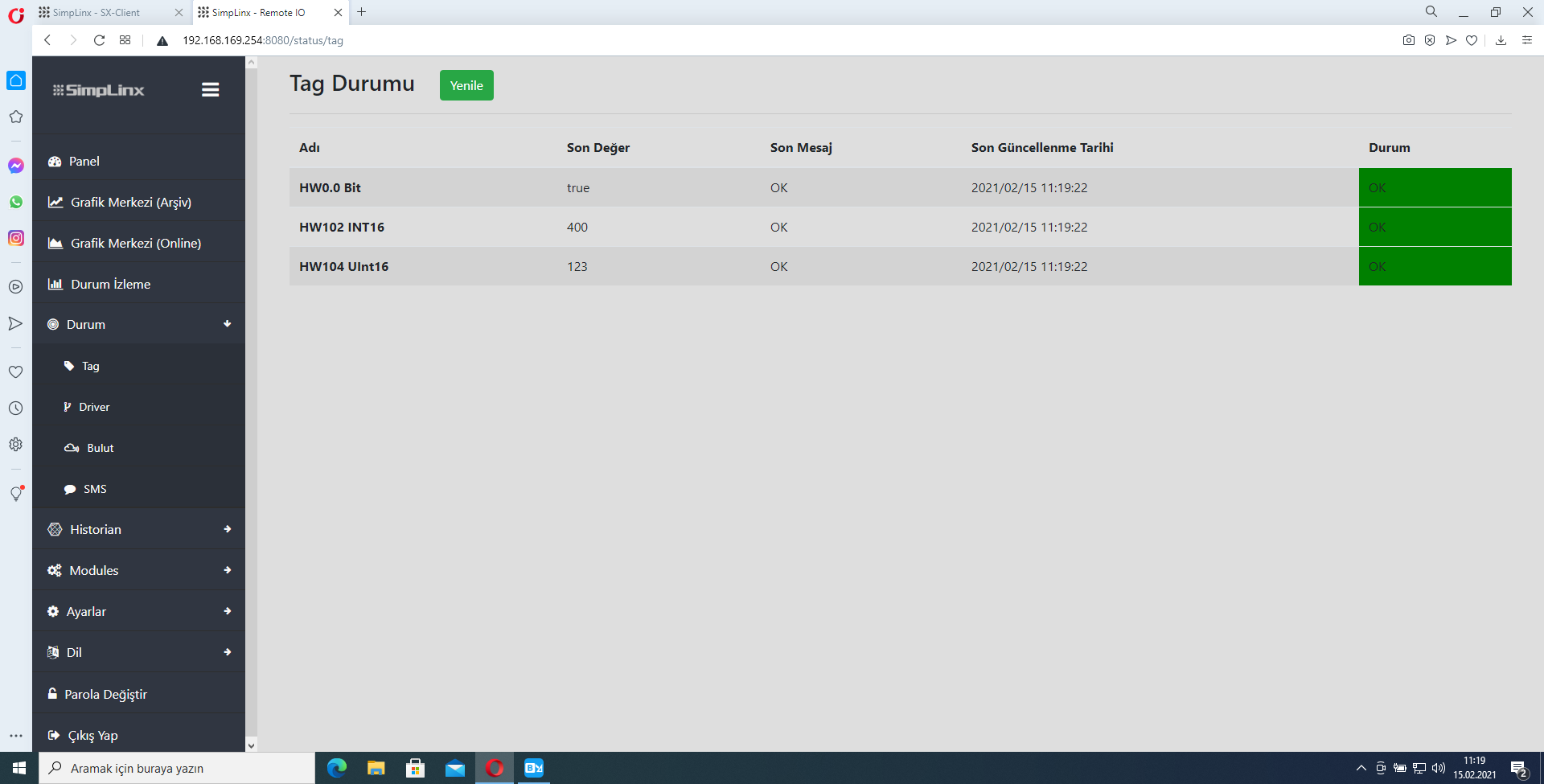 Remote IO — Tag status page showing live register values