
Siemens SIMOTION Remote Connection with SMX-RNS20
Overview
Section titled “Overview”Siemens SIMOTION controllers (D, C, and P platforms) use the PROFINET/Industrial Ethernet protocol for programming via SCOUT or TIA Portal. This guide shows how to configure an SMX-RNS20 so that SCOUT can reach the SIMOTION controller remotely.
The recommended connection and settings are illustrated in the screenshots below:
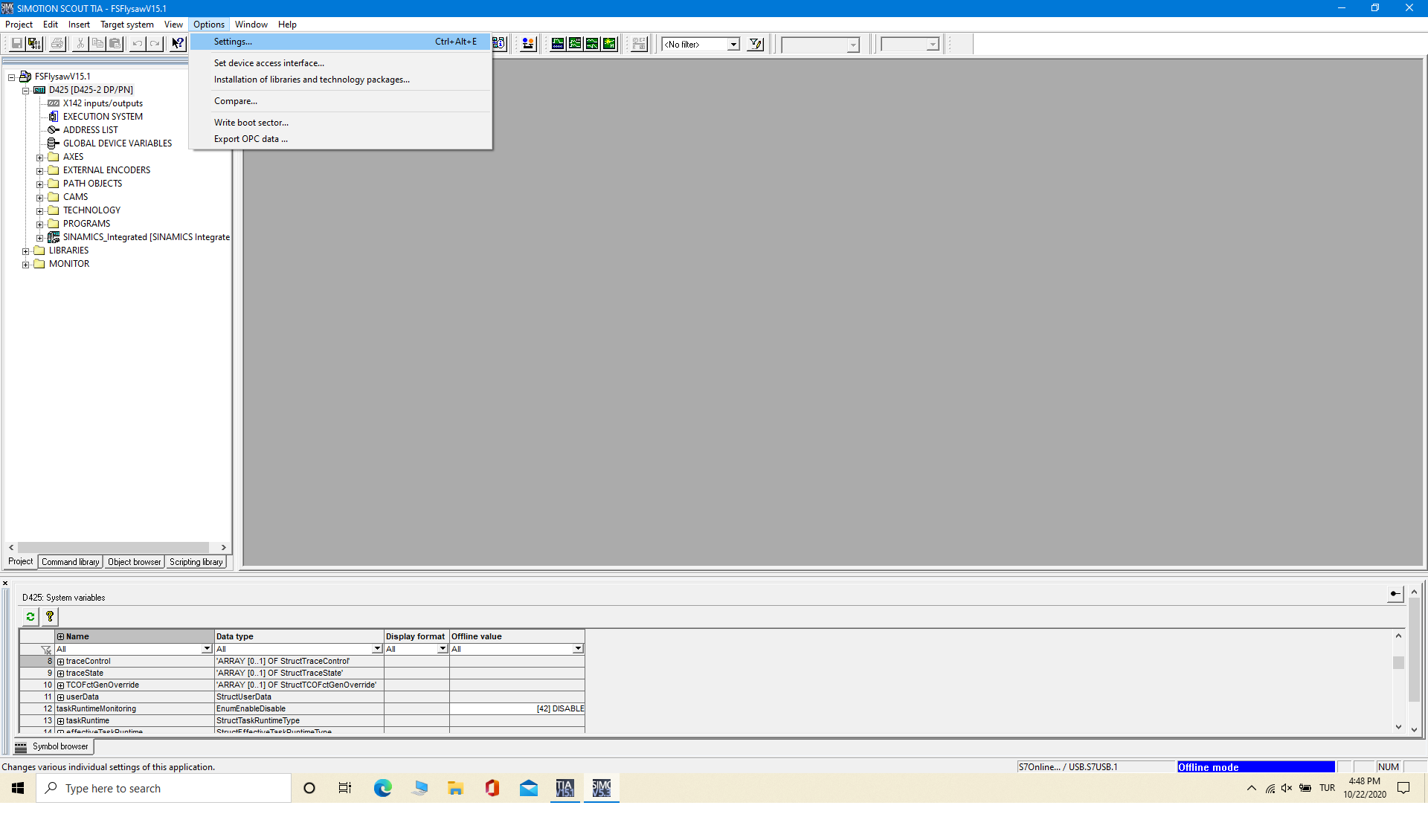 Step 1 — SIMOTION / SMX-RNS20 connection settings
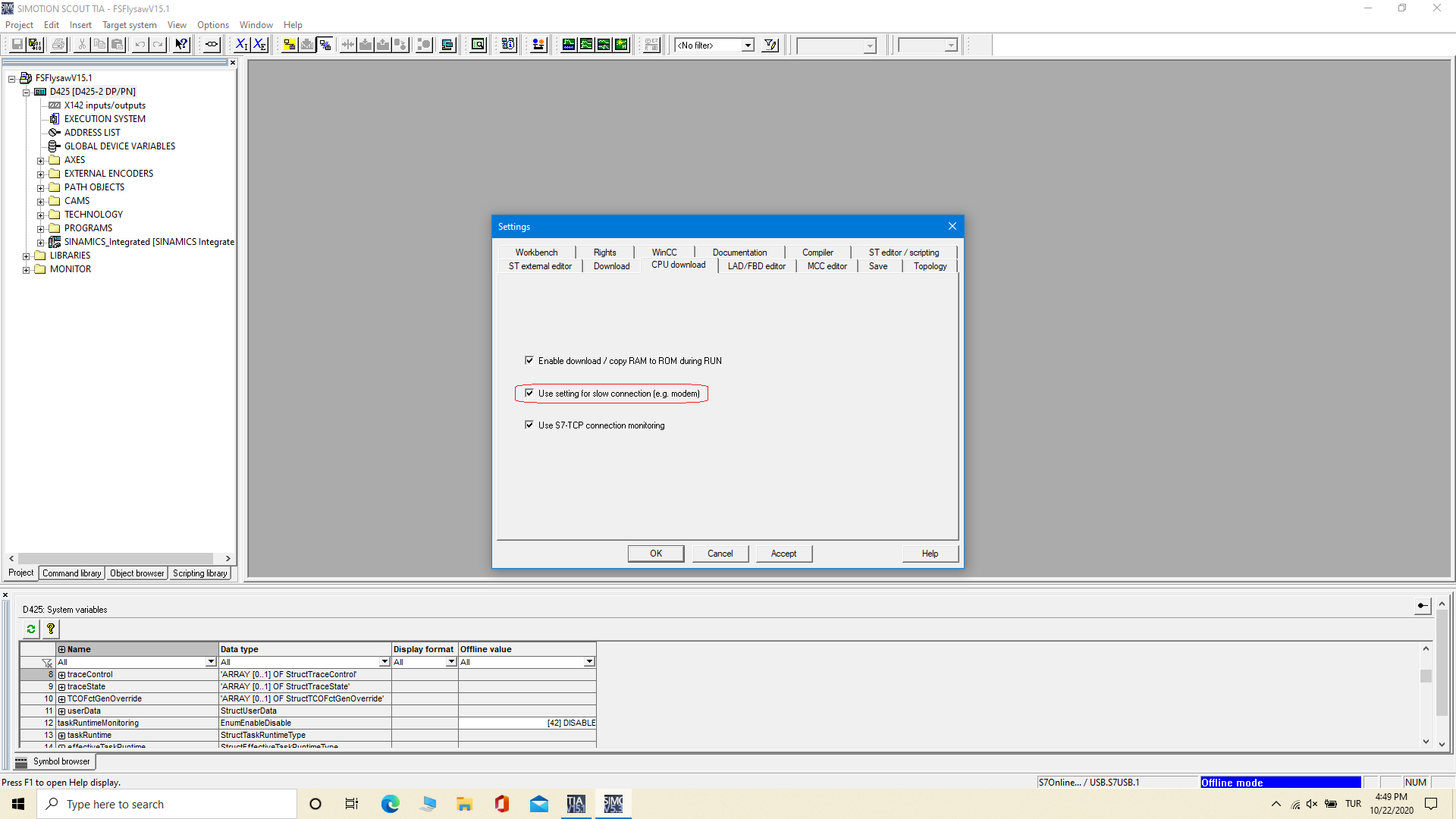 Step 2 — SIMOTION / SMX-RNS20 connection settings
Machine-Side Setup (SMX-RNS20)
Section titled “Machine-Side Setup (SMX-RNS20)”- Connect the SMX-RNS20’s LAN port to the same network switch as the SIMOTION controller.
- Log in to the SMX-RNS20 web interface (
192.168.1.1default) and verify the device is online and registered. - Under Network → LAN, note the subnet used. The SIMOTION controller’s IP must be in the same subnet as the SMX-RNS20 LAN interface.
- No additional port-forwarding rules are required — the SMX tunnel bridges the entire LAN subnet.
Engineering PC Setup (SX-Client)
Section titled “Engineering PC Setup (SX-Client)”- Open SX-Client and connect to the SMX-RNS20 device.
- Wait for the tunnel status to show Connected. A virtual network adapter will appear on your PC with an IP in the remote machine’s subnet.
- Open Siemens SIMOTION SCOUT or TIA Portal.
- In SCOUT, go to Set PG/PC Interface and select TCP/IP → [your PC’s virtual adapter].
- Perform an “Accessible Nodes” scan — the SIMOTION controller should appear.
- Connect to the controller and proceed with programming or diagnostics as normal.