
SMX-RNS20 Remote Access to Weintek HMI
Overview
Section titled “Overview”Weintek HMI panels (cMT, MT8000, eMT series) have an Ethernet port and can be remotely accessed for project upload/download, live monitoring, and VNC-based remote display. The SMX-RNS20 tunnels the connection without requiring any port forwarding or firewall changes.
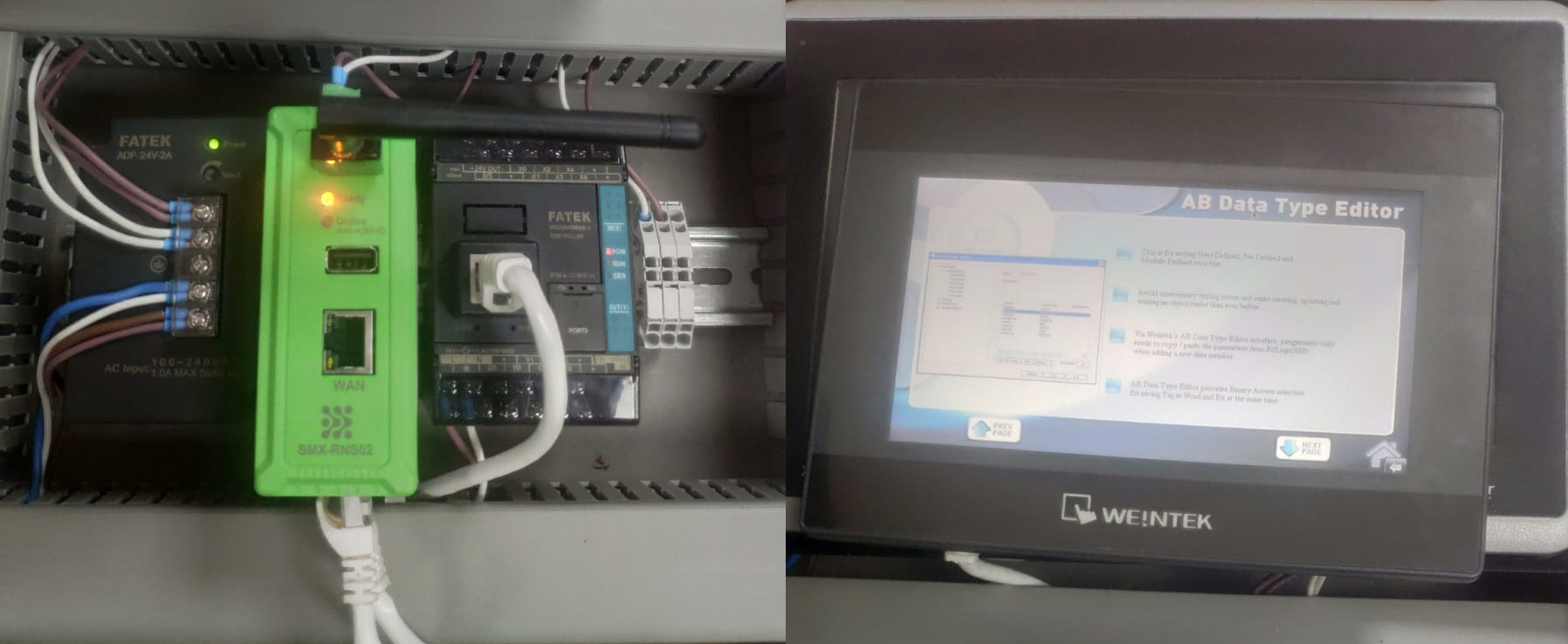 Hardware setup — SMX-RNS20 LAN port connected to the same switch as the Weintek HMI
Steps — EasyBuilder Pro Connection
Section titled “Steps — EasyBuilder Pro Connection”- Connect the SMX-RNS20’s LAN port to the same switch as the Weintek HMI. Confirm the HMI has a static IP.
- On your engineering PC, connect to the SMX-RNS20 via SX-Client. Wait for Connected status.
- Open EasyBuilder Pro (EBPro). Go to File → Download or Tools → Pass-Through.
- In the IP address field, enter the Weintek HMI’s IP address (e.g.,
192.168.1.20). - Click Download — EBPro will connect through the SMX tunnel as if on the local network.
Remote Screen Monitoring (VNC)
Section titled “Remote Screen Monitoring (VNC)”Weintek HMIs include a built-in VNC server for remote screen monitoring:
- In EBPro, enable VNC Server in System Parameters → Model.
- After establishing the SX-Client tunnel, open any VNC viewer and connect to the HMI’s IP on port 5900.
- You will see the live HMI screen. Touch input can also be forwarded depending on HMI firmware version.
Screenshots — EasyBuilder Pro & VNC
Section titled “Screenshots — EasyBuilder Pro & VNC”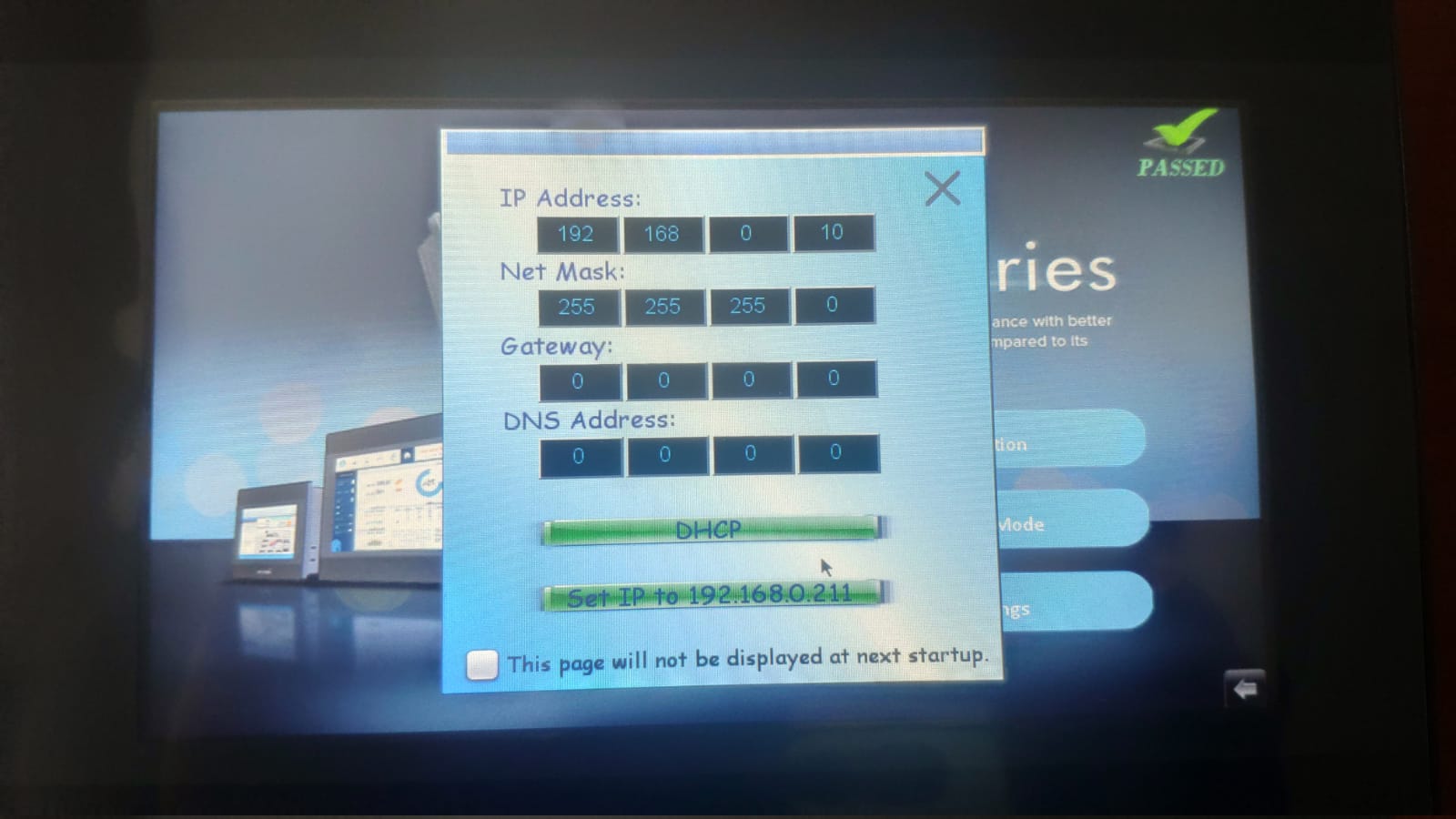 Weintek panel settings — configure the panel IP address before connecting
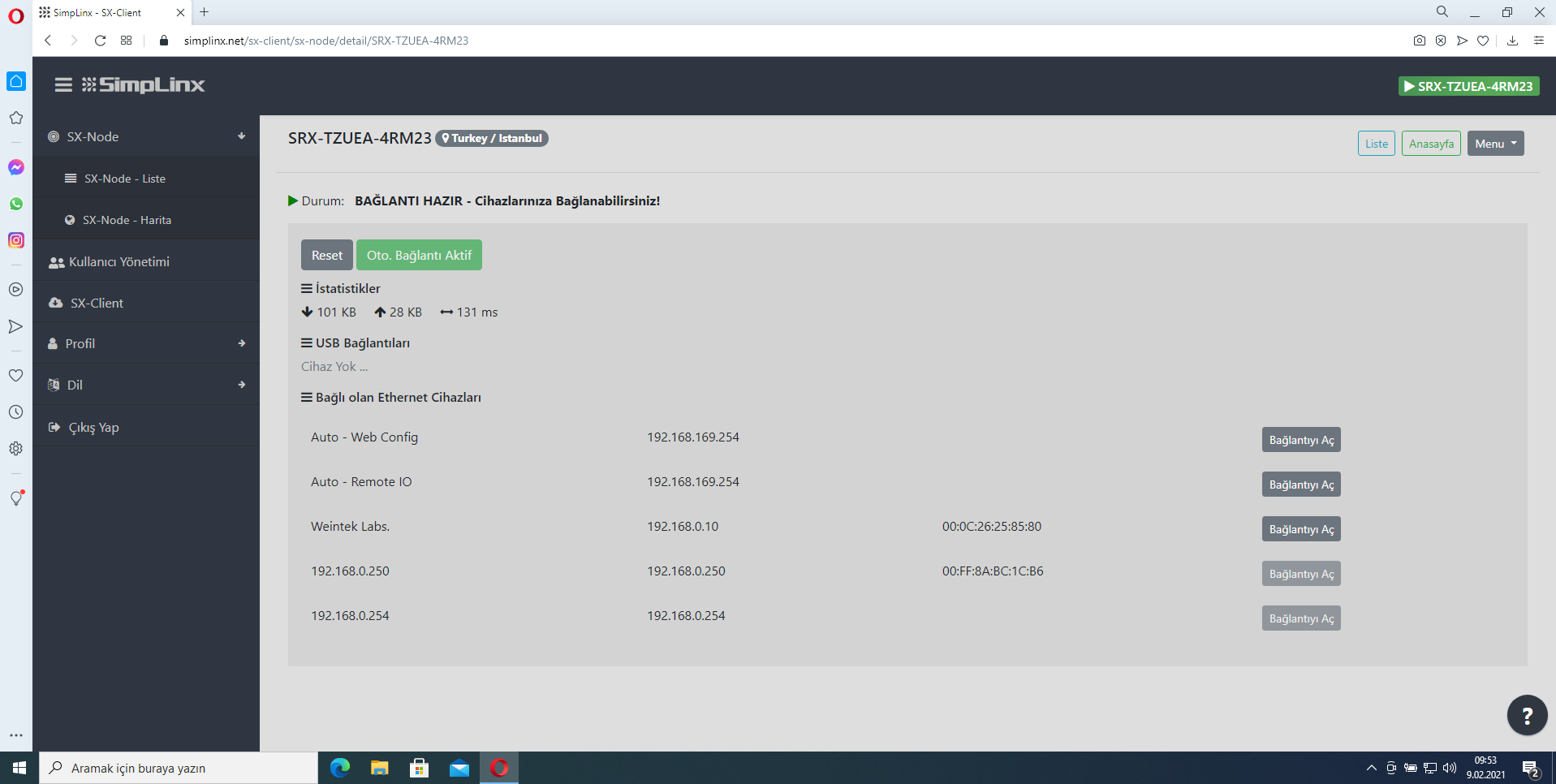 SX-Client — Weintek HMI appears in the connected device list
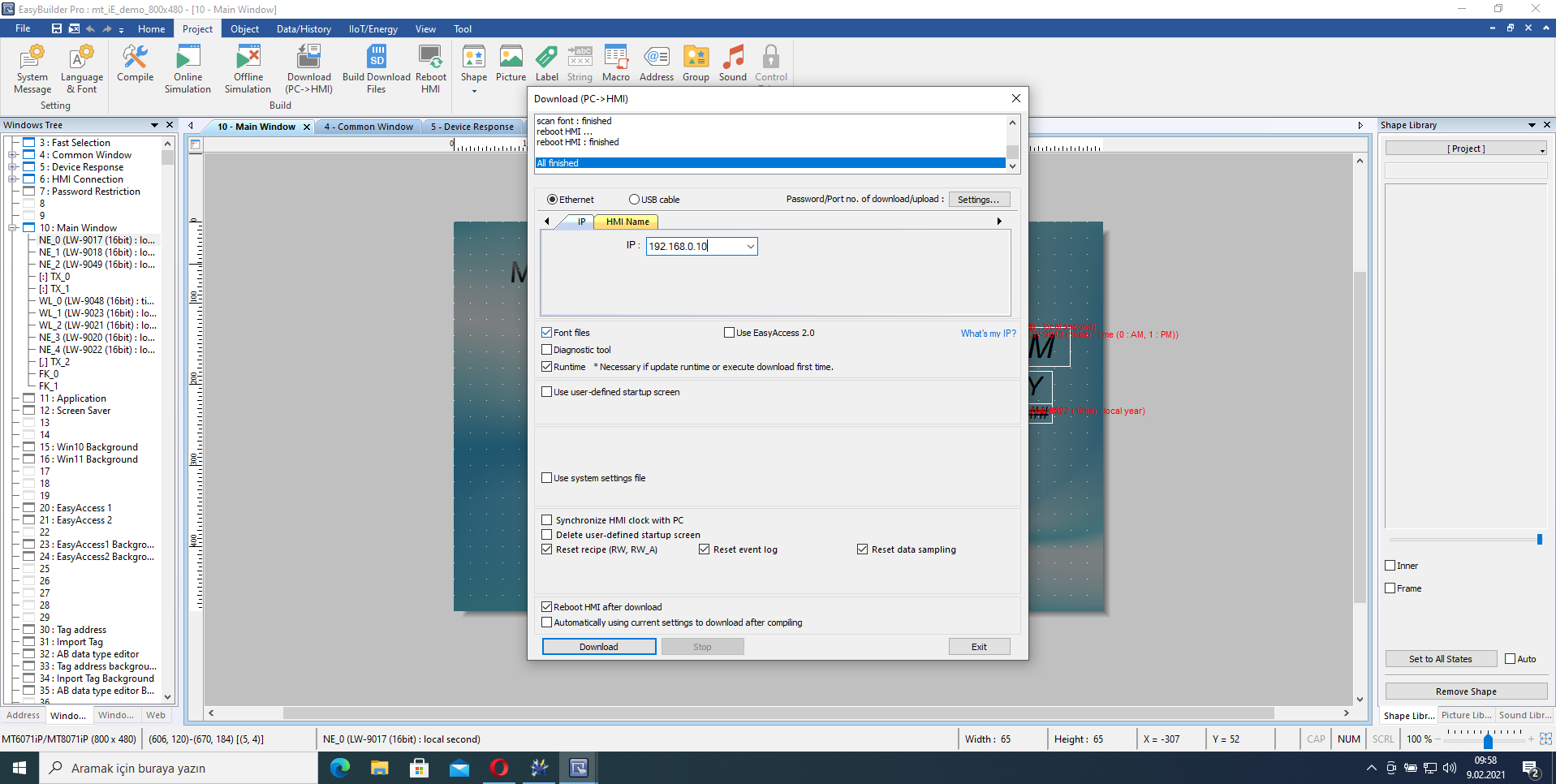 EasyBuilder Pro — File → Download with the HMI IP address entered
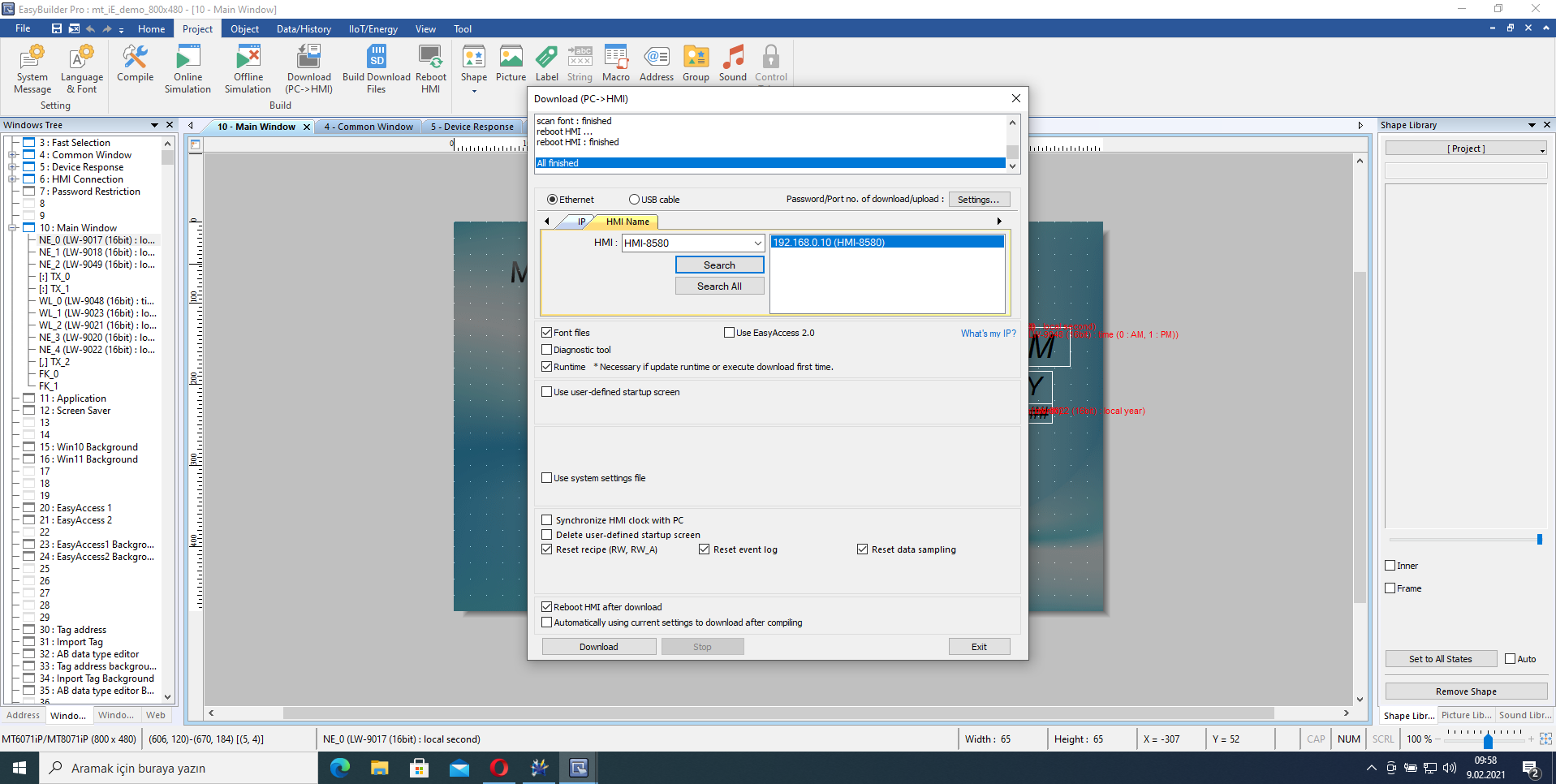 EasyBuilder Pro — project upload/download in progress over the SMX tunnel