
SMX-RNS20 Remote Access to Yaskawa Drives & Controllers
Overview
Section titled “Overview”Yaskawa devices can be accessed remotely using the SMX-RNS20 for both programming (via MotionWorks IEC or DriveWizard) and runtime monitoring. The SMX tunnel appears as a standard Ethernet connection to the Yaskawa toolchain.
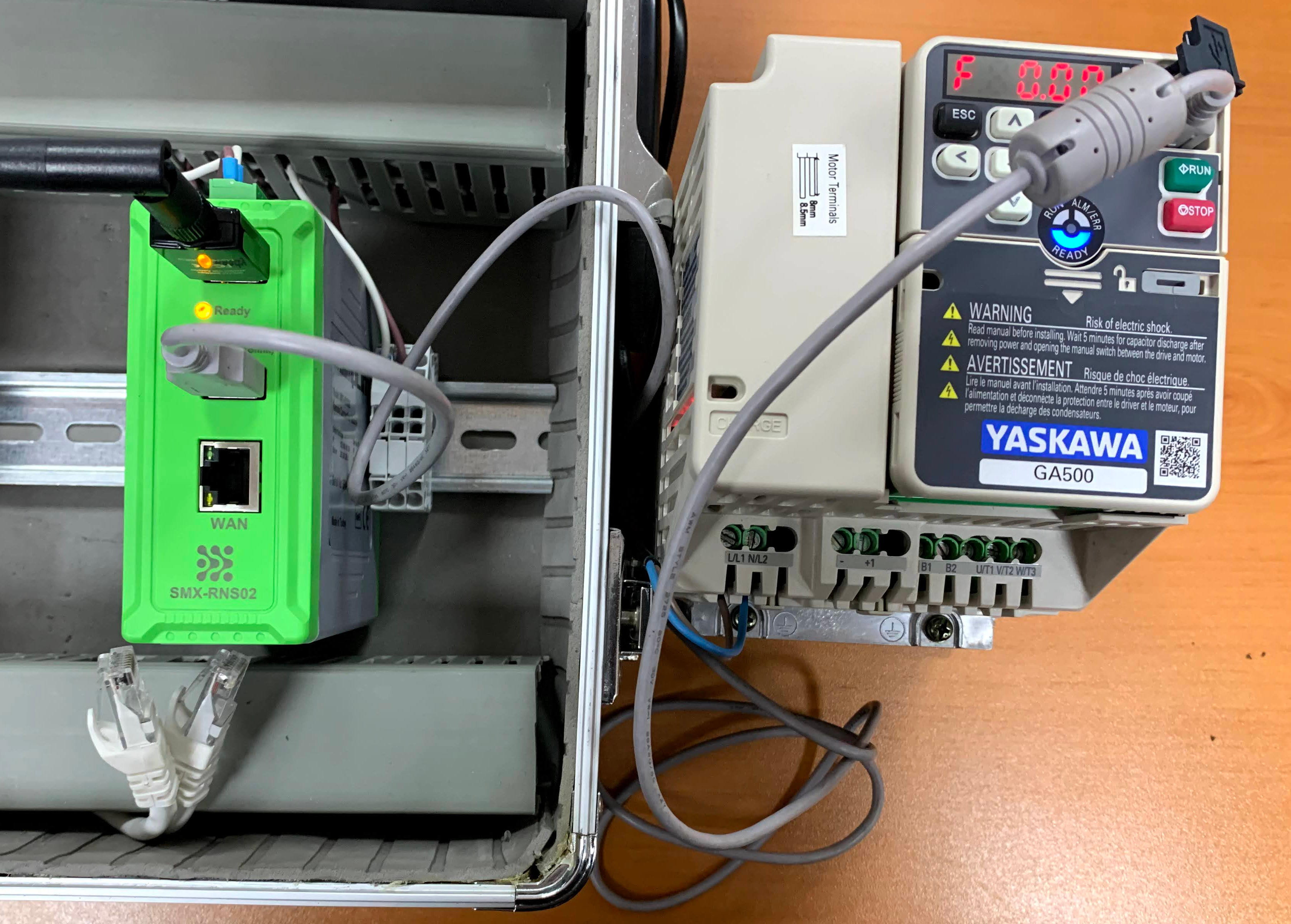 System setup — SMX-RNS20 with Yaskawa GA500 drive and USB cable
Supported Tools
Section titled “Supported Tools”| Tool | Use |
|---|---|
| MotionWorks IEC | Programming Yaskawa MP-series machine controllers |
| DriveWizard Industrial | Parameter setting and monitoring for Sigma-7 servo drives |
| MPE720 | Legacy MP-series programming environment |
- Connect the SMX-RNS20’s LAN port to the same network switch as the Yaskawa device (MP controller or servo amplifier Ethernet card).
- Verify the Yaskawa device has a static IP on the SMX-RNS20 LAN subnet.
- On the engineering PC, open SX-Client and connect to the SMX-RNS20. Wait for the tunnel status to show Connected.
- Open MotionWorks IEC (or DriveWizard). In the communications settings, select TCP/IP and use the Yaskawa device’s IP address directly.
- Proceed with programming, parameter changes, or drive monitoring as usual.
Screenshots — DriveWizard Industrial
Section titled “Screenshots — DriveWizard Industrial”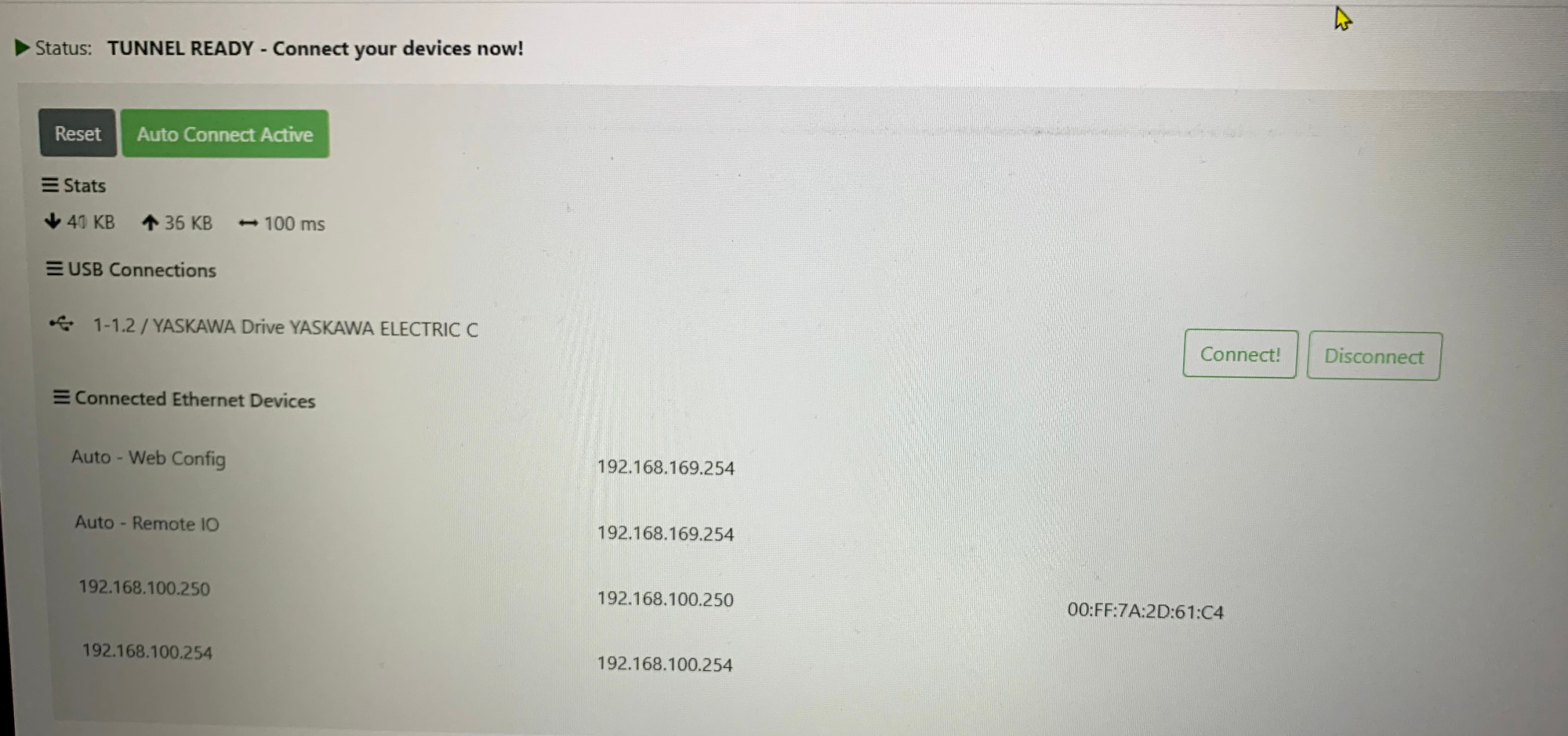 SX-Client — connected devices list showing Yaskawa drive
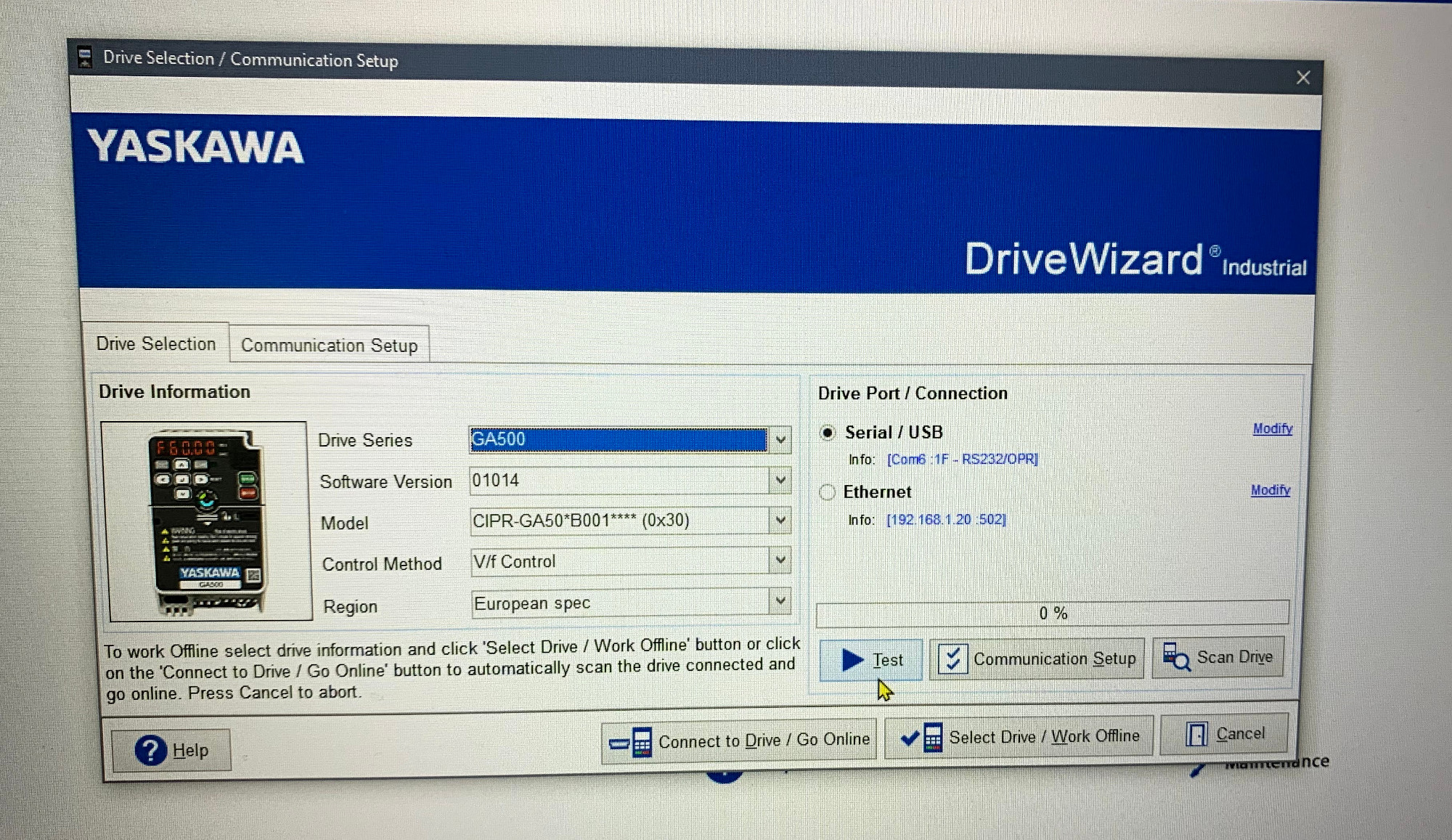 DriveWizard Industrial — Drive Selection configuration
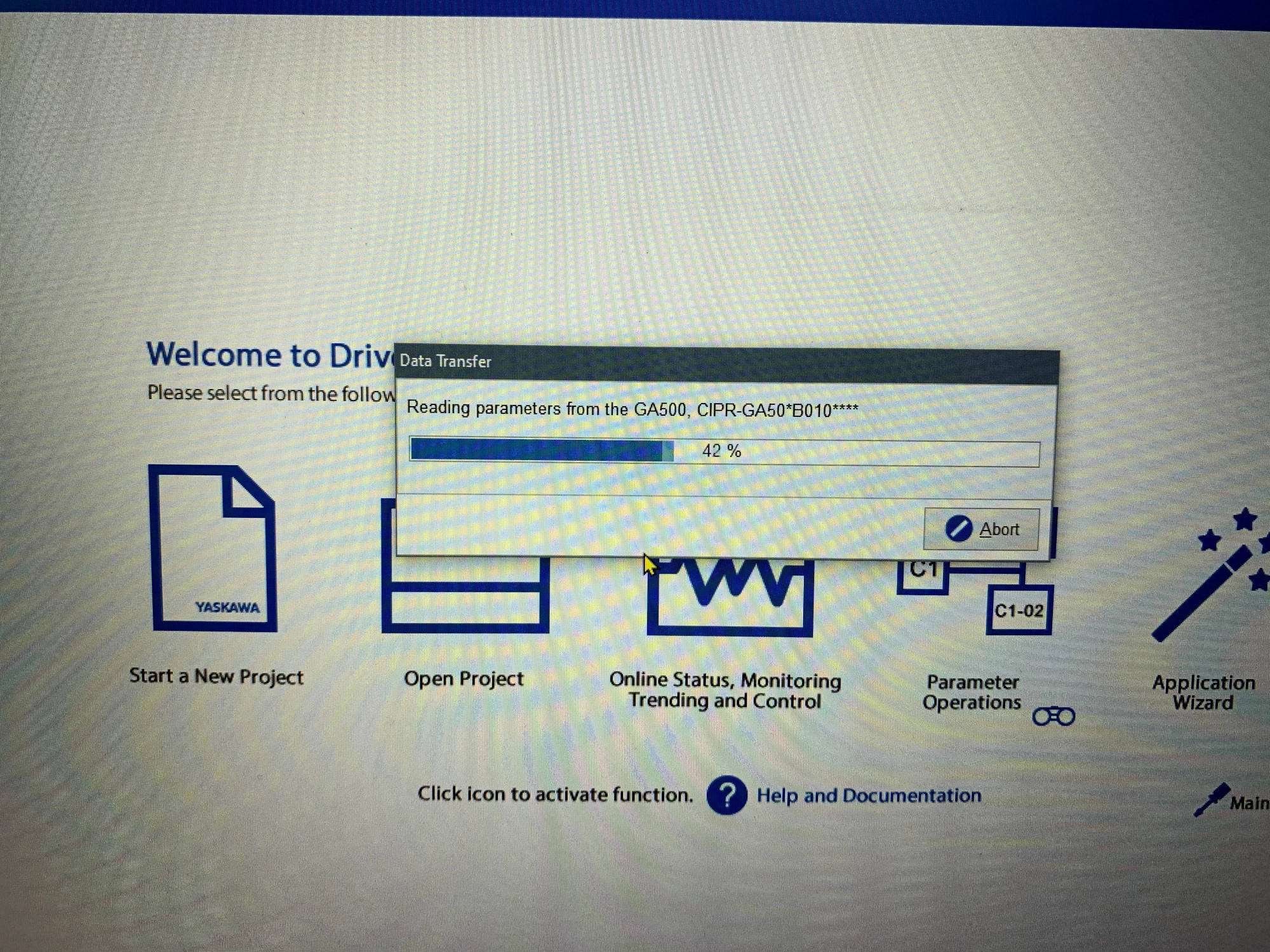 DriveWizard Industrial — reading back drive parameters
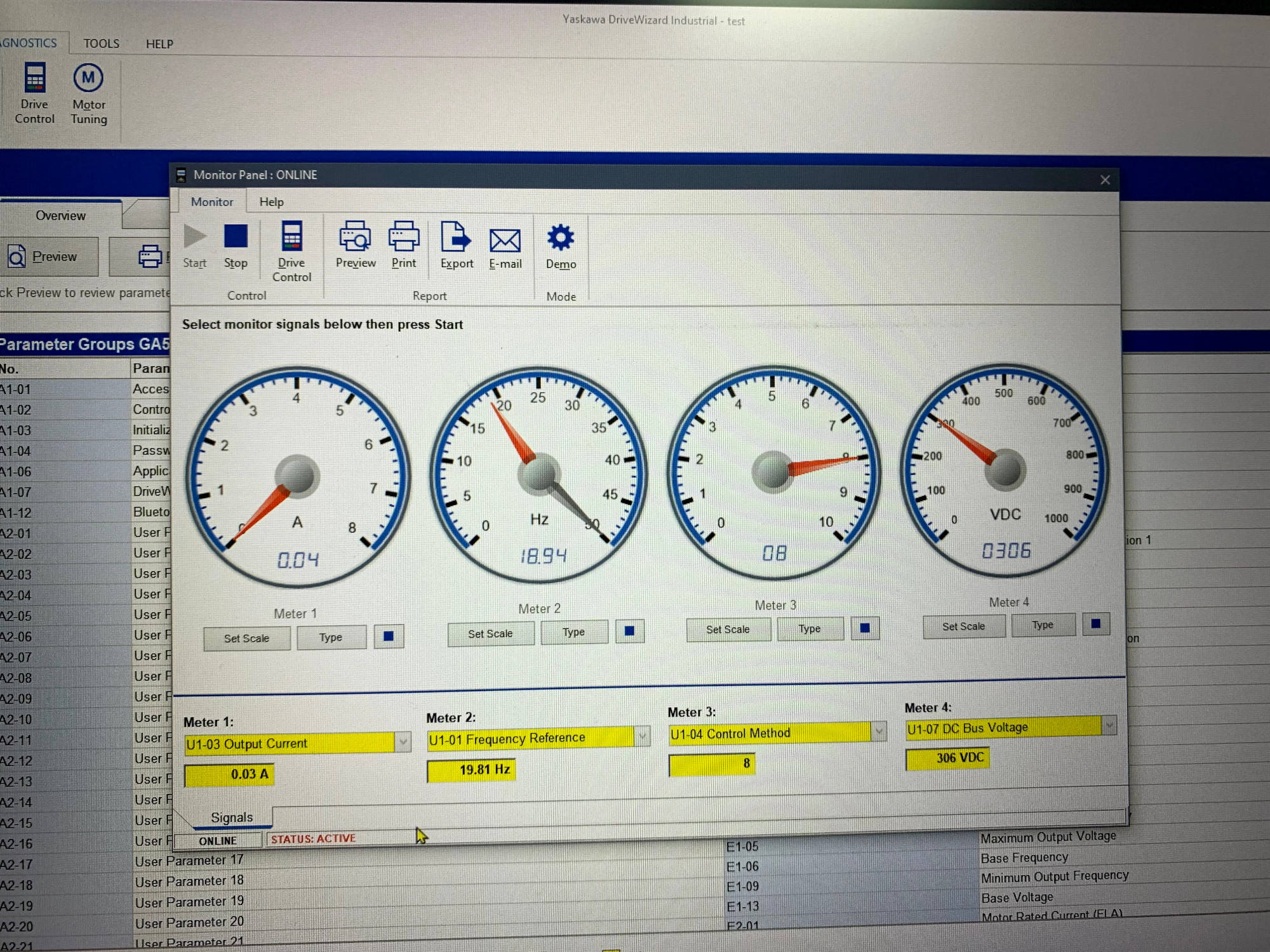 DriveWizard Industrial — Monitor & Trace
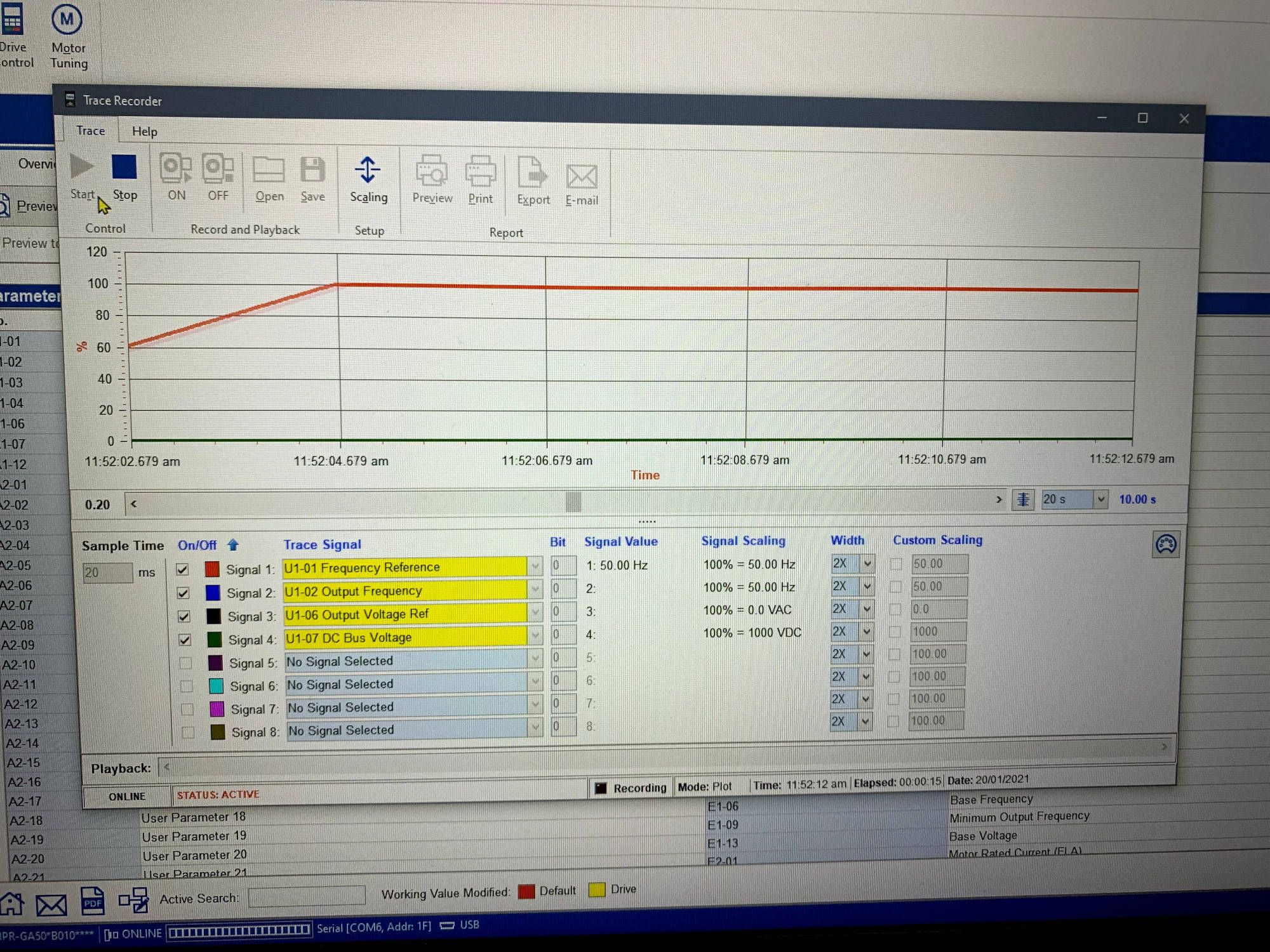 DriveWizard Industrial — trace data view