
Connection Problem with Invalid VNC Version
Problem
Section titled “Problem”When trying to open a remote VNC display through SX-Client, you may see an error such as “Invalid VNC version” or the VNC viewer connects but immediately disconnects.
Root cause: The VNC server running on the remote device (PLC panel, HMI, or computer) is using a VNC protocol version that is incompatible with the VNC viewer configured in SX-Client.
Compatible VNC Versions
Section titled “Compatible VNC Versions”SX-Client’s built-in VNC viewer supports the following protocol versions:
RFB 003.003RFB 003.007RFB 003.008
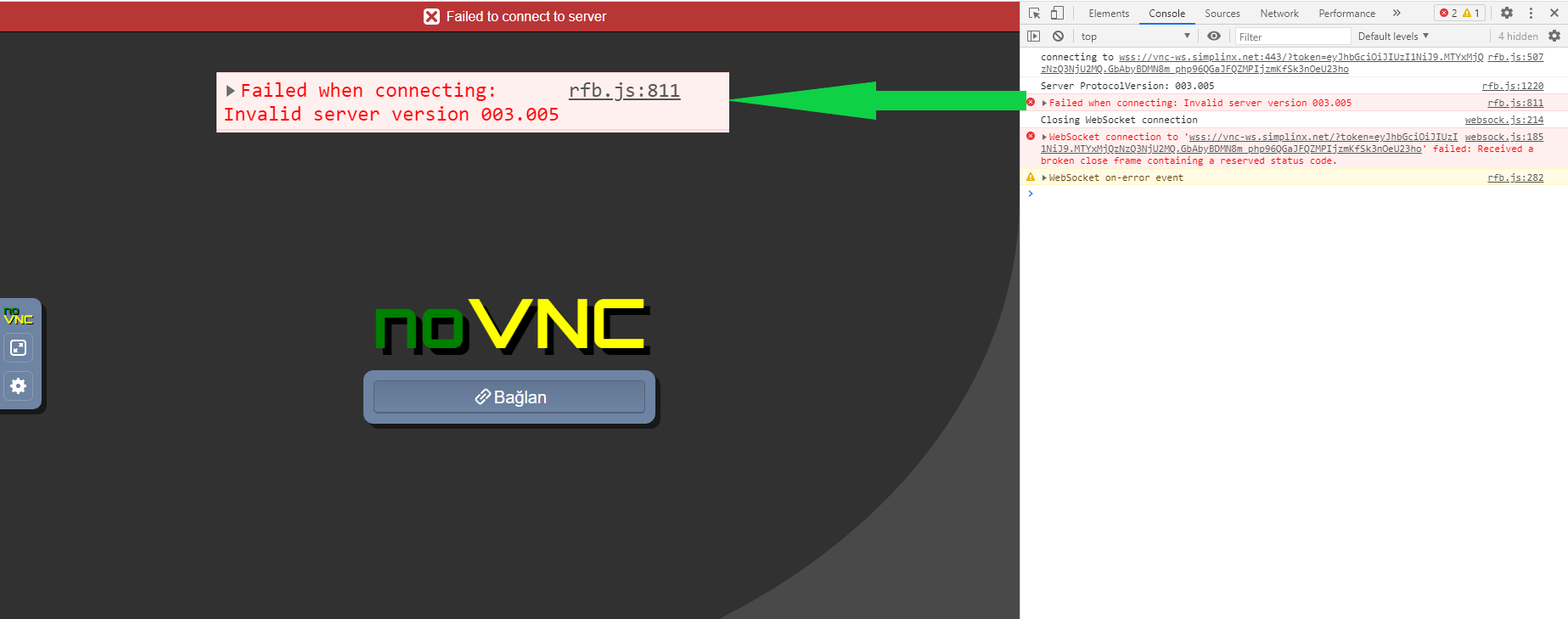 Browser console showing “Invalid server version” error for an unsupported VNC protocol (e.g., 003.005)
Solutions
Section titled “Solutions”Option A — Use an external VNC viewer
Section titled “Option A — Use an external VNC viewer”Instead of using SX-Client’s built-in viewer, use a standalone VNC client (such as RealVNC Viewer, TightVNC, or UltraVNC) and connect it to the forwarded local port that SX-Client creates after establishing the tunnel.
- Open SX-Client and connect to the remote device.
- Note the local port assigned to the VNC service (shown in the connection panel).
- Open your preferred VNC viewer and connect to
127.0.0.1:[port].
Option B — Change the VNC server version on the remote device
Section titled “Option B — Change the VNC server version on the remote device”If you have access to the VNC server settings on the remote HMI or computer, configure it to use RFB 3.8 protocol. Refer to your VNC server software’s documentation for how to set the minimum/maximum protocol version.