
How to Use Quick Support
What Is Quick Support?
Section titled “What Is Quick Support?”Quick Support is a feature that allows a Simplinx technician (or your own engineer) to connect directly to a remote PC — even if that PC has no SMX device attached. The remote computer runs a lightweight Quick Support Client application that creates a temporary, one-time tunnel through the Simplinx cloud.
This is ideal for ad-hoc support sessions: commissioning help, remote diagnostics, or training — without needing to install a full SMX device at that location.
Steps — Remote PC (Customer Side)
Section titled “Steps — Remote PC (Customer Side)”Right-click the SX-Client icon in the system tray and select Quick Support from the menu.
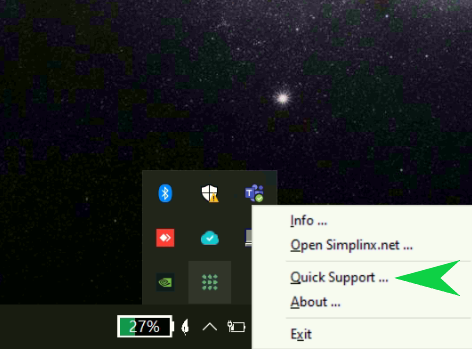 Right-click the SX-Client tray icon and select Quick Support
The Quick Support window opens. Enter your name and surname so the technician can identify the session, then share the displayed session code.
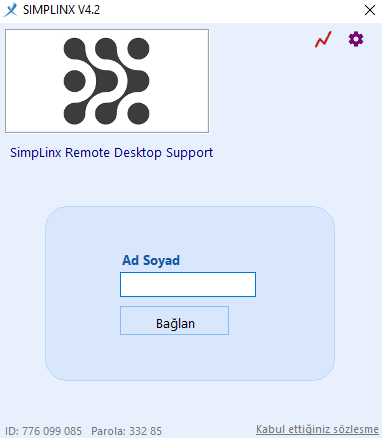 Enter your name and surname — the session code will appear for you to share with the technician
Alternative: If the tray icon method is unavailable, double-click the SIMPLINXCMXD file in Program Files (x86)\Simplinx\sx-client\support.
Steps — SX-Client (Technician Side)
Section titled “Steps — SX-Client (Technician Side)”- Open SX-Client on your computer.
- Click the Quick Support menu item or button.
- Enter the session code provided by the customer.
- Click Connect. SX-Client will establish a tunnel to the remote PC.
- Use the forwarded services (Remote Desktop, VNC, etc.) as you would for any normal remote connection.