
Cloud Dashboard — Topics & Data Points
What Is a “Topic”?
Section titled “What Is a “Topic”?”In the Simplinx cloud, a topic is a named channel that carries a stream of time-series values from a device. Topics follow an MQTT-style hierarchy:
<account>/<device-id>/<tag-name>For example: simplinx/smx-00123/temperature_avg
Data Point Types
Section titled “Data Point Types”| Type | Description |
|---|---|
| Numeric (float) | Continuous measurement values — temperature, pressure, speed, production count. |
| Boolean | Binary states — machine running, alarm active, door open. |
| String | Text values — current recipe name, active fault code, operator ID. |
| Aggregated | Pre-computed averages, sums, min/max over a time window — configured in the device before upload. |
Configuring Dashboard Widgets
Section titled “Configuring Dashboard Widgets”- Log in to the Simplinx cloud portal and navigate to Dashboard → Edit.
- Click Add Widget and select the widget type (gauge, line chart, bar chart, value card, etc.).
- In the widget’s topic selector, browse or type the topic name for the data point you want to display.
- Set the time range, aggregation function (last value, average, sum), and display formatting.
- Drag and resize widgets to arrange your dashboard layout.
- Click Save Dashboard. The widgets update in real-time as data arrives from the device.
Screenshots
Section titled “Screenshots”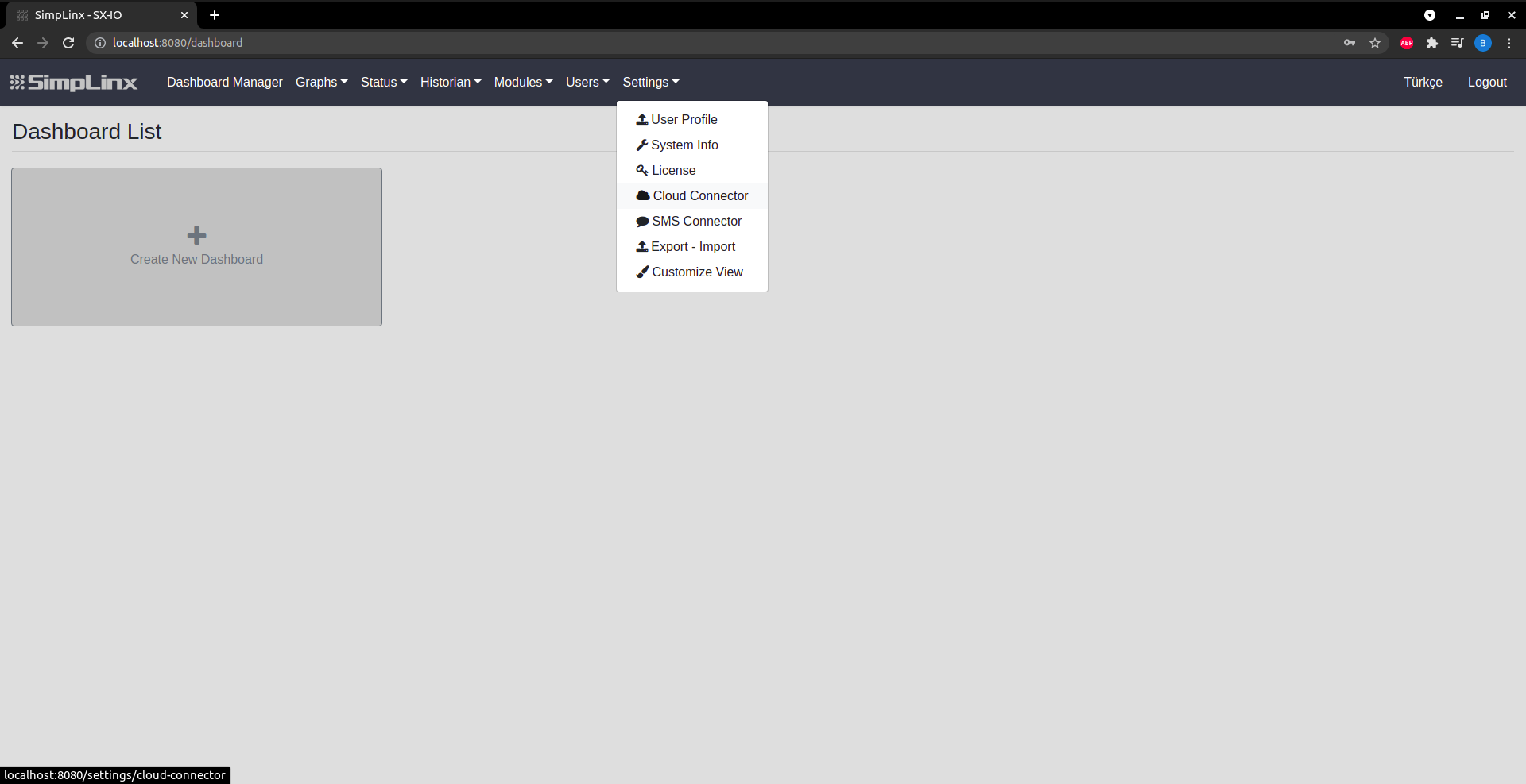 Step 1 — Settings → Cloud Connector: configure cloud connection
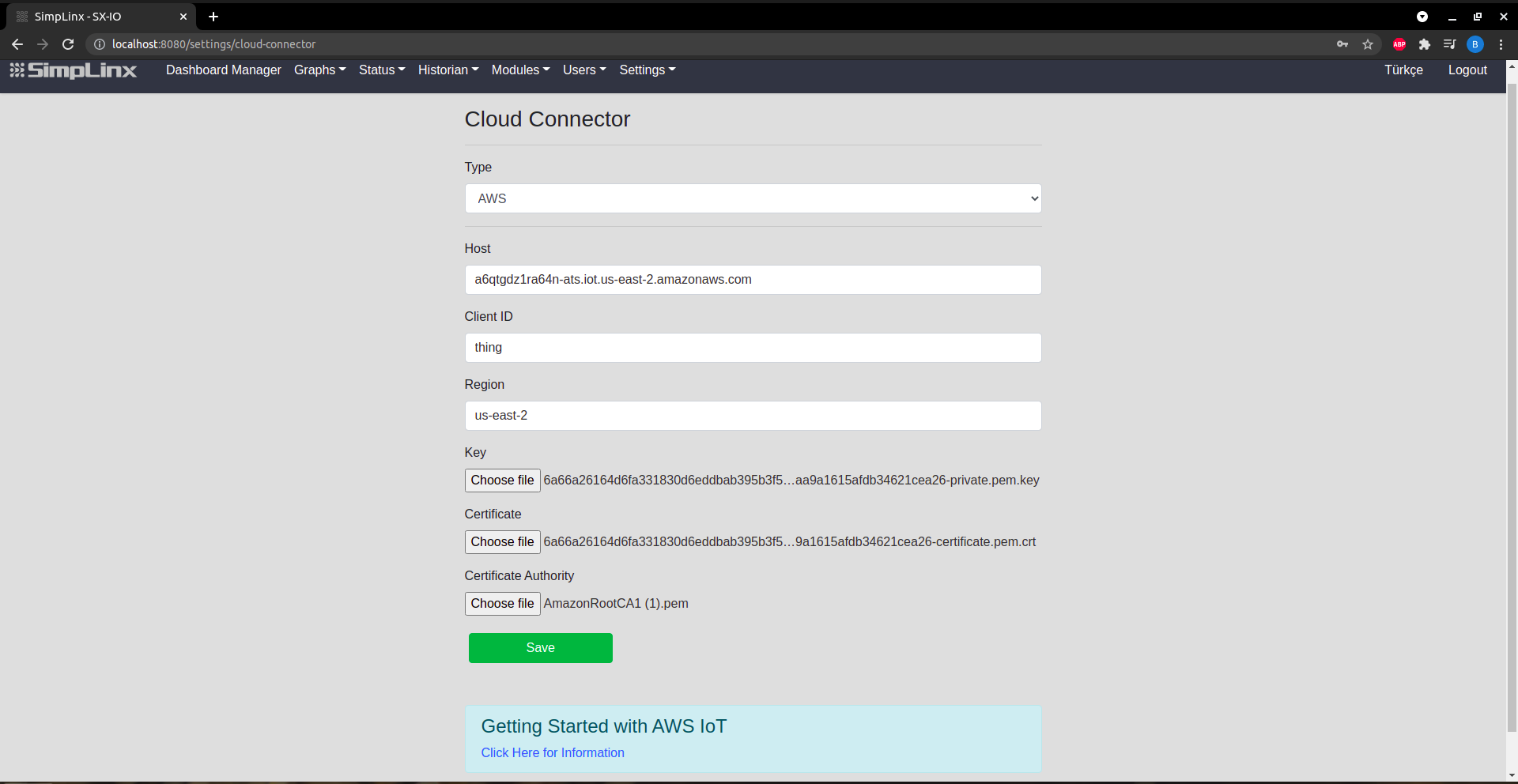 Step 1 (continued) — Cloud Connector settings: Host, Client ID, Region, certificates
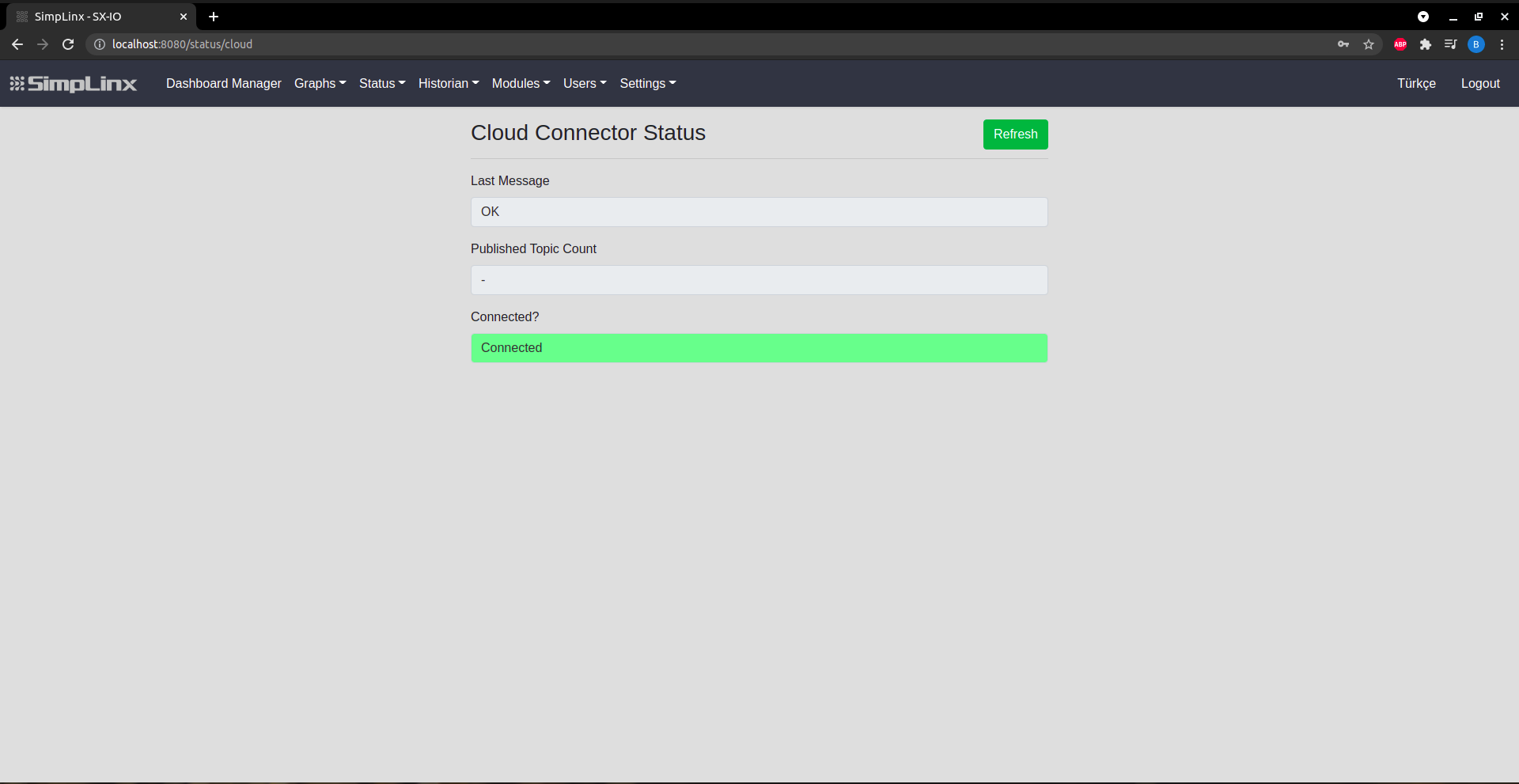 Step 2 — Status → Cloud Connector: green indicator confirms cloud connection
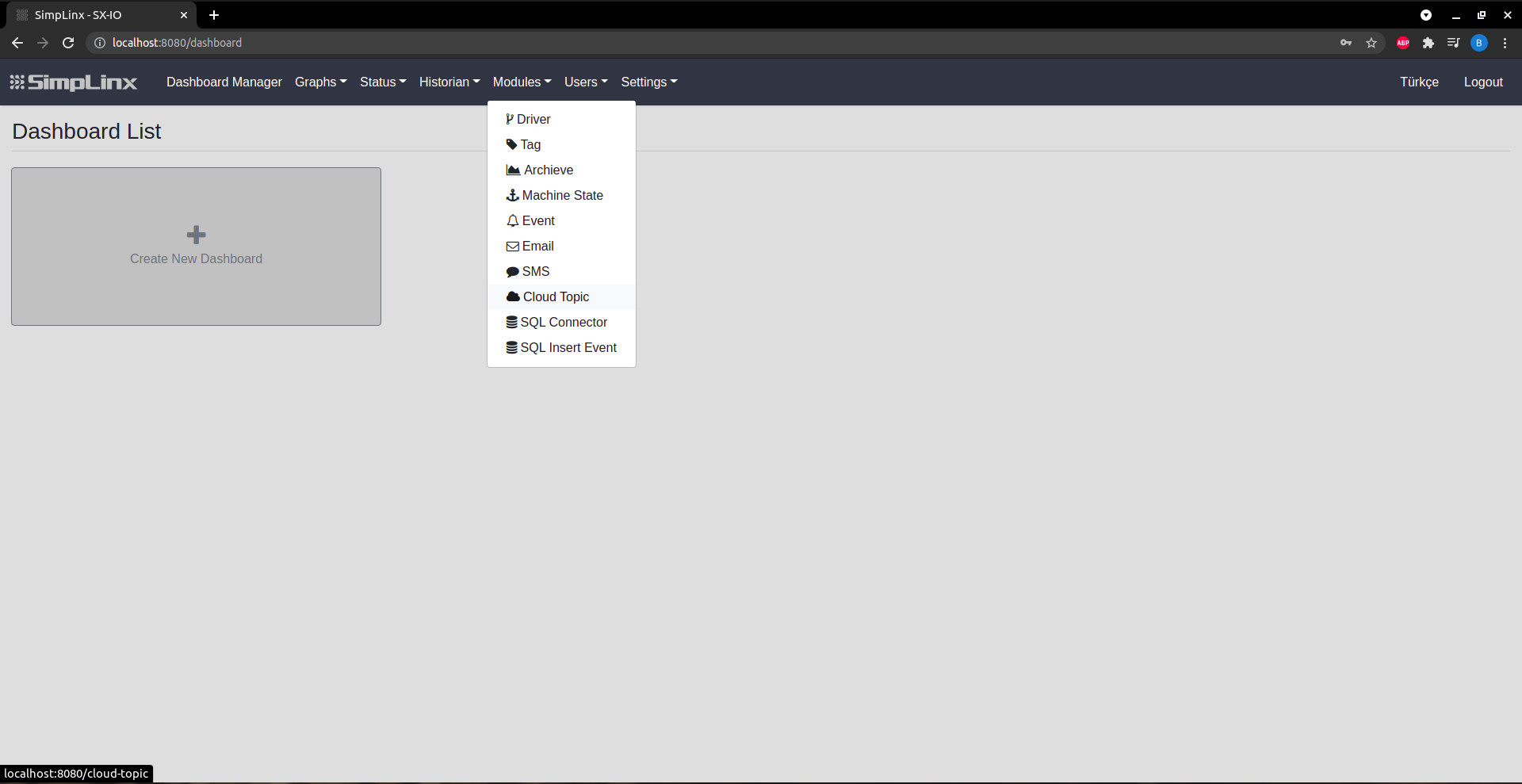 Step 3 — Modules → Cloud Topic
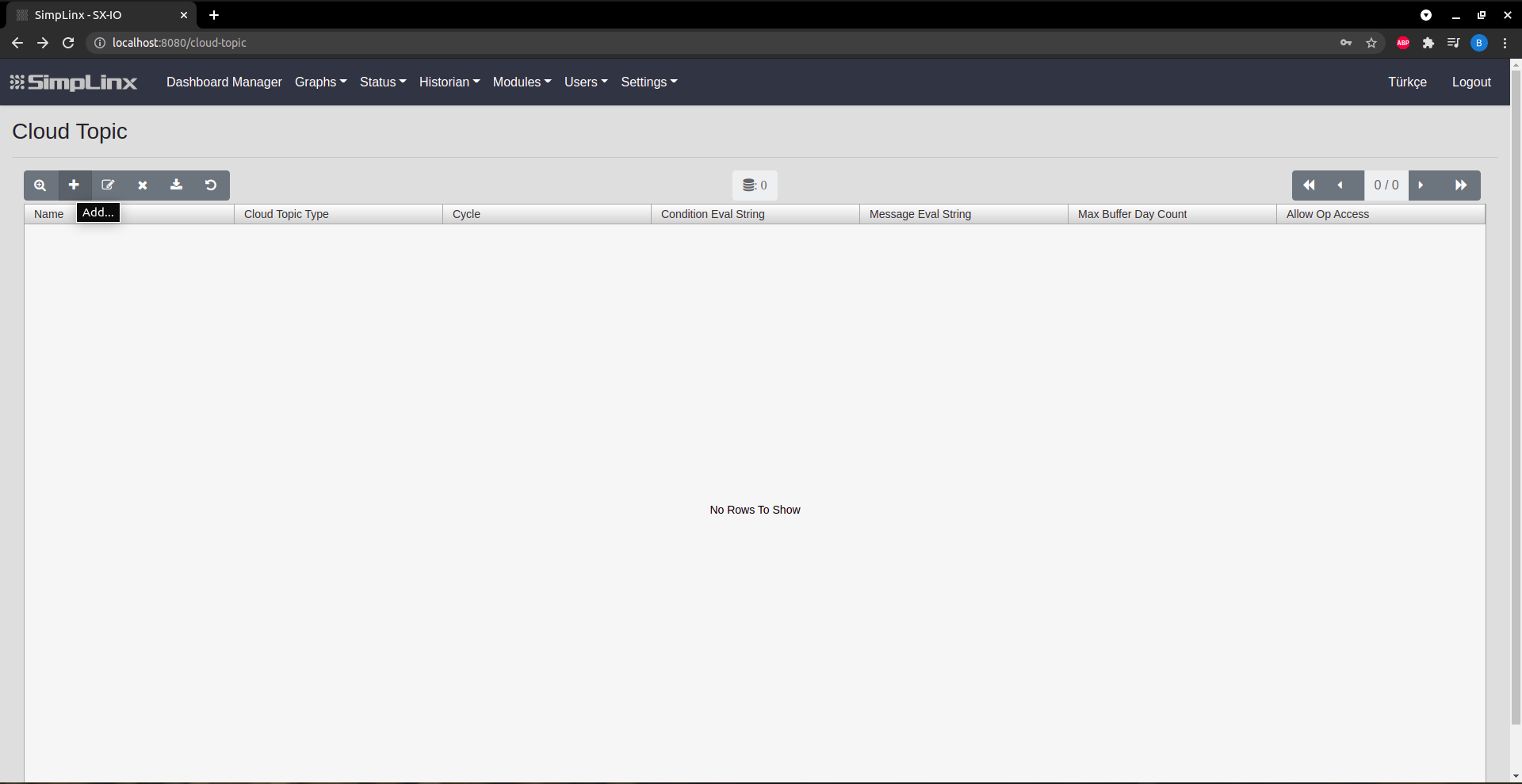 Step 3 (continued) — Add new cloud topic
 Step 4 — Topic settings: Name, Type (CYCLIC/EVENT_DRIVEN), Cycle, Condition, Message
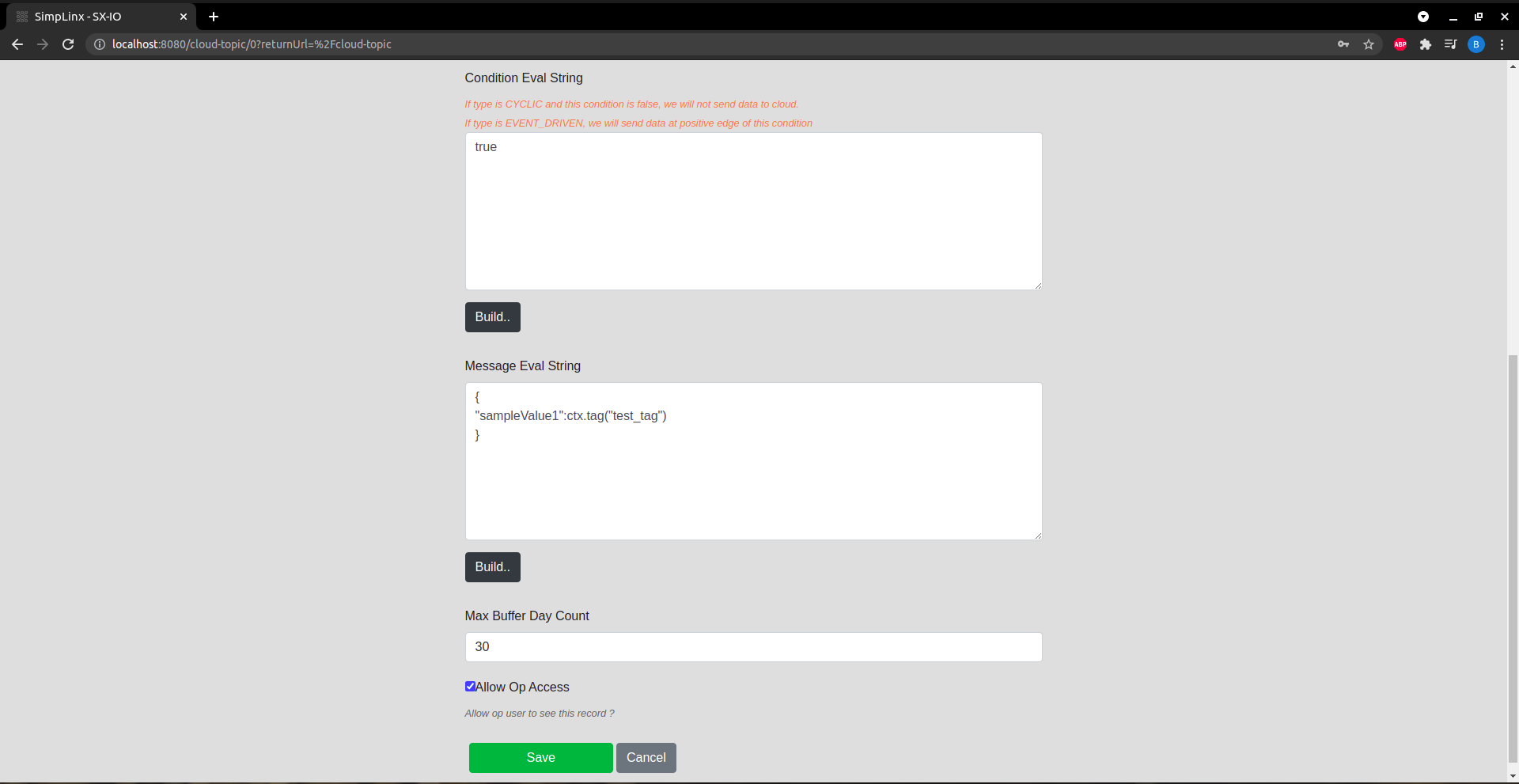 Step 4 (continued) — Message Eval String, Max Buffer Day Count, Allow Op Access
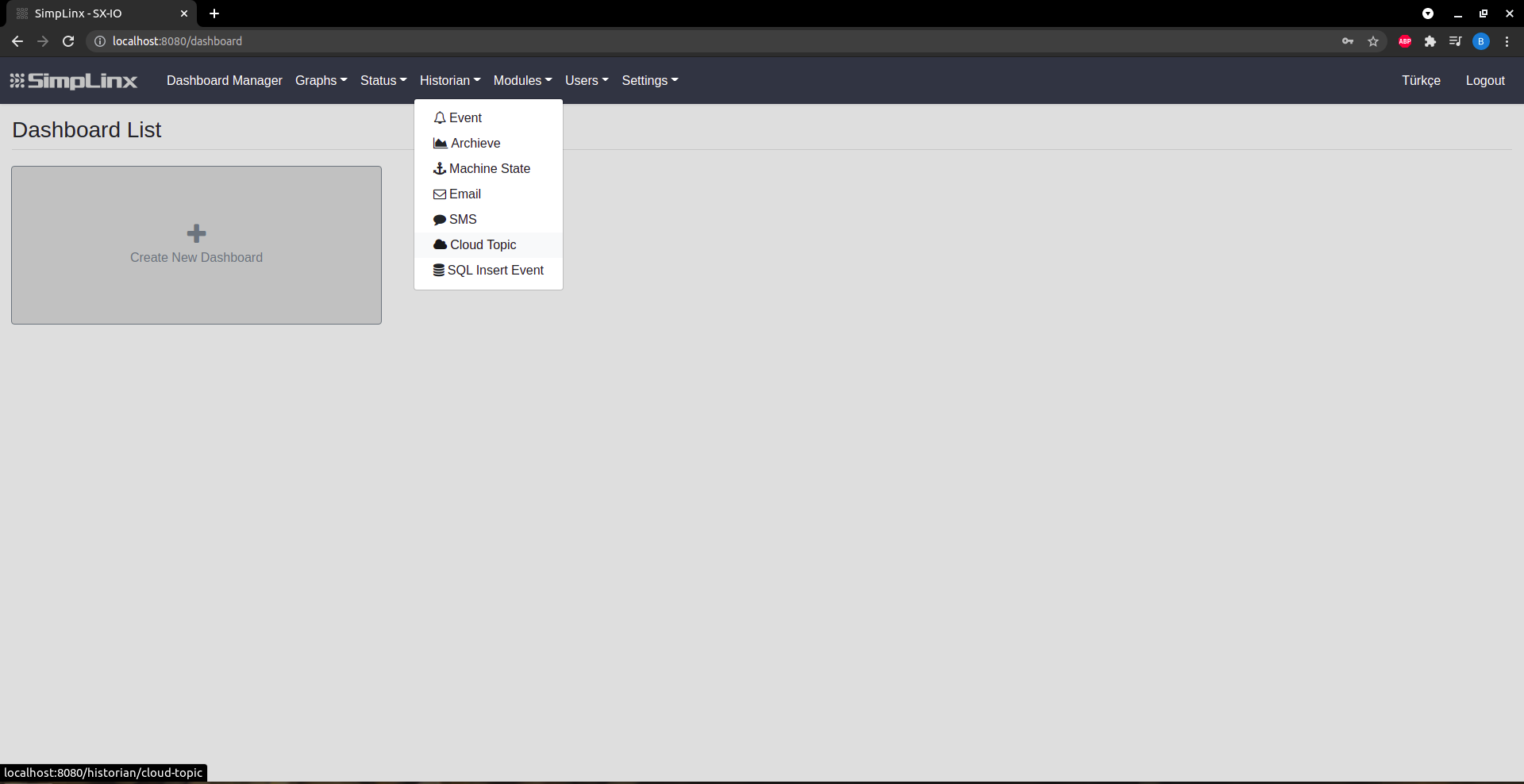 Step 5 — Historian → Cloud Topic: review sent messages
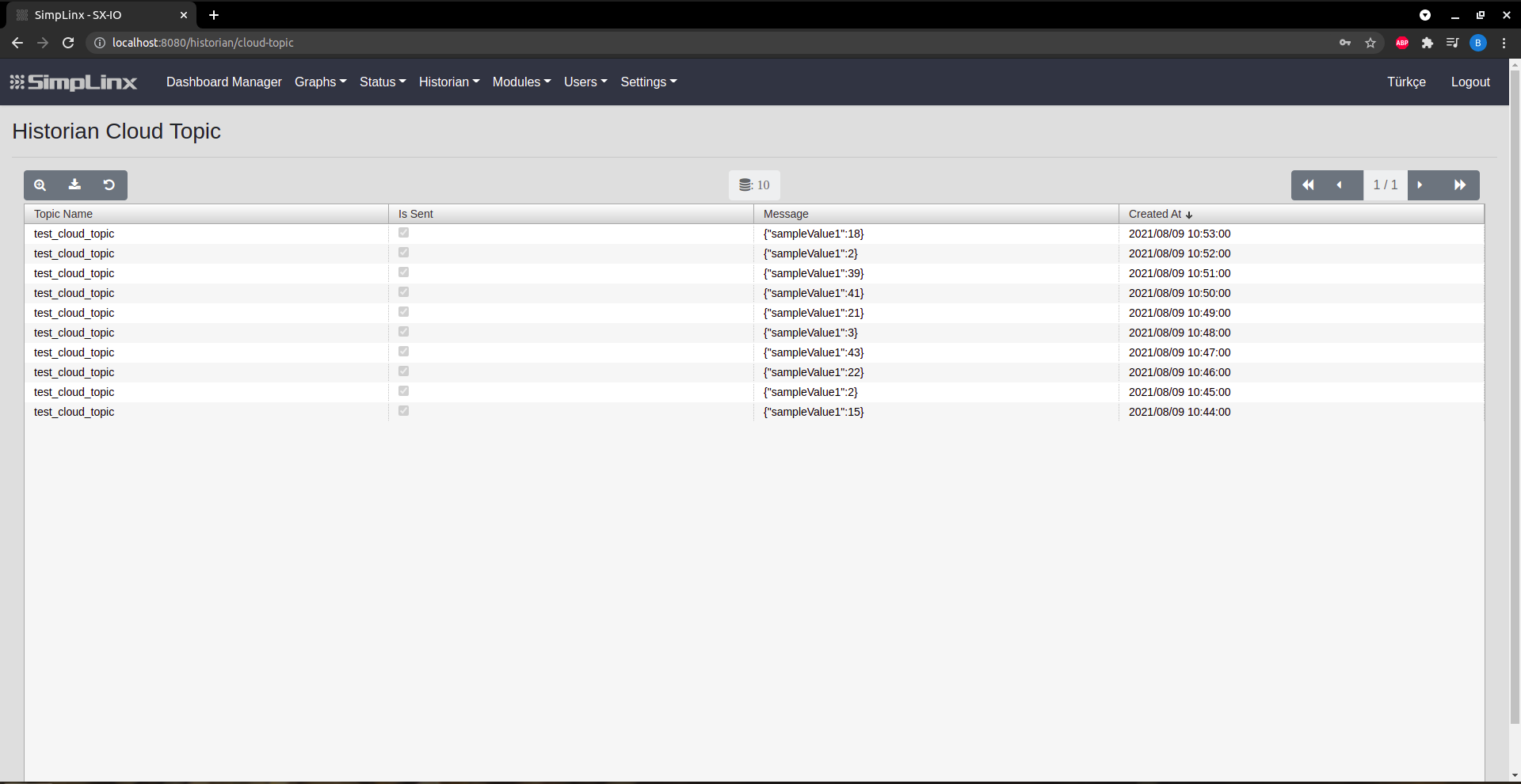 Step 5 (continued) — message details including timestamps and payload
 Step 6 — AWS IoT Core Console: subscribe to topic and verify messages arriving
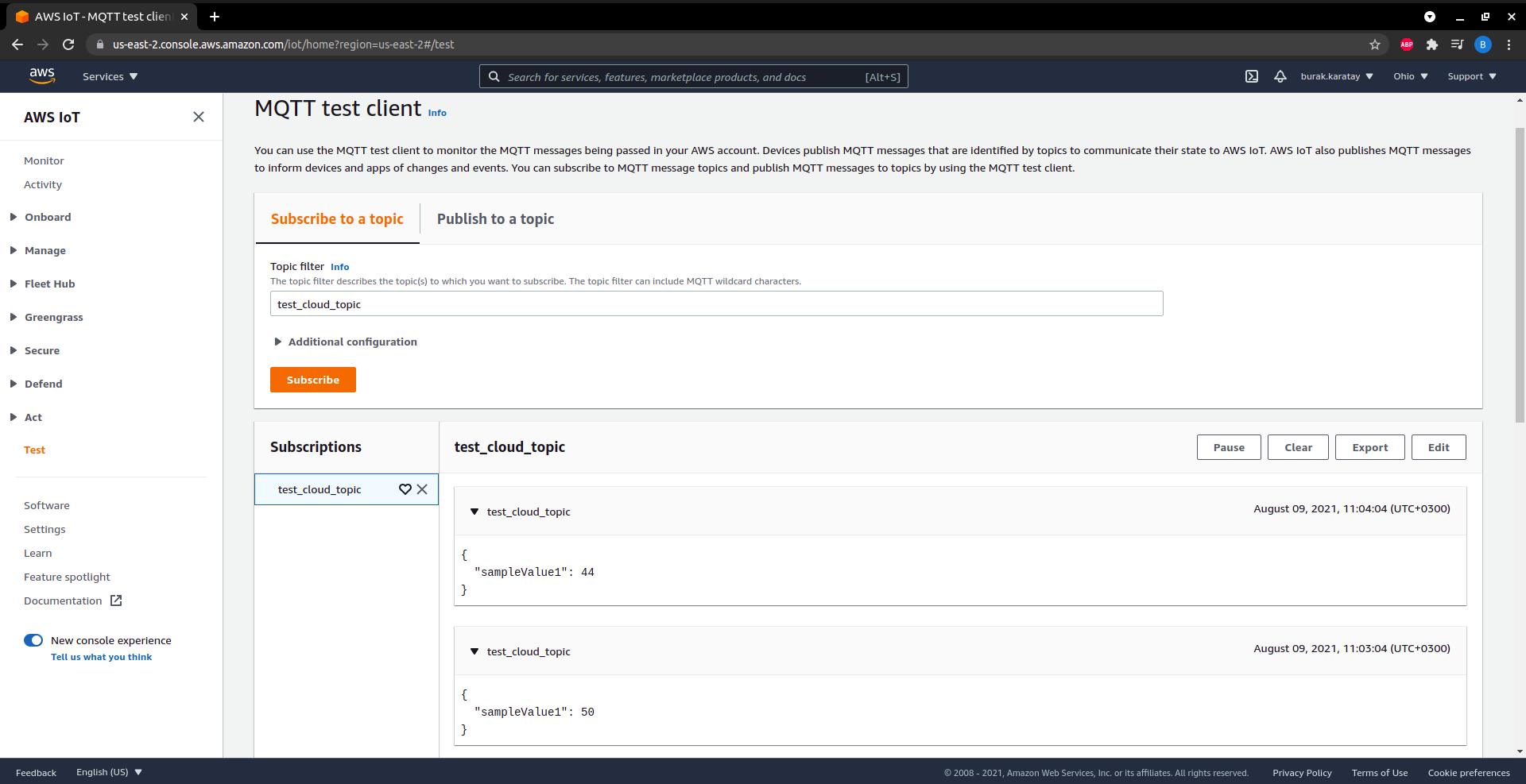 Step 6 (continued) — received MQTT message payload in AWS IoT Core