
SX-IO — Email Alerts
Overview
Section titled “Overview”SX-IO can send email notifications triggered by alarm conditions — for example, when a temperature reading exceeds a limit, a counter reaches a target, or a binary signal changes. Emails are sent directly from the SMX-RNS20 via SMTP, with no cloud intermediary required.
SMTP Configuration
Section titled “SMTP Configuration”- Log in to the SMX-RNS20 web interface → SX-IO → Outputs → Email.
- Enter your SMTP server settings: host (e.g.,
smtp.gmail.com), port (587 for STARTTLS, 465 for SSL), and credentials. - Set the From address and one or more To addresses.
- Click Send Test Email to verify the SMTP settings are correct before configuring alerts.
Alert Rules
Section titled “Alert Rules”- Navigate to SX-IO → Alarms → Add Rule.
- Select the data point to monitor (must already be configured as an SX-IO source).
- Set the condition: above threshold, below threshold, equal to value, or on change.
- Enter the threshold value and a deadband to prevent repeated emails on noisy signals.
- Select Email as the notification output and enter the subject and body template. Use
{value}and{timestamp}placeholders. - Save the rule. The SMX-RNS20 will send an email every time the condition triggers.
Screenshots
Section titled “Screenshots”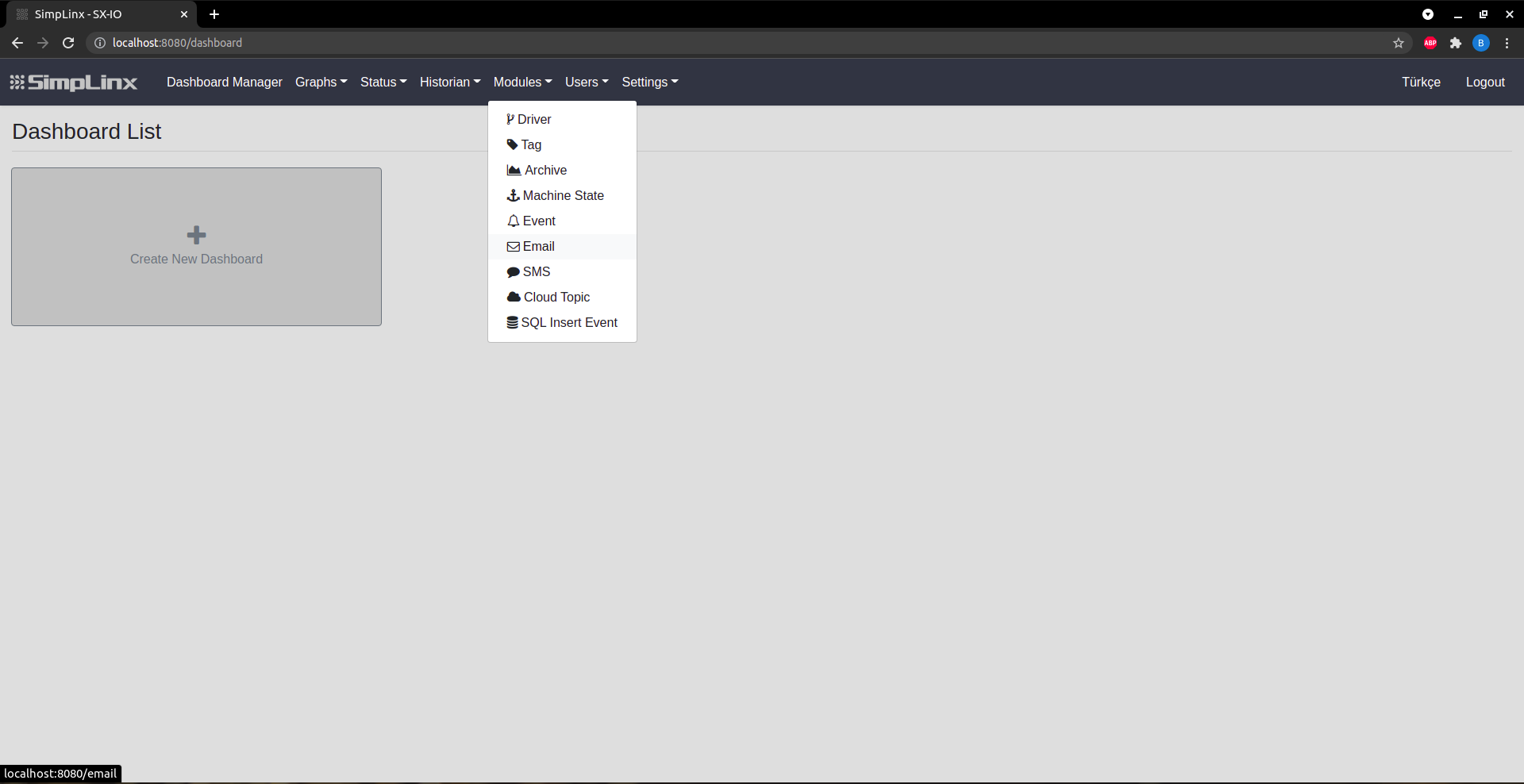 Step 1 — Navigate to Modules → Email
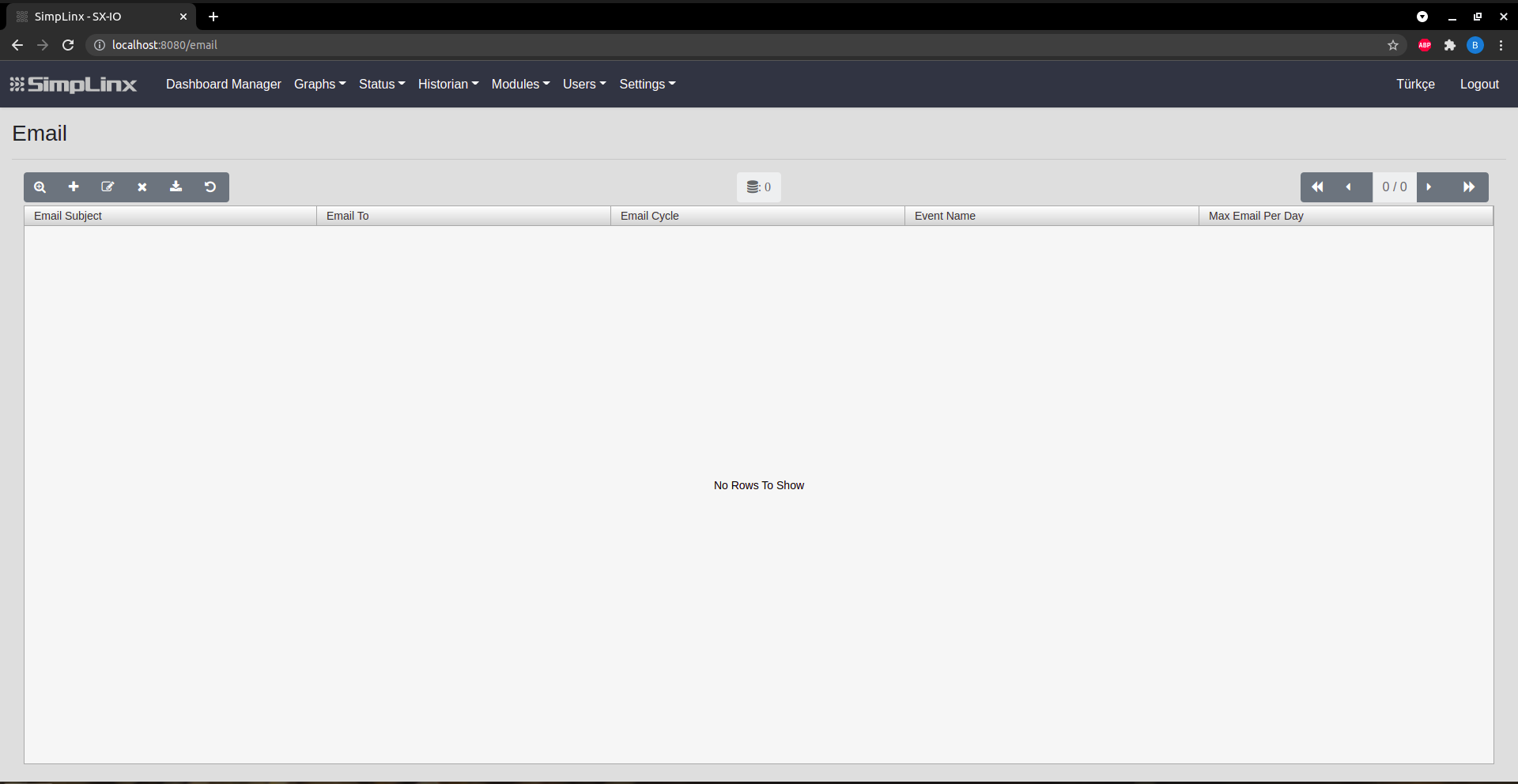 Step 2 — Click + to add a new email configuration
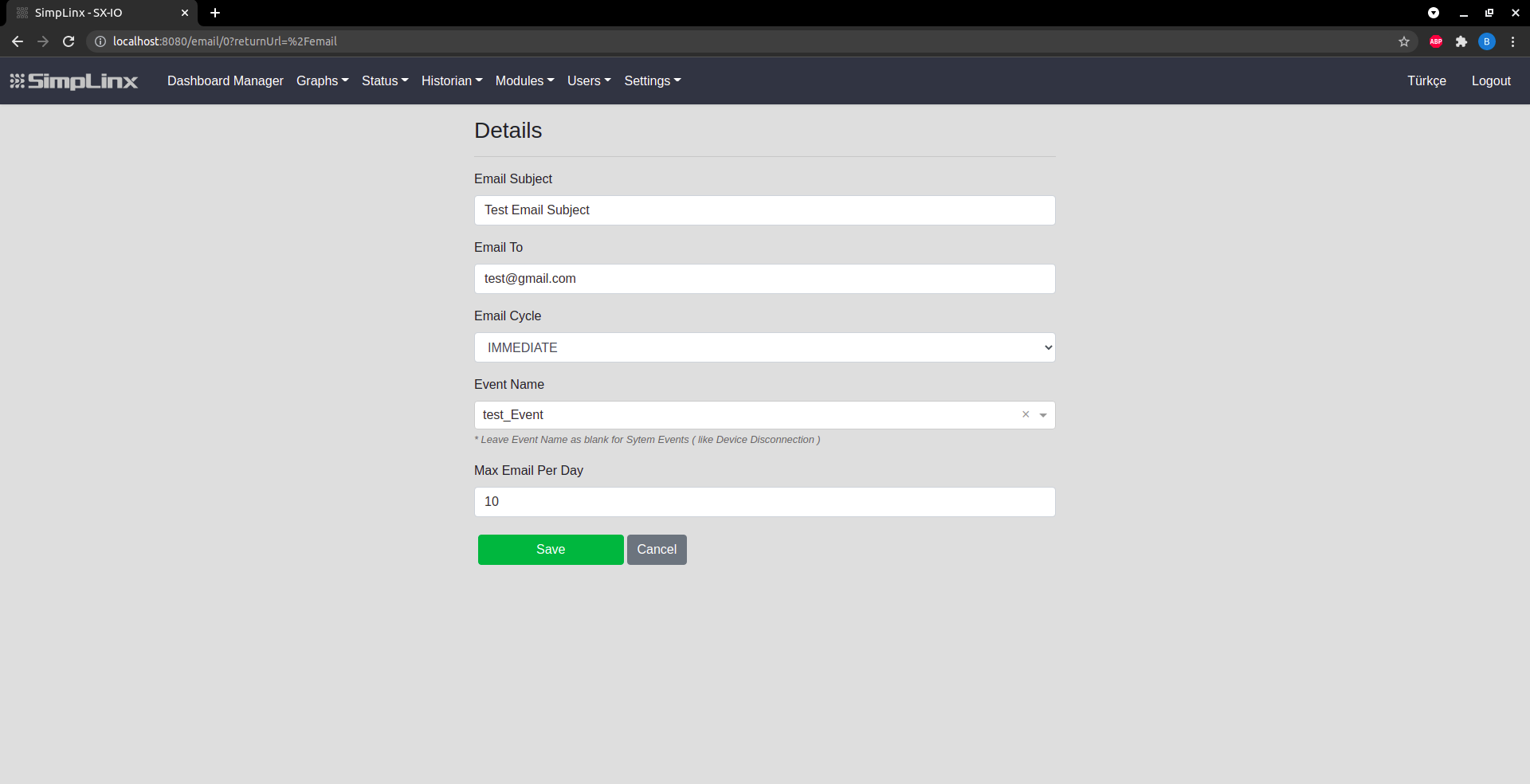 Step 3 — Configure: Subject, Email To, Cycle (IMMEDIATE/DAY/WEEK), Event, Max per day
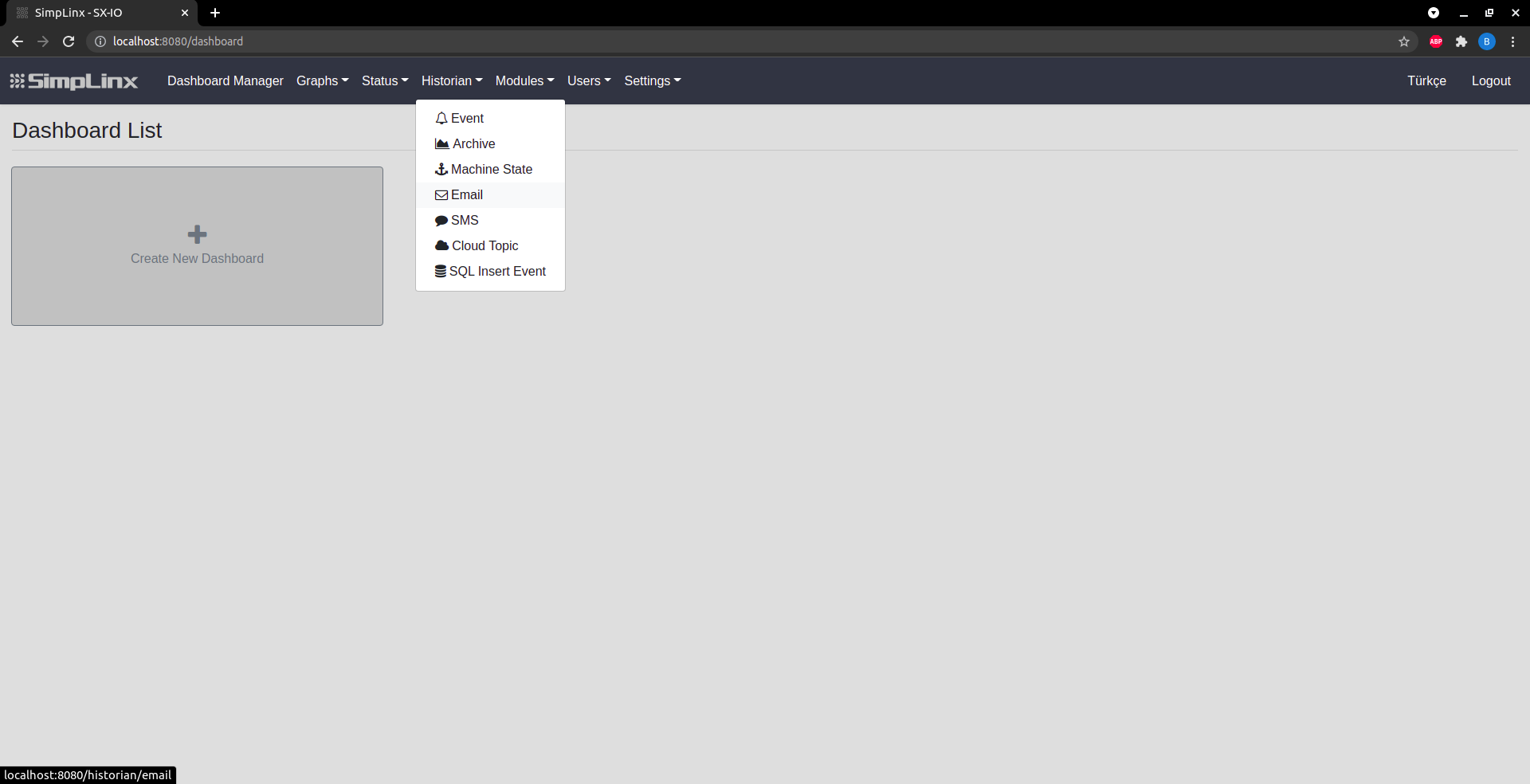 Step 4 — Historian → Email: view sent email records
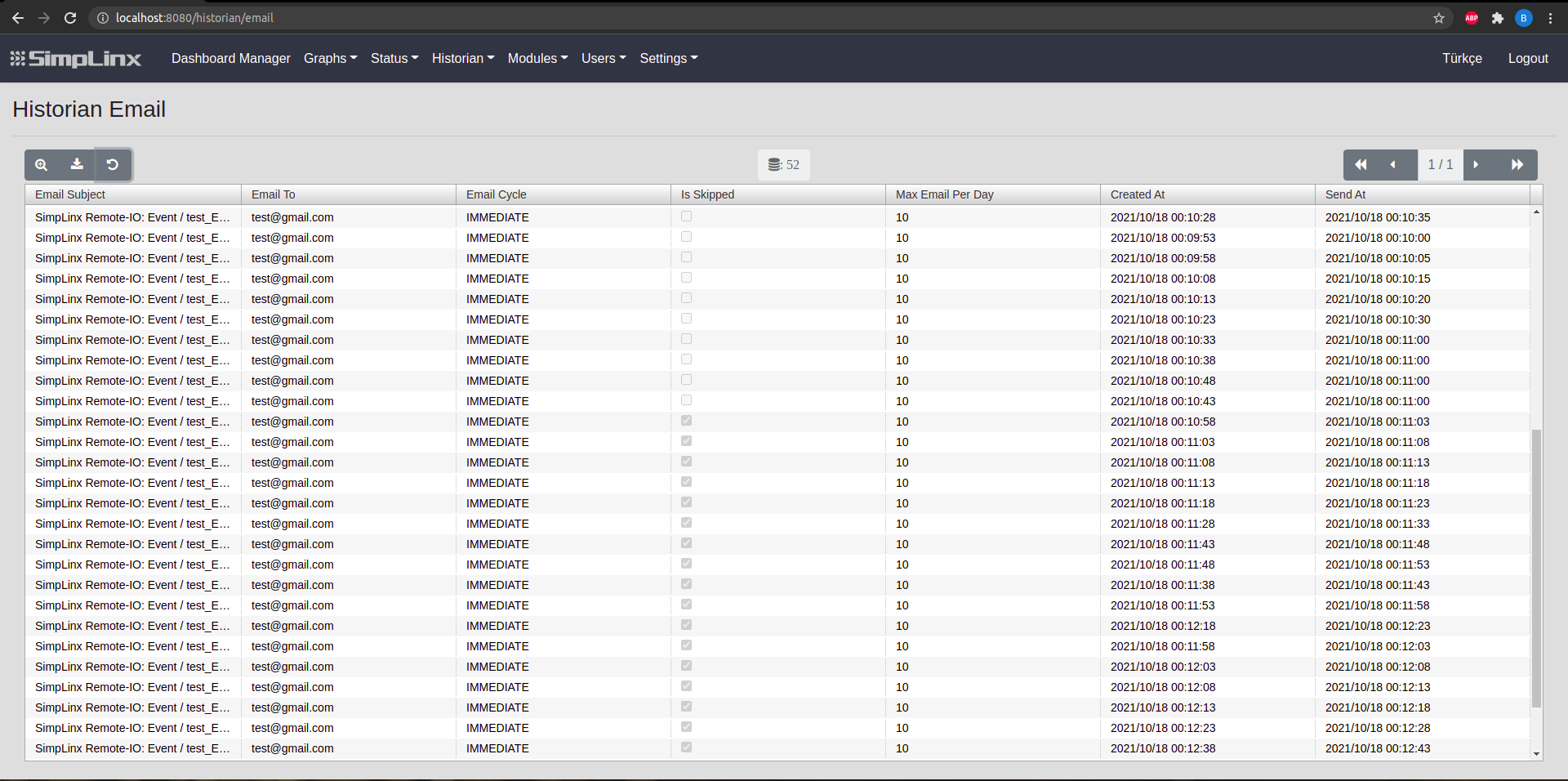 Step 5 — Email history: recipient, cycle, timestamps and “Is Skipped” delivery status