
SX-IO — Modbus RTU Serial Data Collection
Overview
Section titled “Overview”The SMX-RNS20 has a built-in RS-485 serial port that SX-IO can use as a Modbus RTU master. This allows the device to collect data from RS-485 bus devices (energy meters, variable frequency drives, sensors) without needing a separate serial server.
The RS-485 port is available on the SMX-RNS20’s rear panel and uses a 2-wire half-duplex configuration (A+/B−).
Hardware Wiring
Section titled “Hardware Wiring”| SMX-RNS20 Terminal | RS-485 Device |
|---|---|
| A+ (positive) | A+ (D+) |
| B− (negative) | B− (D−) |
| GND | GND (shield/reference) |
Terminate the bus at both ends with 120 Ω resistors if the cable runs are long (> 10 m).
SX-IO Configuration
Section titled “SX-IO Configuration”- Log in to the SMX-RNS20 web interface → SX-IO → Sources → Add Source → Modbus RTU.
- Configure the serial port parameters: baud rate (e.g., 9600 or 19200), data bits (8), parity (None/Even), stop bits (1). These must match the slave device settings.
- Enter the slave address (Unit ID) of the target device (1–247).
- Add register definitions: function code, start address, quantity, and data type.
- Set the scan interval and save. Monitor live values under SX-IO → Monitor.
Screenshots — Driver & Tag Setup
Section titled “Screenshots — Driver & Tag Setup” Step 1 — Modules → Driver
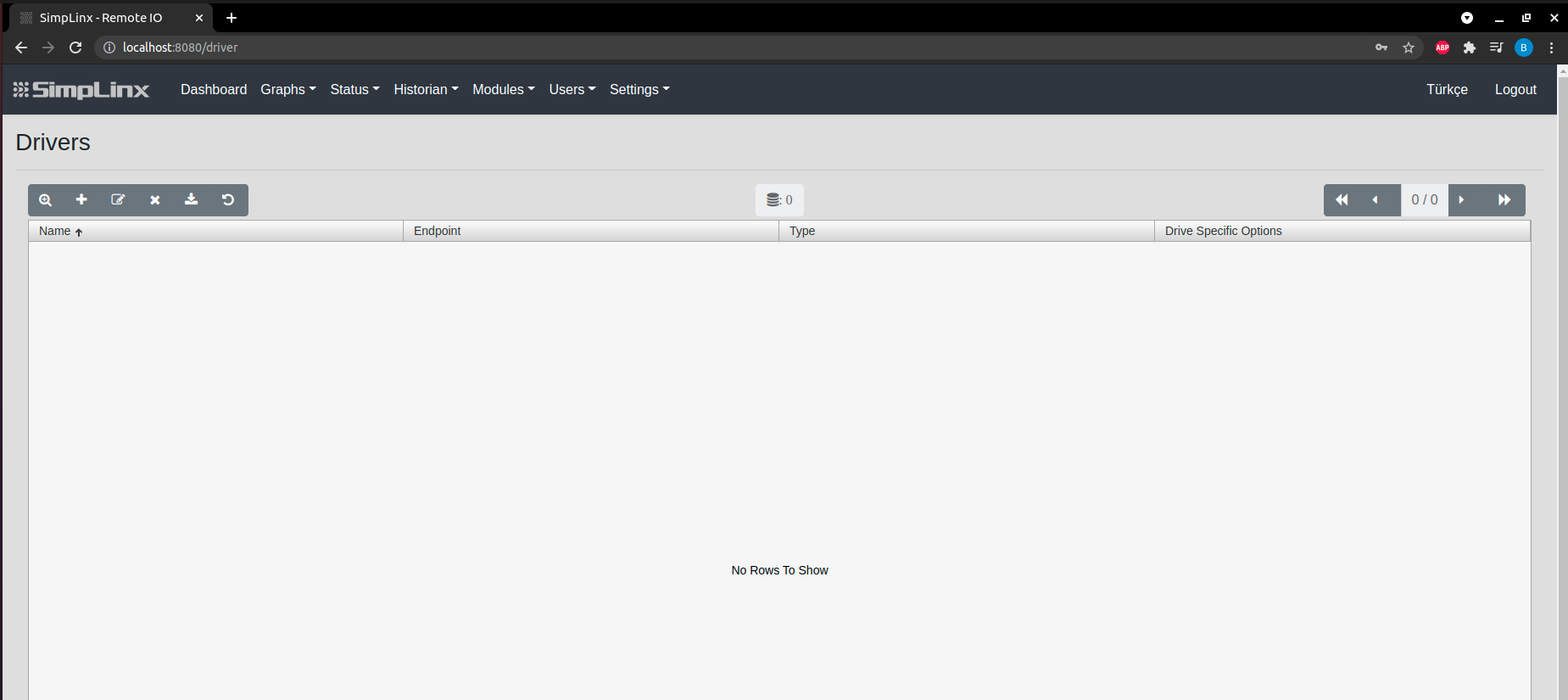 Step 2 — Add new driver
 Step 3 — Driver settings: Name, Endpoint, Type = MODBUS RTU, serial parameters
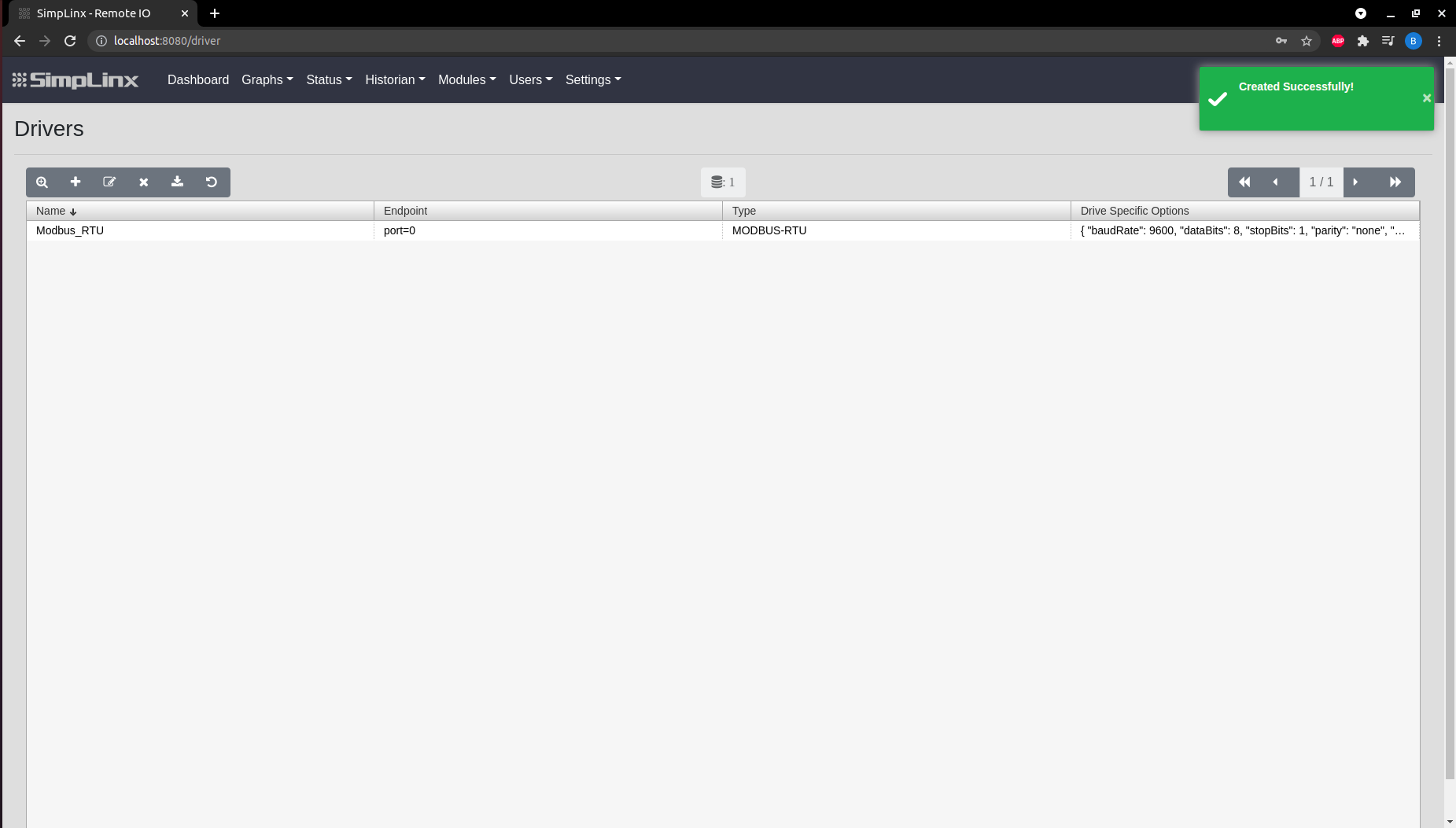 Step 4 — Save driver
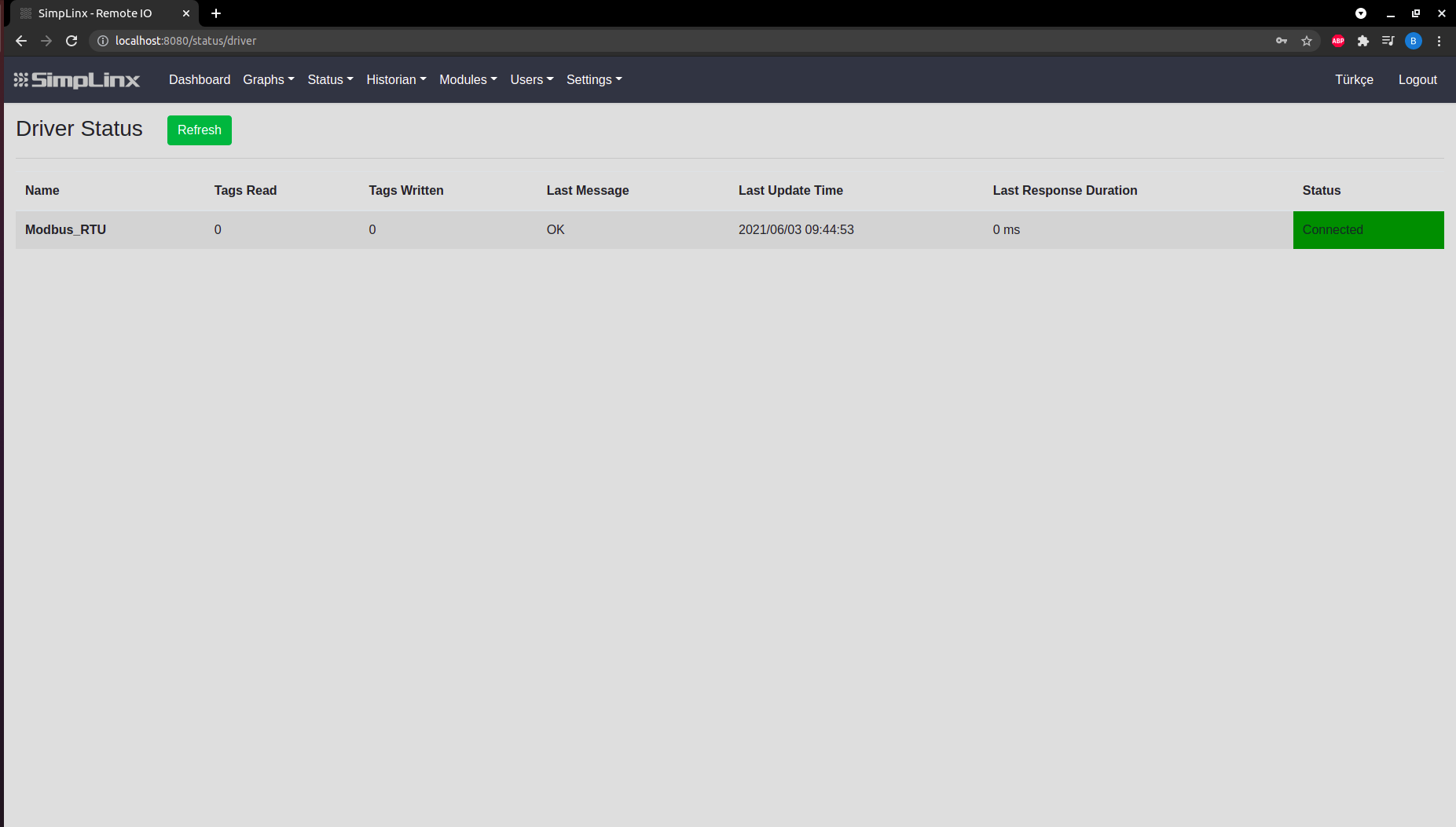 Step 5 — Status → Driver: green indicator confirms RS-485 connection
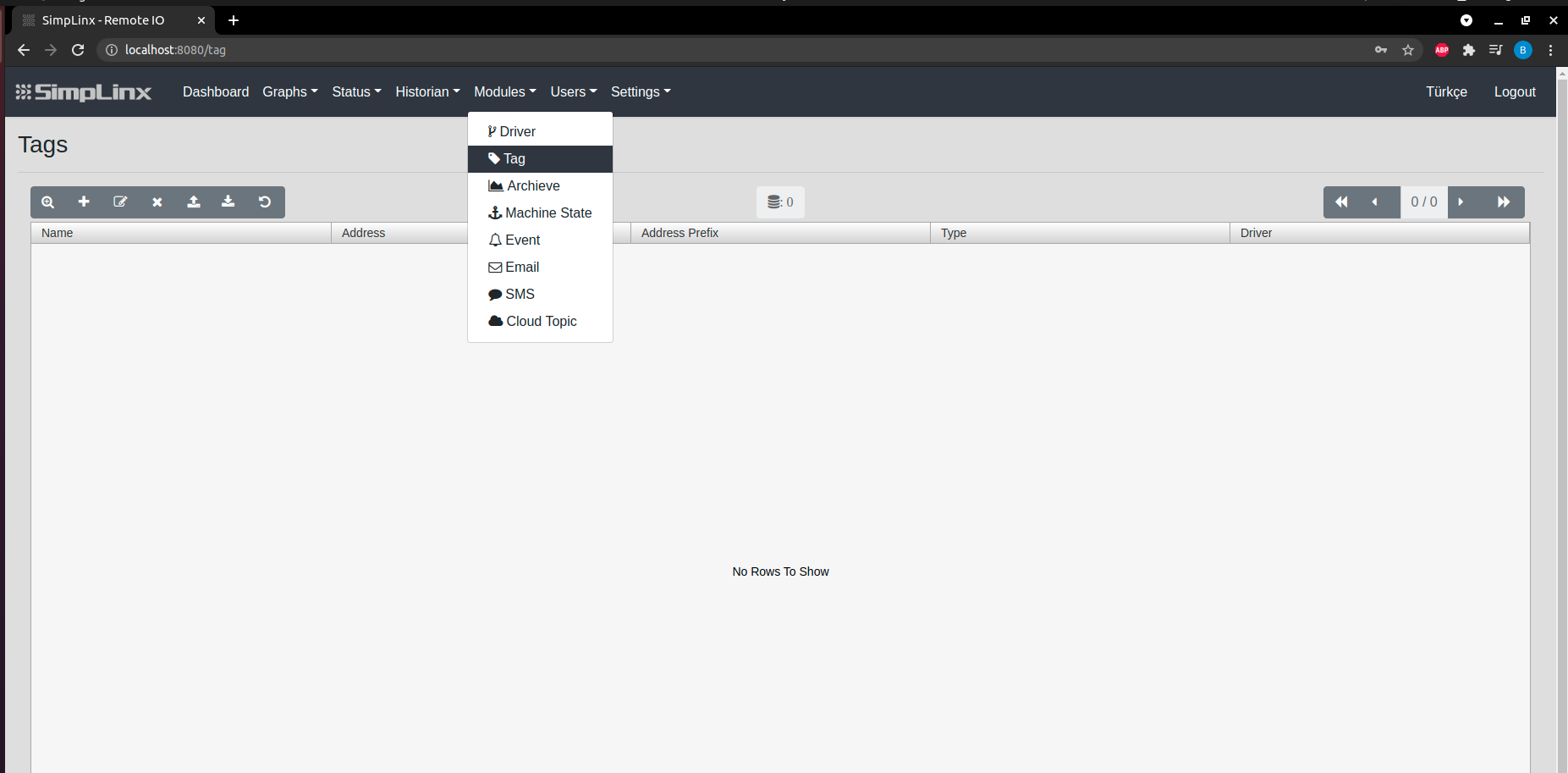 Step 6 — Modules → Tag: add new tag
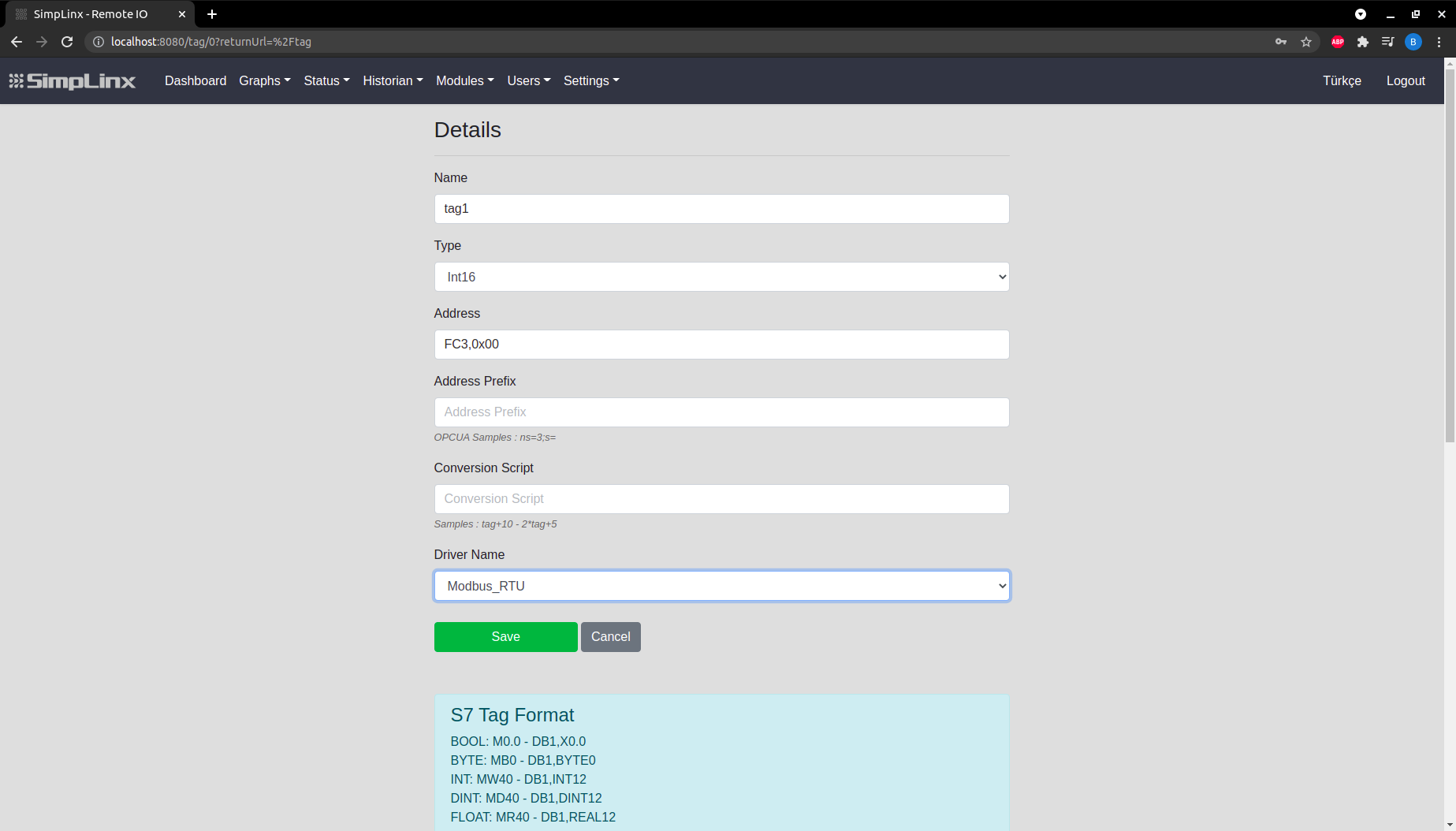 Step 7 — Tag configuration: address, type, driver
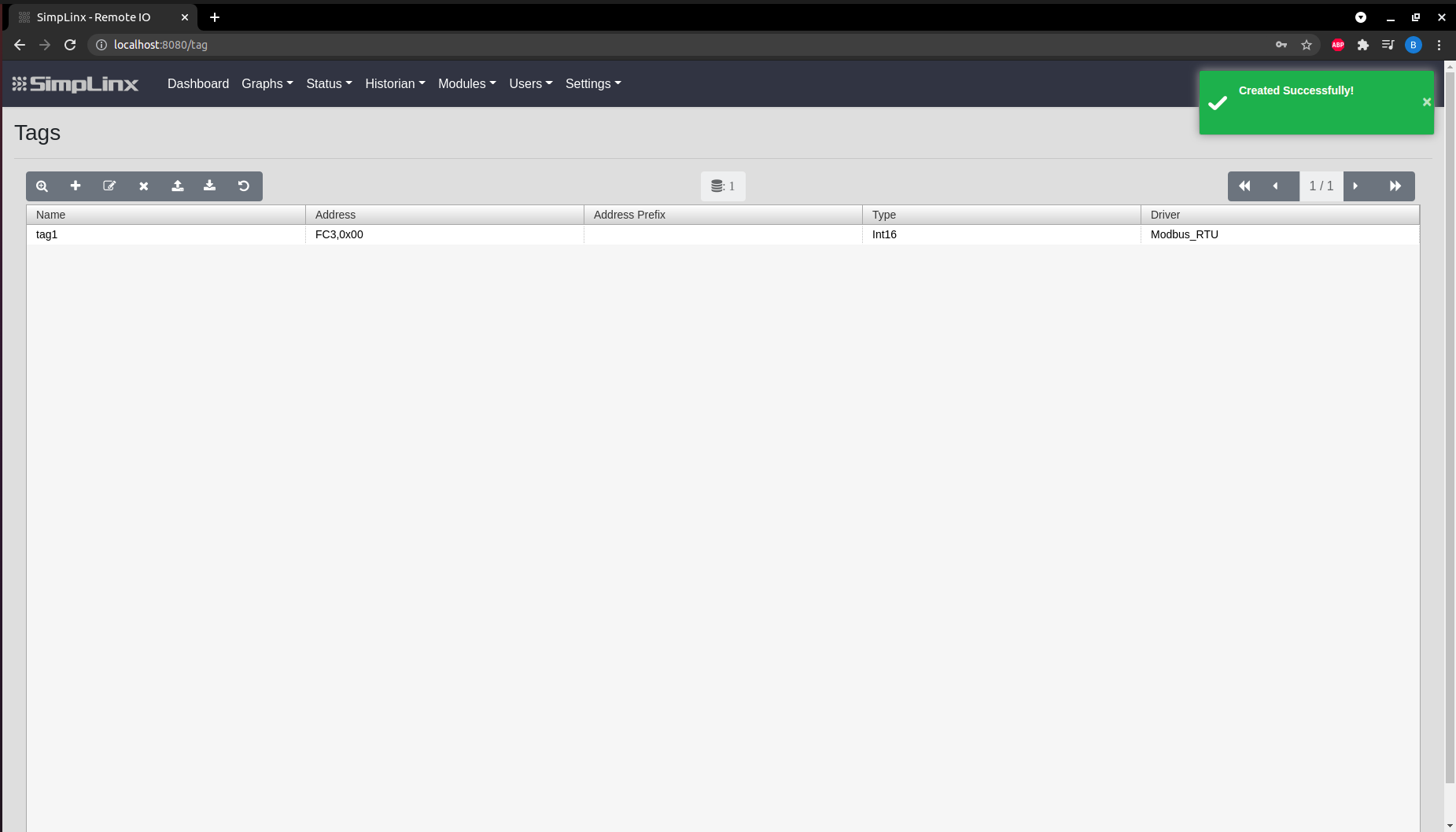 Step 8 — Save tag
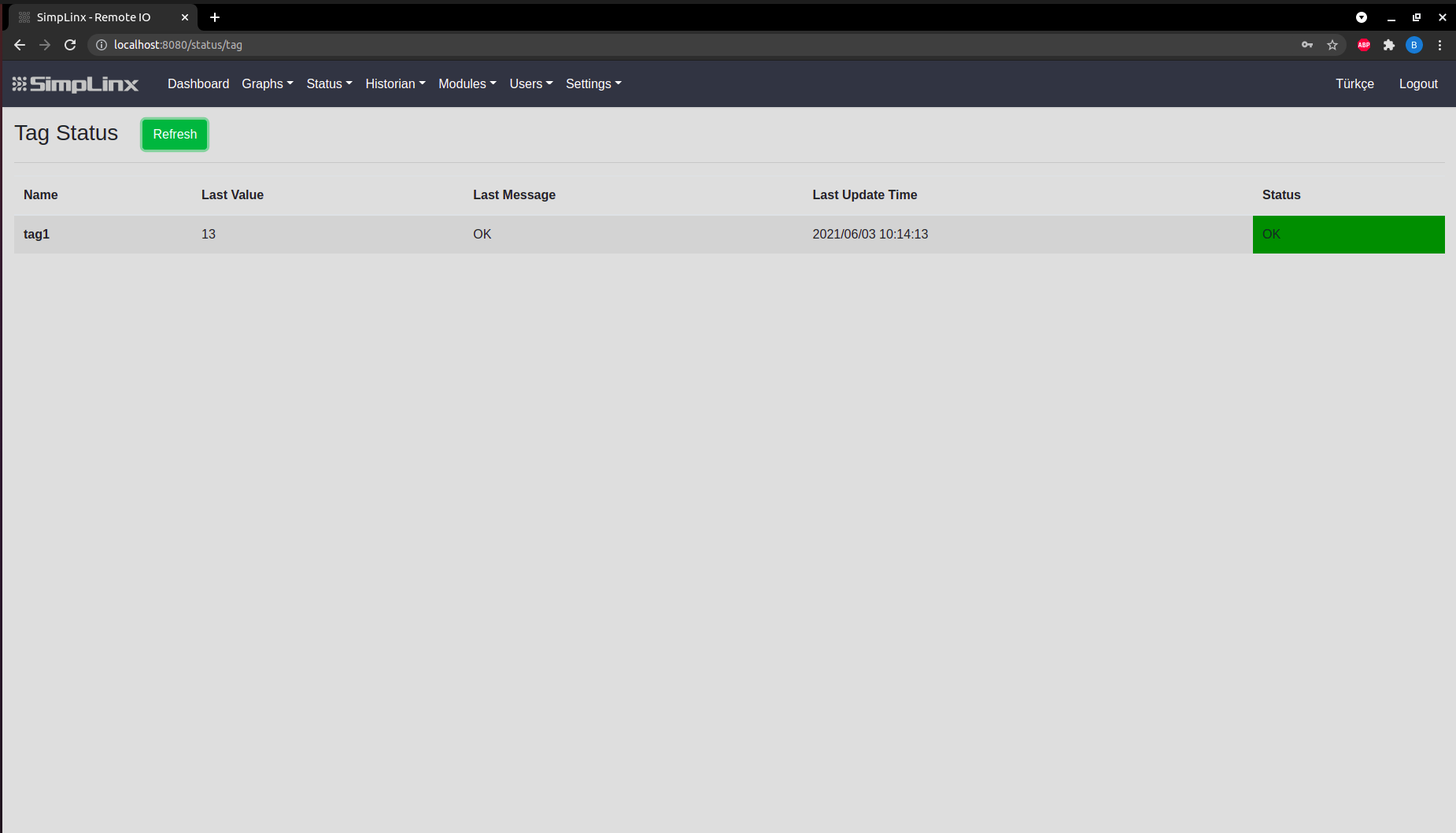 Step 9 — Status → Tag: live register value from RTU slave
 Troubleshooting — Modbus Poll: set up Serial/RTU connection
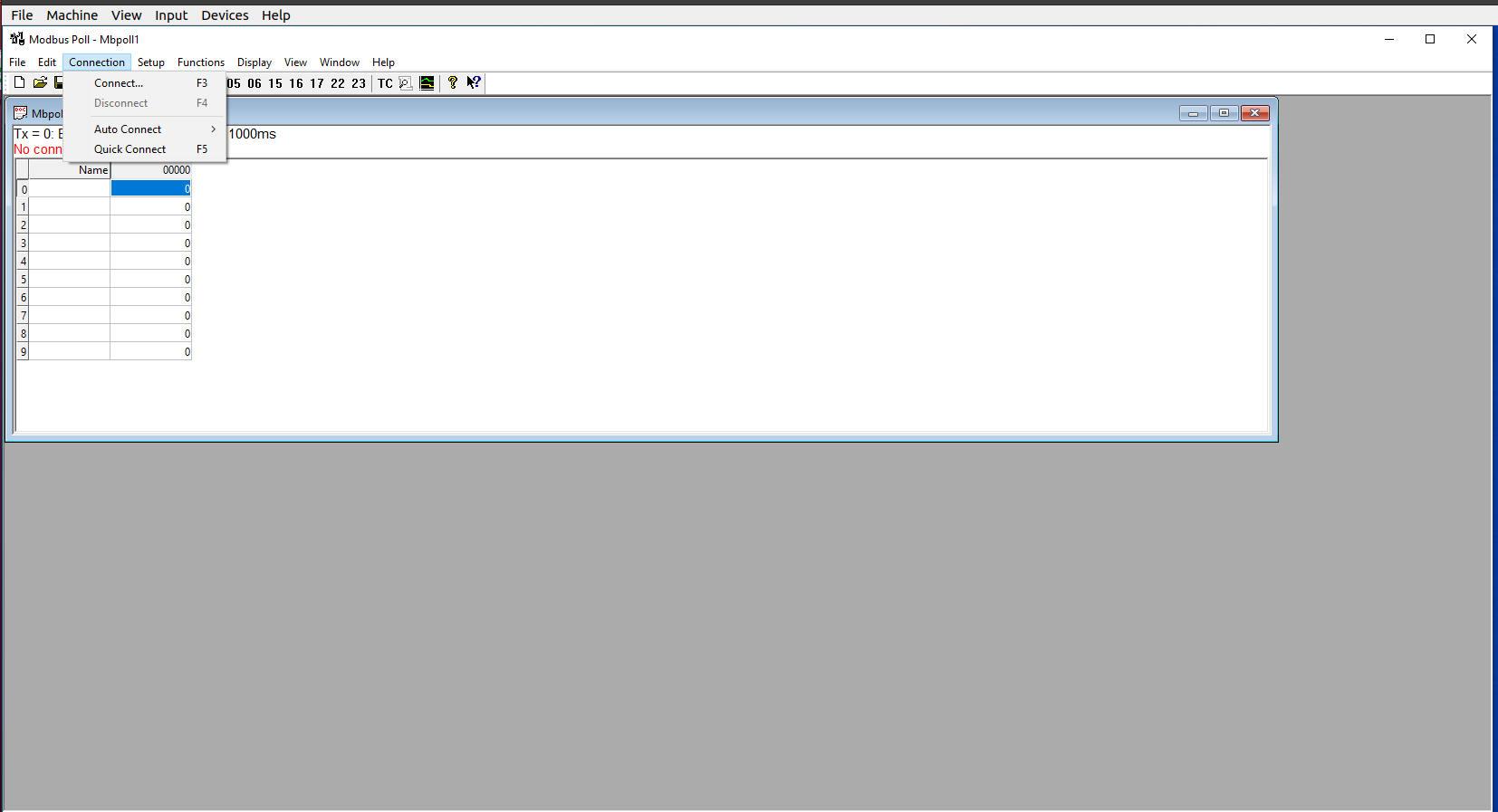 Troubleshooting — Modbus Poll: RTU mode configuration
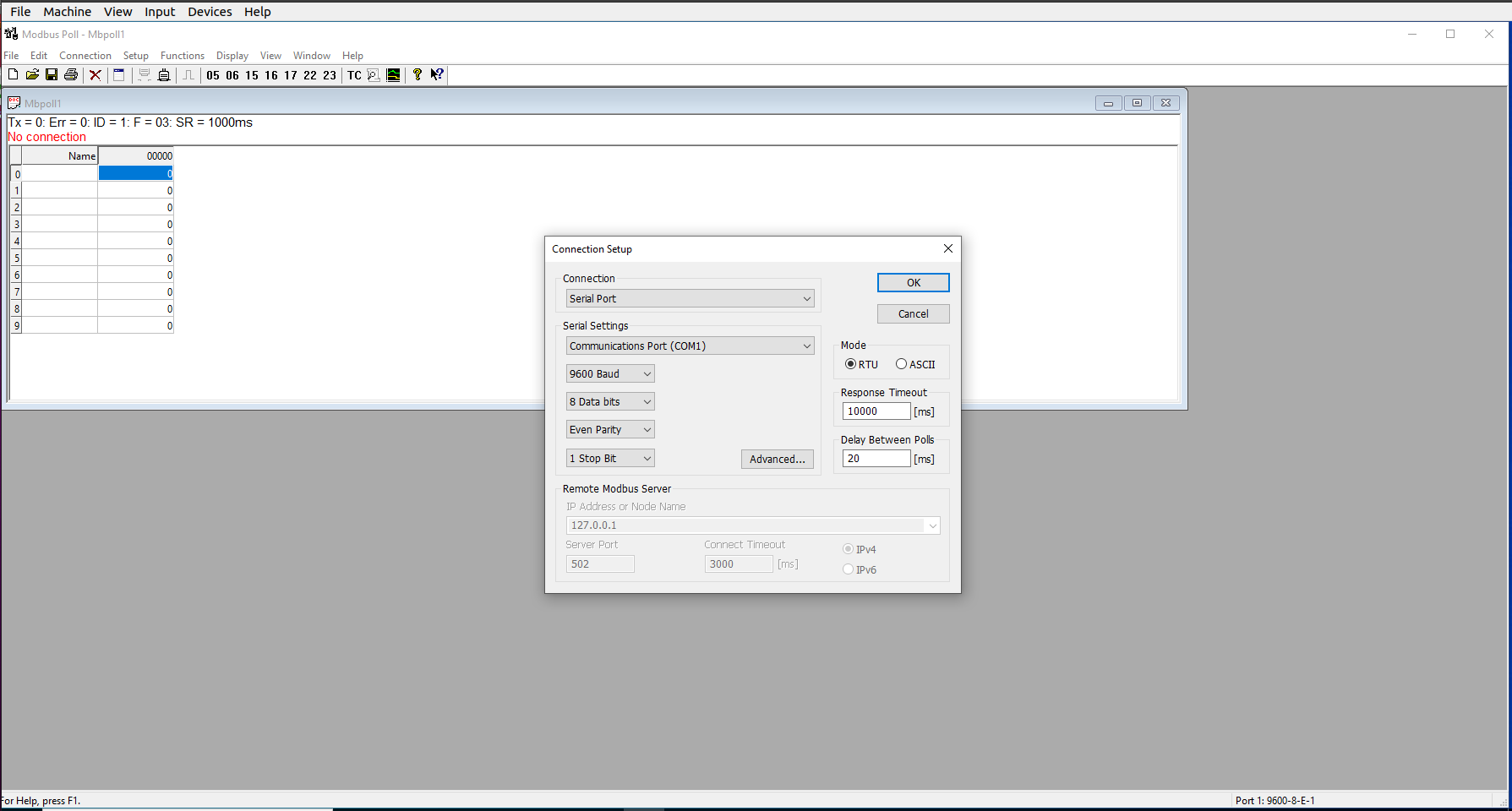 Troubleshooting — SX-IO driver status with Modbus Poll running as slave simulator
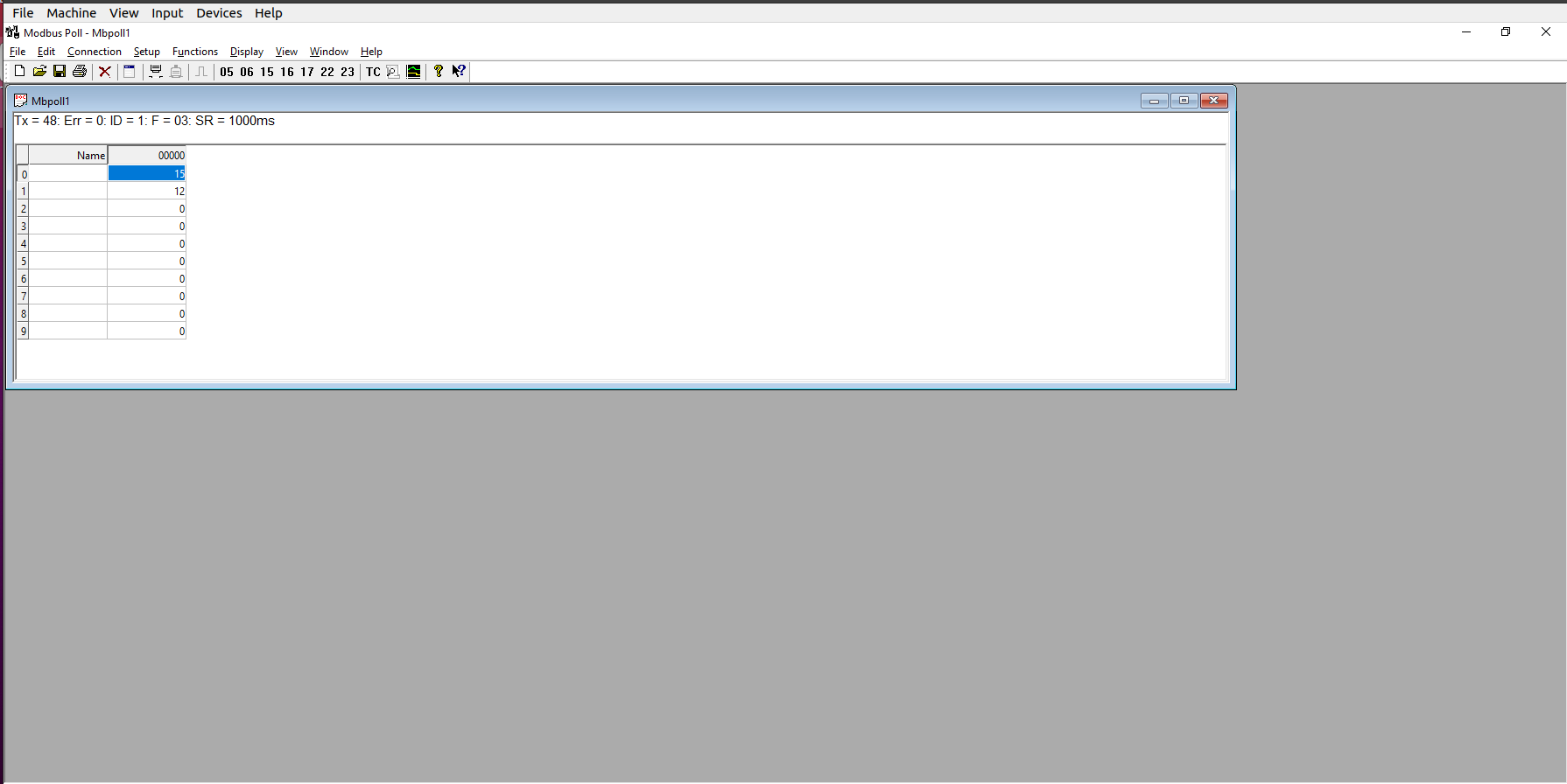 Troubleshooting — Modbus Poll showing live register values