
SX-IO — Modbus TCP Data Collection
Overview
Section titled “Overview”SX-IO runs on the SMX-RNS20 (firmware V3.5.0+) and acts as a local data acquisition engine. The Modbus TCP driver allows SX-IO to cyclically read holding registers, coils, and other Modbus addresses from any Modbus TCP server on the LAN.
Configuration
Section titled “Configuration”- Log in to the SMX-RNS20 web interface → SX-IO → Sources.
- Click Add Source → Modbus TCP.
- Enter the target device’s IP address, TCP port (default 502), and Unit ID.
- Add registers: specify address, function code (FC01/02/03/04), and data type (INT16, UINT16, FLOAT32, BOOL).
- Set the scan interval in milliseconds (minimum 100 ms).
- Under SX-IO → Outputs, configure where the collected data goes: Dashboard, MQTT, SQL, or Email alert.
- Save and check the SX-IO → Monitor view to verify live readings.
Screenshots — Driver & Tag Setup
Section titled “Screenshots — Driver & Tag Setup” Step 1 — SX-IO main page: navigate to Modules → Driver
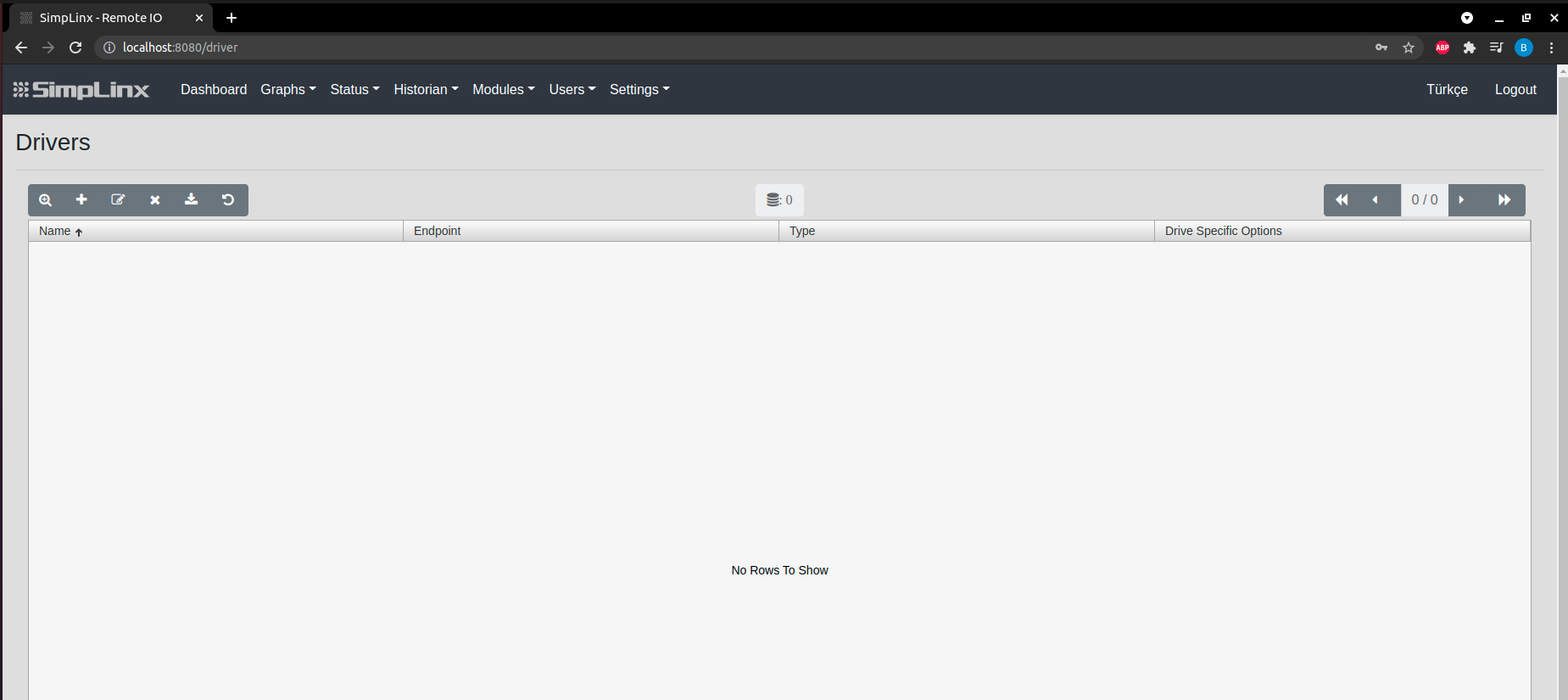 Step 2 — Driver page: click the + button to add a new driver
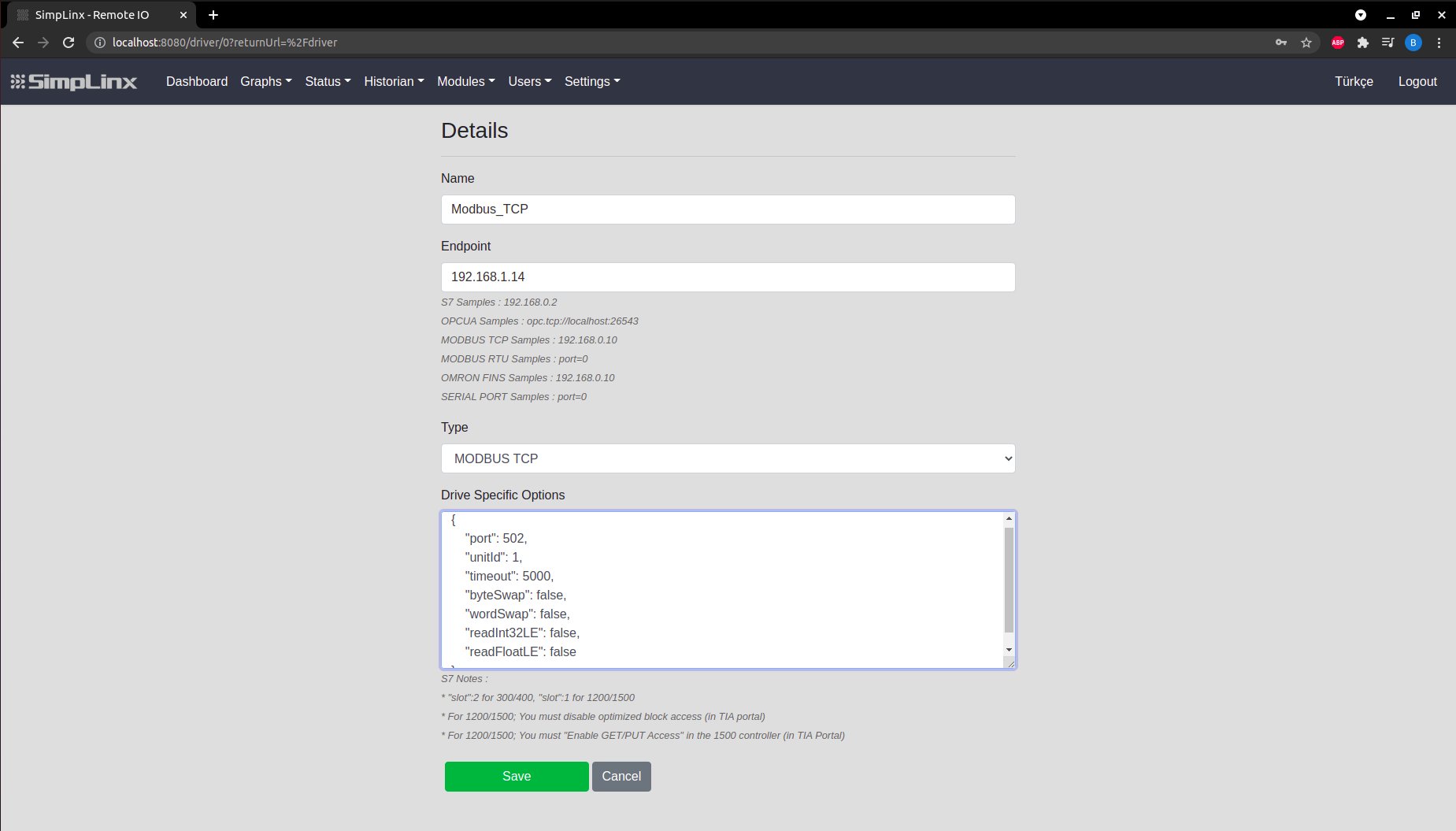 Step 3 — Configure driver: Name, Endpoint (IP:port), Type = MODBUS TCP
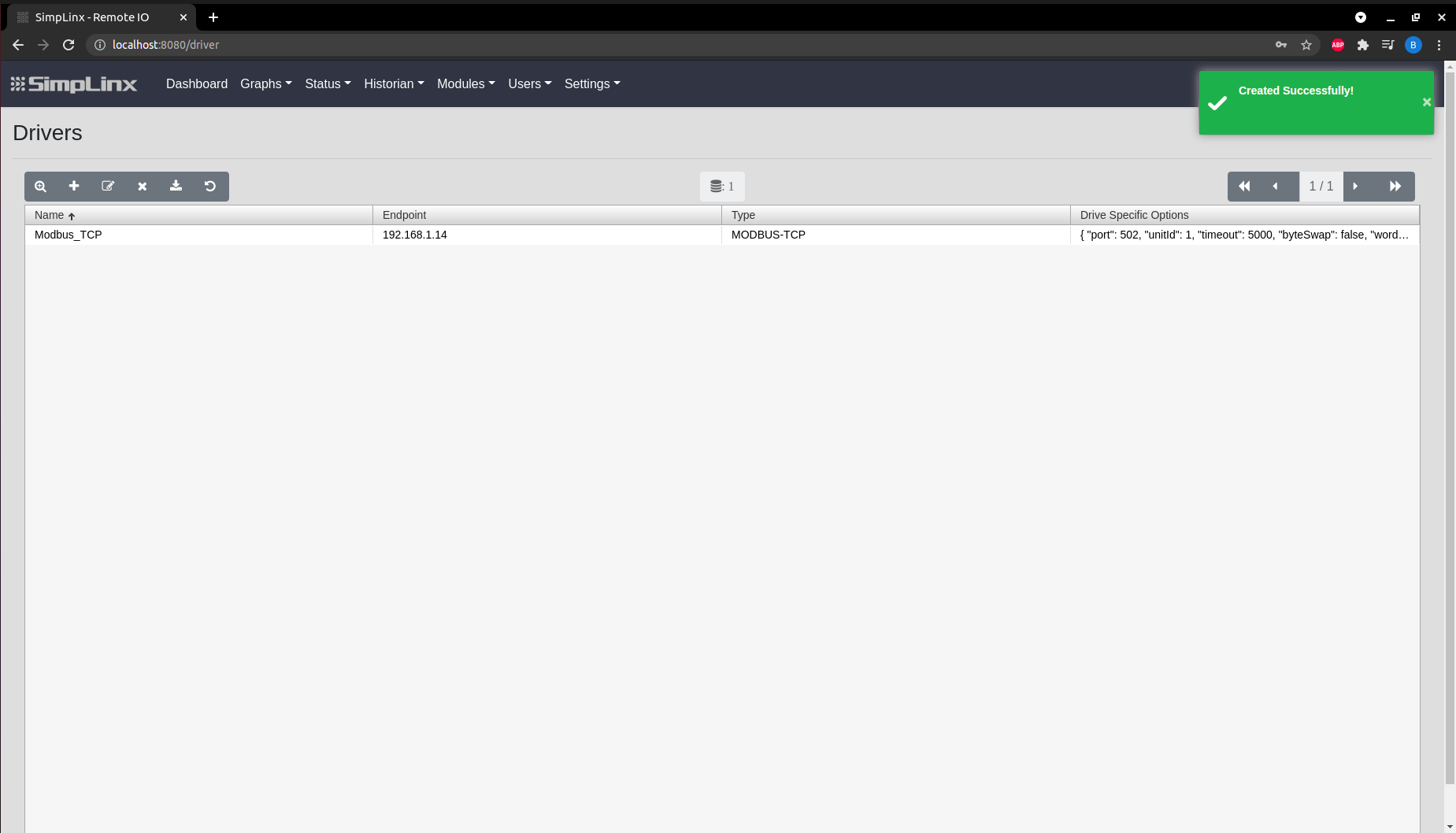 Step 4 — Save the driver configuration
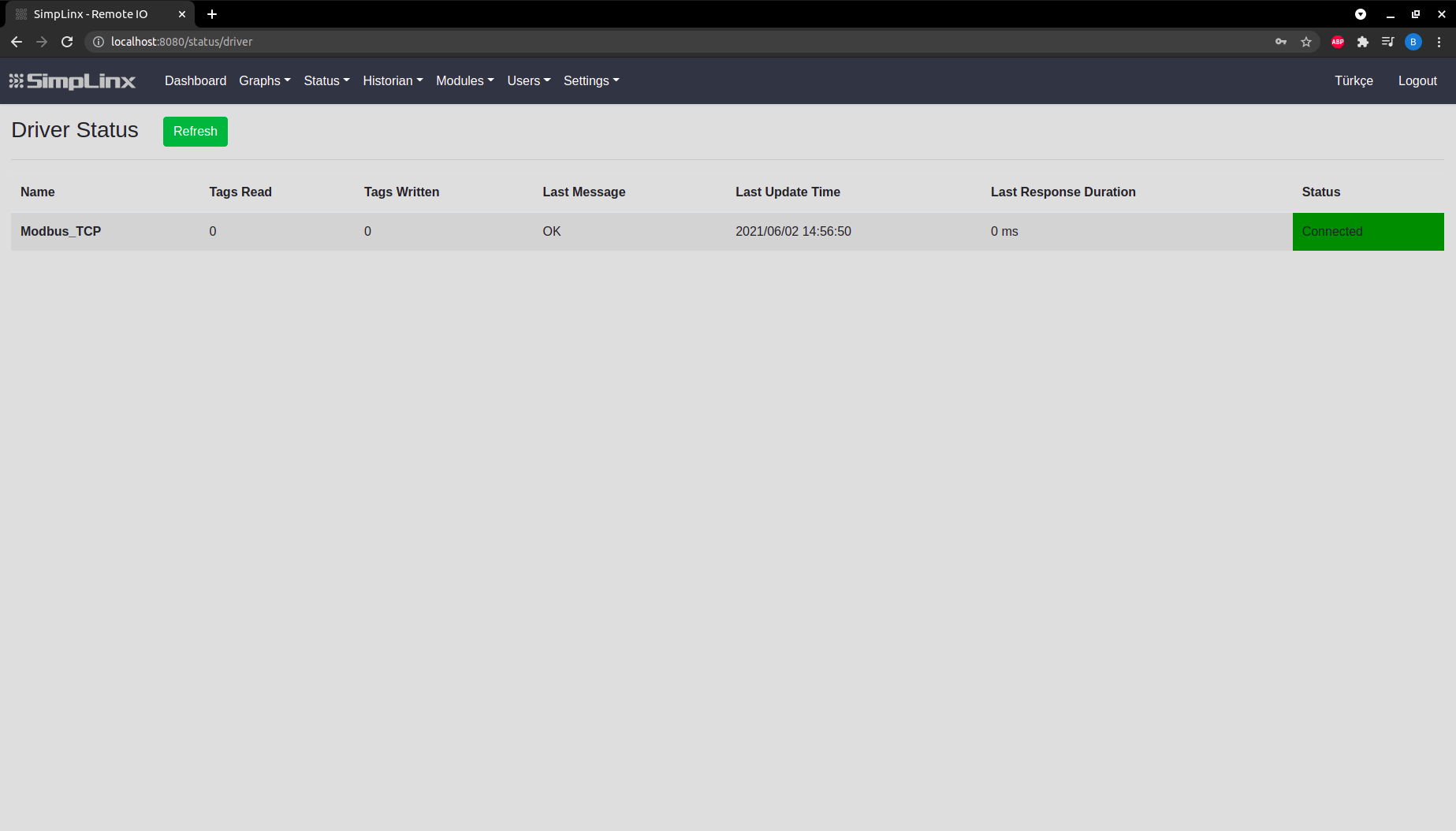 Step 5 — Status → Driver: green indicator confirms connection to Modbus TCP device
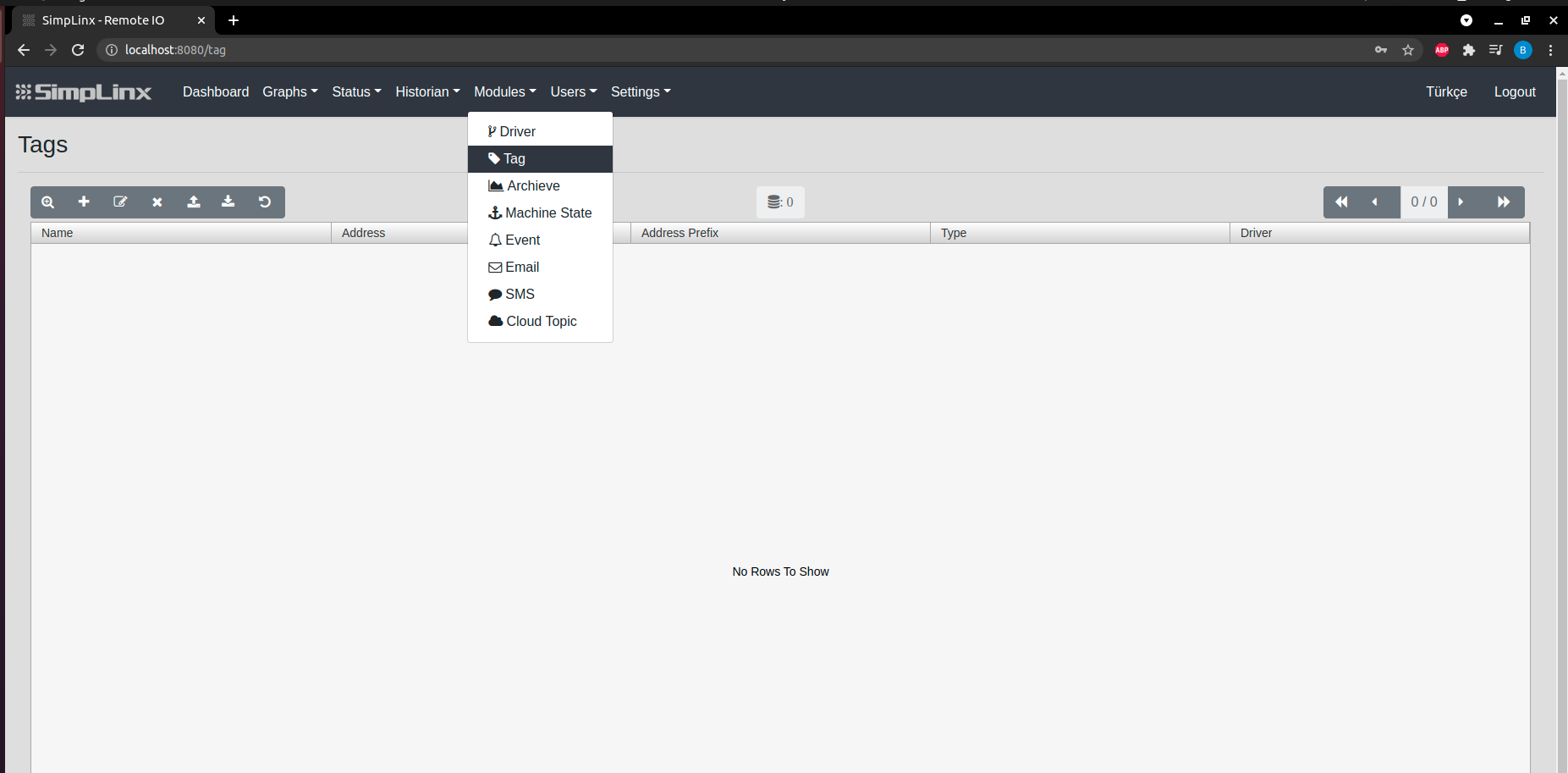 Step 6 — Modules → Tag: click + to add a new tag
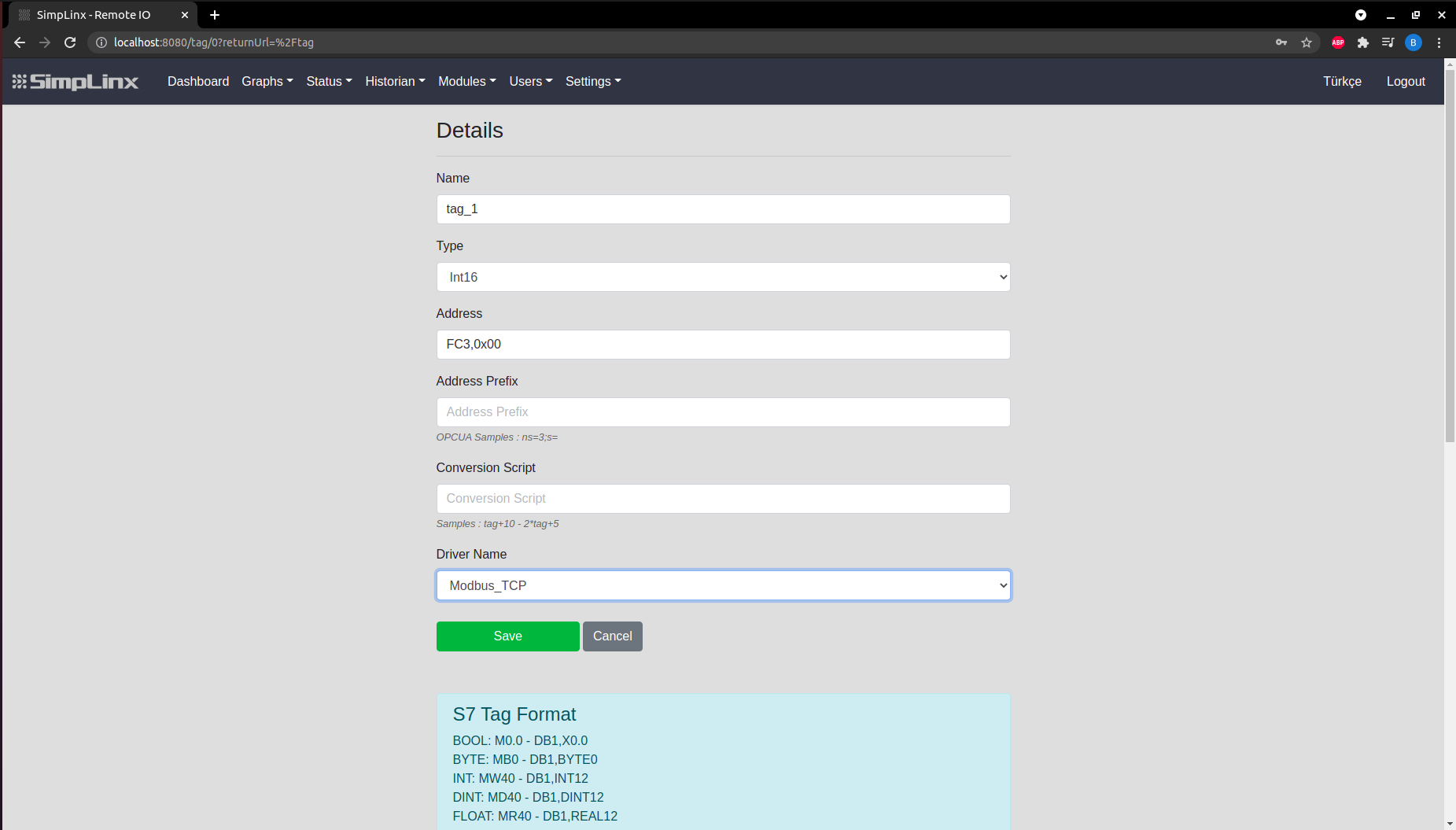 Step 7 — Tag configuration: Name, Type, Address, Address Prefix, Driver Name
 Step 8 — Save the tag
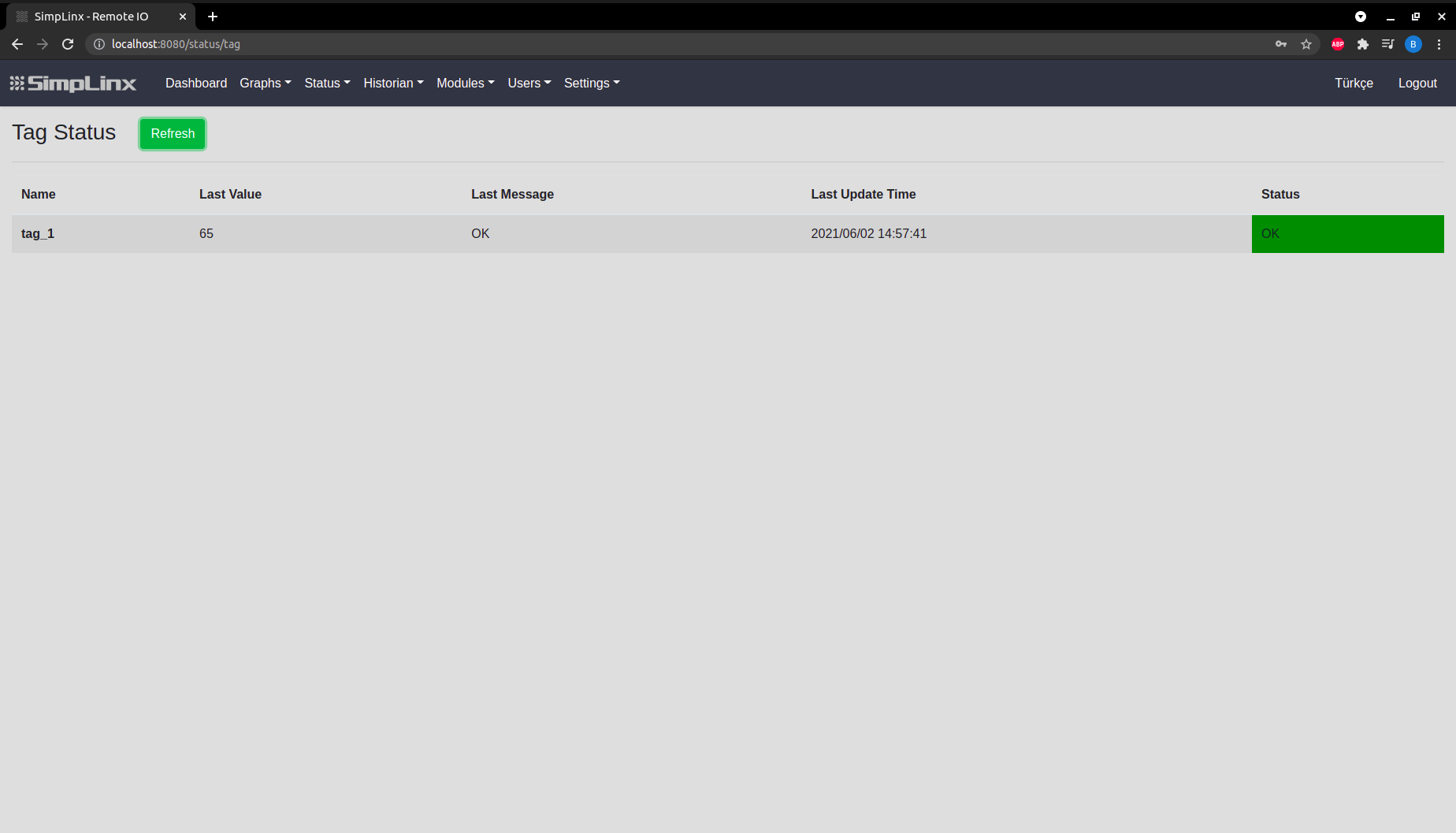 Step 9 — Status → Tag: Name, Last Value, Last Message, Last Update Time, Status
Screenshots — Troubleshooting with Modbus Poll
Section titled “Screenshots — Troubleshooting with Modbus Poll” Modbus Poll — download from modbustools.com and configure connection settings
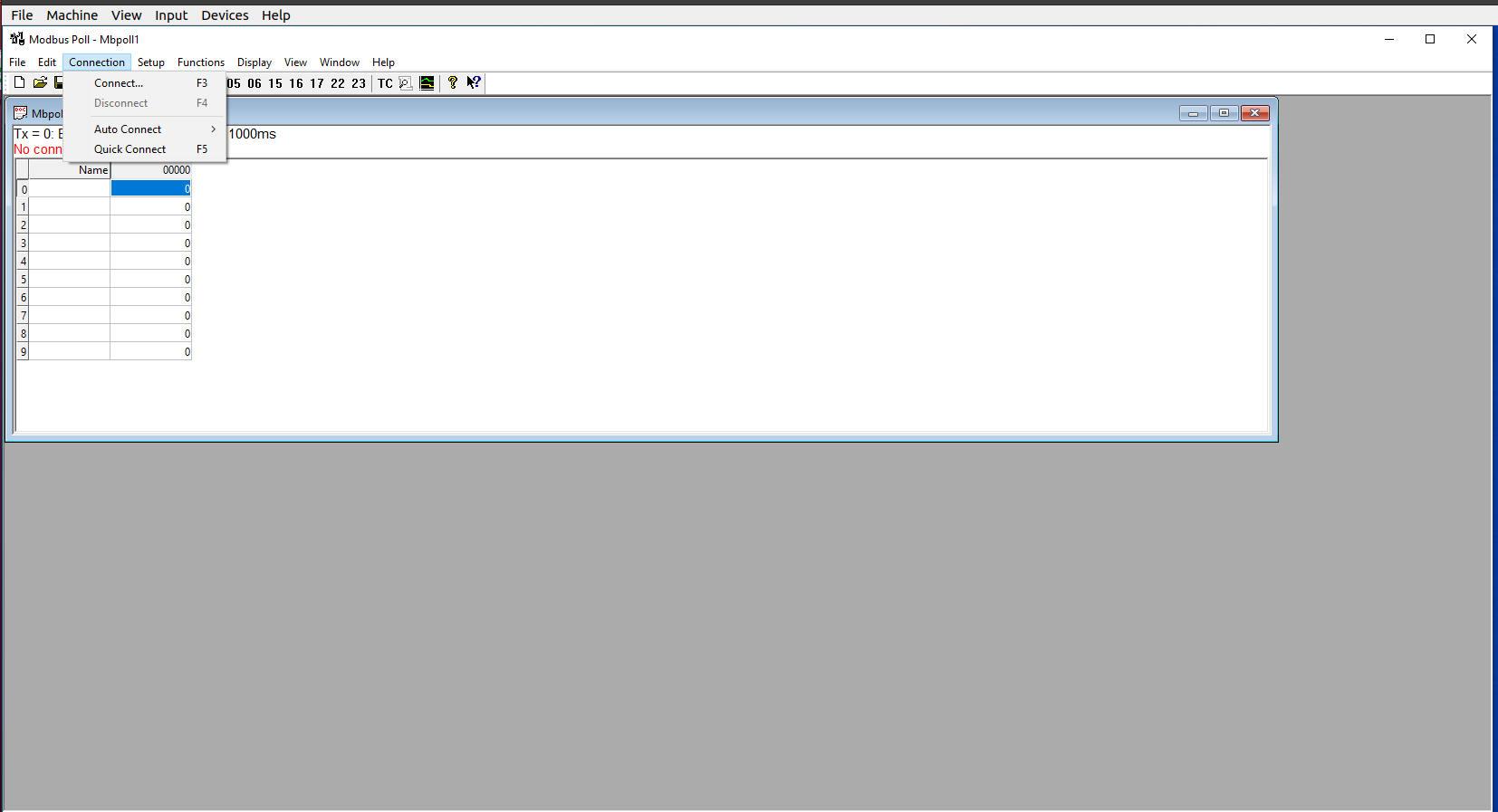 Modbus Poll — select TCP/IP connection mode
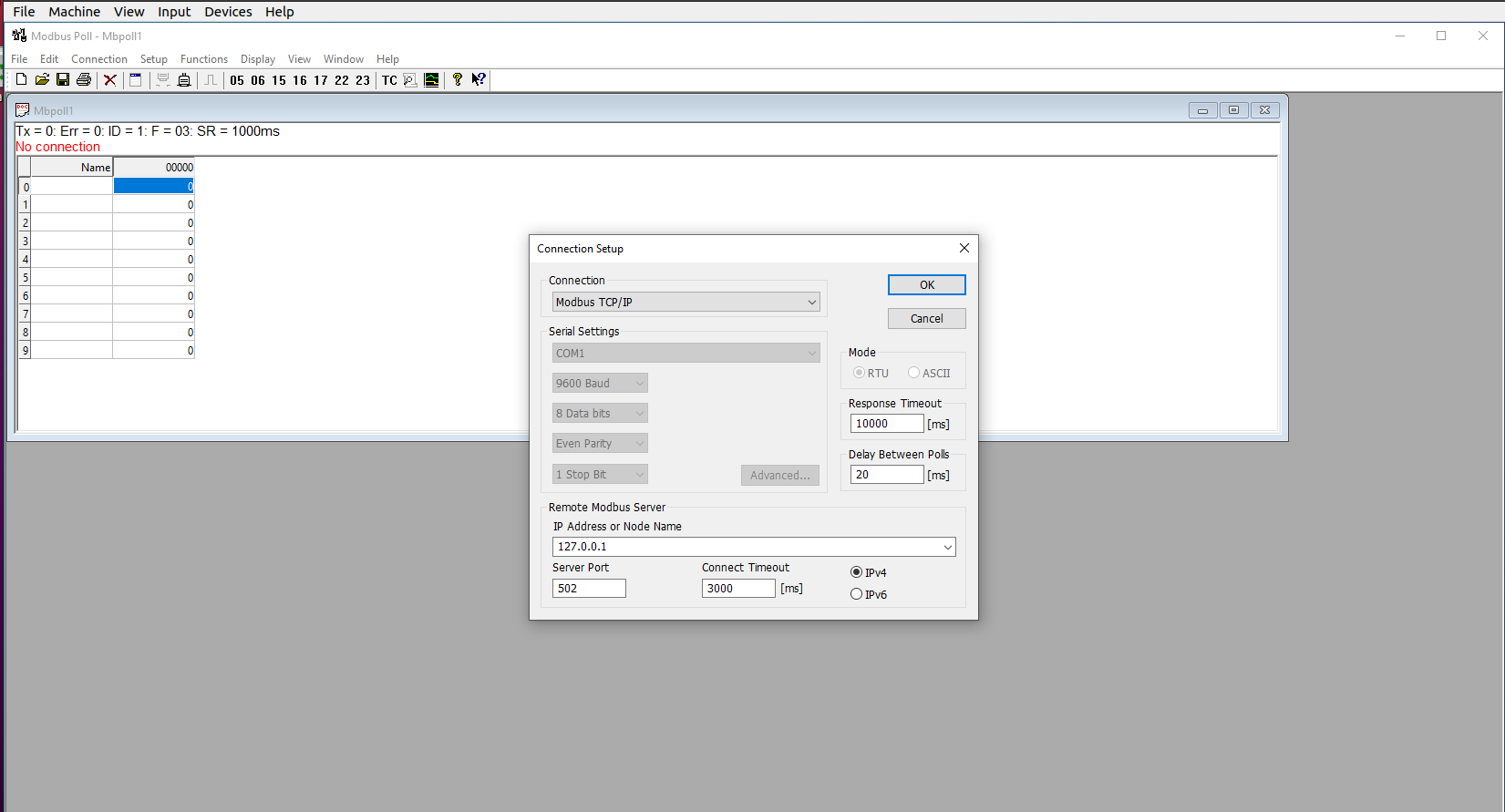 Verify SX-IO driver status while Modbus Poll is running as a test slave
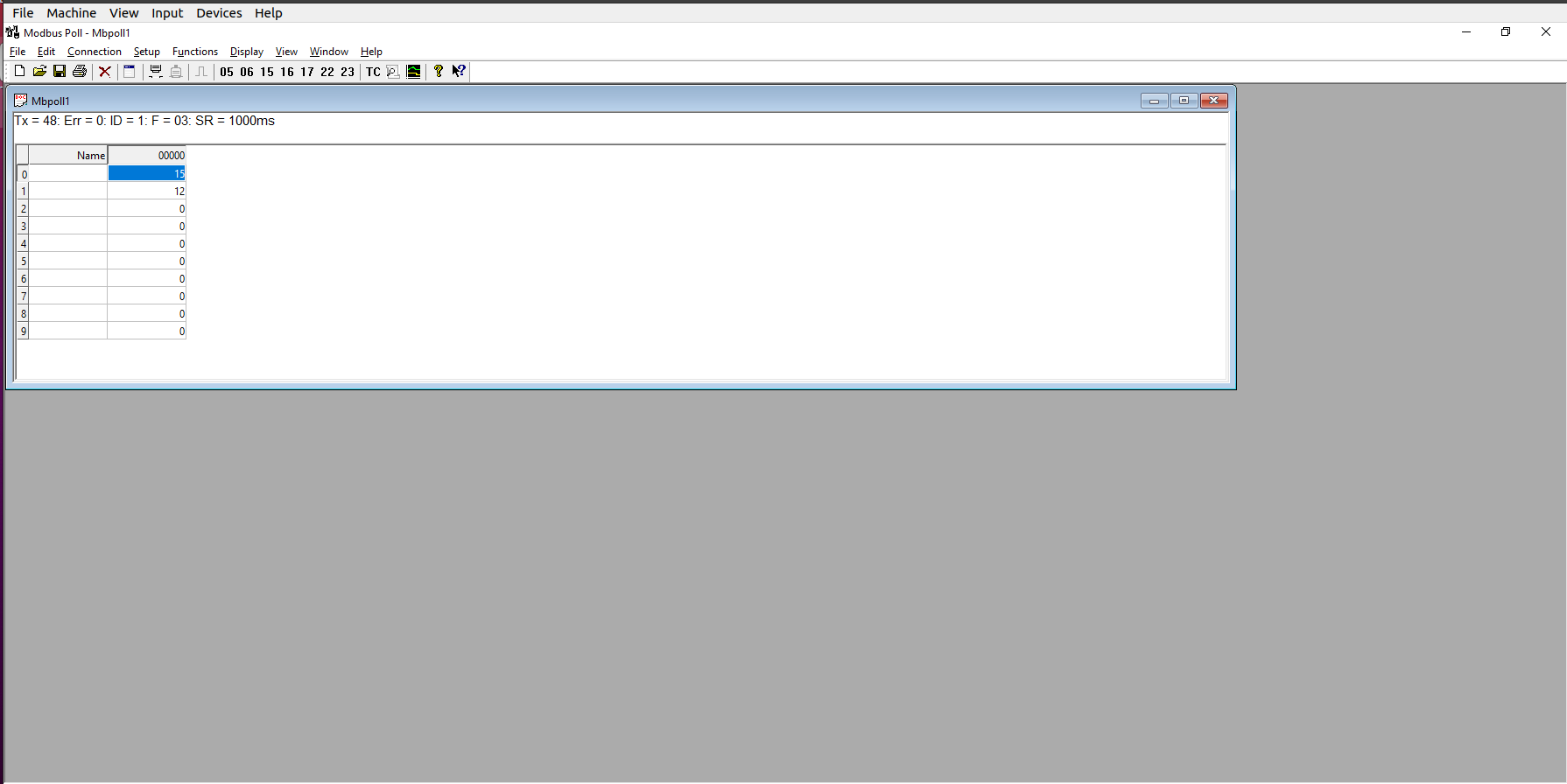 Modbus Poll — live register values confirming successful Modbus TCP connection