
SX-IO — Serial Port Passthrough
Overview
Section titled “Overview”Serial Port Passthrough lets you tunnel the SMX-RNS20’s physical RS-232 or RS-485 port to a virtual COM port on your engineering PC. Any serial-based programming tool (e.g., a PLC programmer that uses COM ports, a terminal emulator) can then talk to the remote serial device as if directly connected.
Machine-Side Setup
Section titled “Machine-Side Setup”- Connect the serial device (PLC, drive, instrument) to the SMX-RNS20’s RS-232 or RS-485 port using the appropriate cable.
- Log in to the SMX-RNS20 web interface → SX-IO → Serial Port.
- Configure the serial parameters: baud rate, data bits, parity, stop bits, flow control. These must match the connected device.
- Enable Serial Passthrough mode (as opposed to Modbus RTU master mode).
- Save the configuration.
Engineering PC Setup
Section titled “Engineering PC Setup”- Connect to the SMX-RNS20 via SX-Client.
- In SX-Client, locate the device’s Serial Port service in the forwarded ports list.
- A virtual COM port will be available on your PC (shown in Device Manager). Note the COM port number.
- Open your serial application (TIA Portal, STEP 7 with MPI-to-TCP adapter, HyperTerminal, etc.) and select the assigned virtual COM port.
- Communicate with the remote device at the configured baud rate as if directly connected.
Screenshots — SX-IO Serial Port Configuration
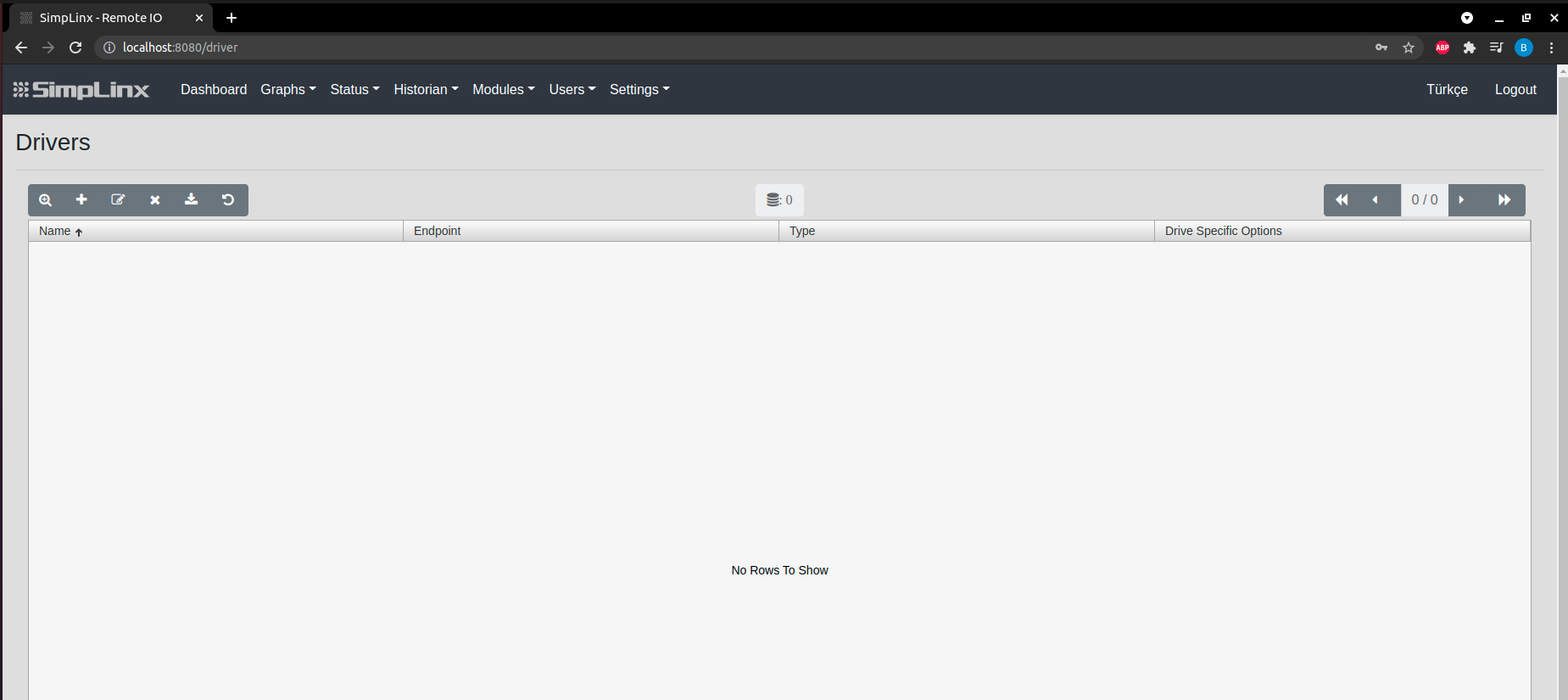
Section titled “Screenshots — SX-IO Serial Port Configuration” Step 1 — Modules → Driver
 Step 2 — Add new driver
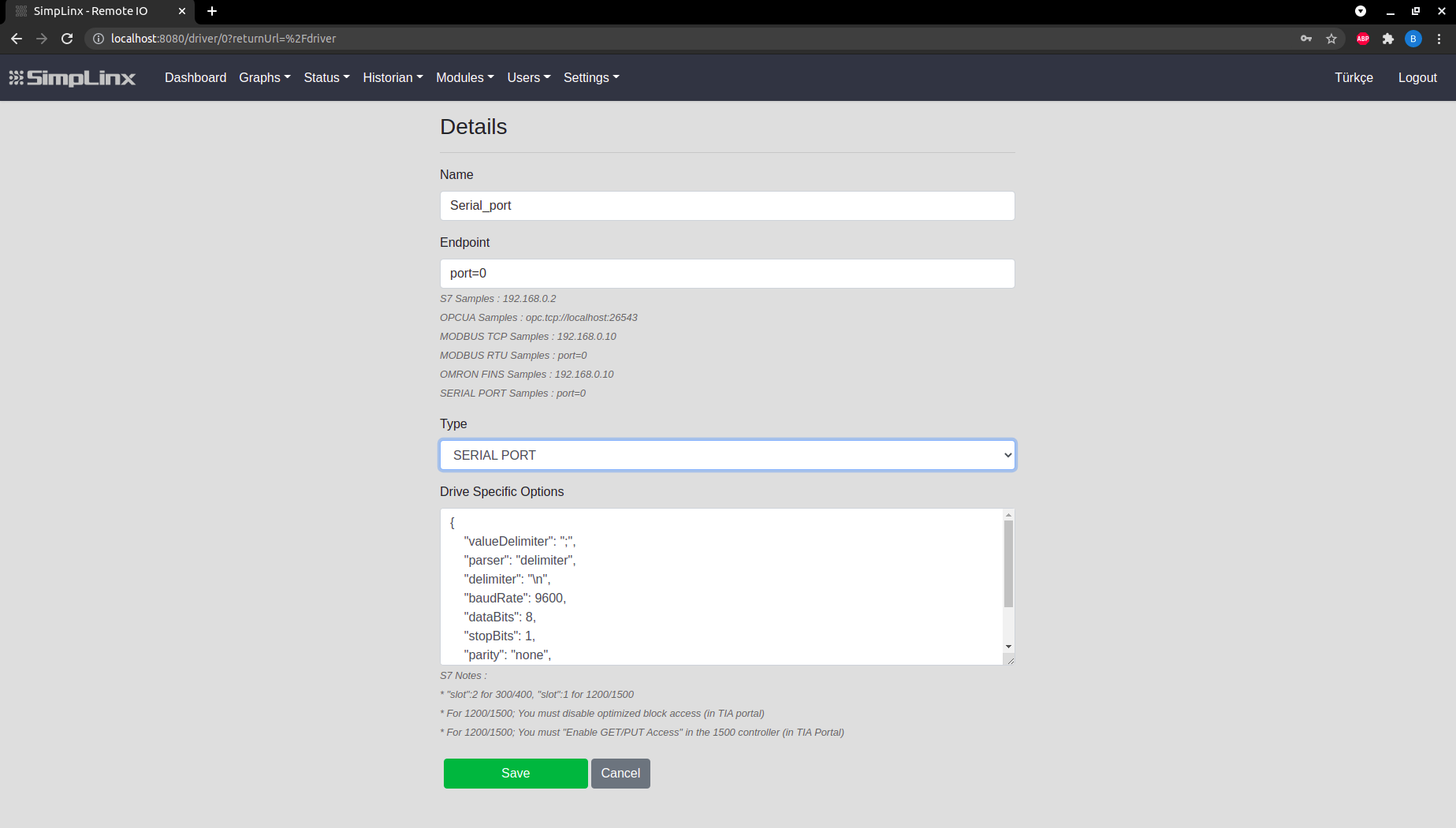 Step 3 — Driver settings: Name, Endpoint (port=0 upper USB / port=1 lower), Type = SERIAL PORT
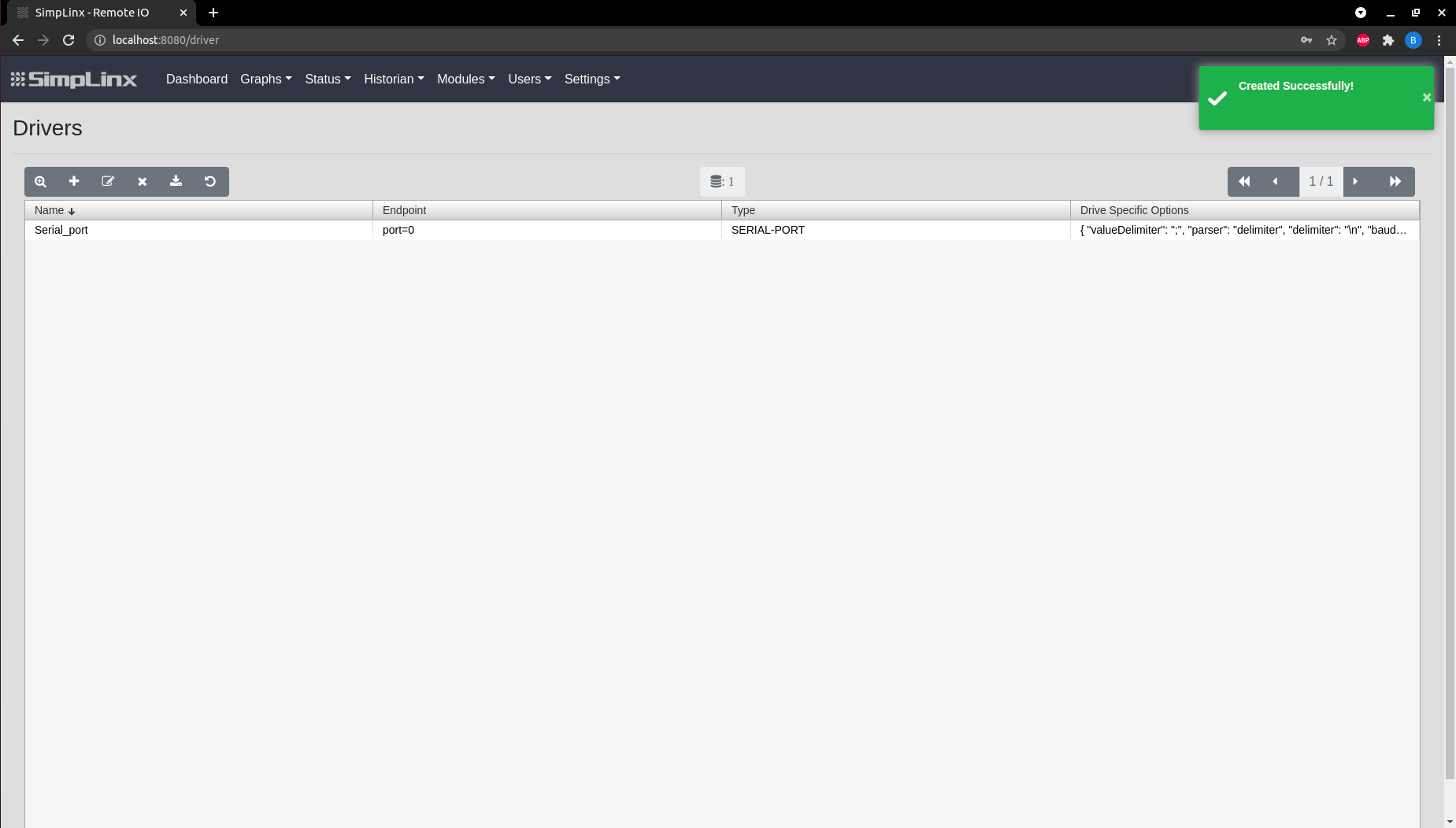 Step 4 — Save driver
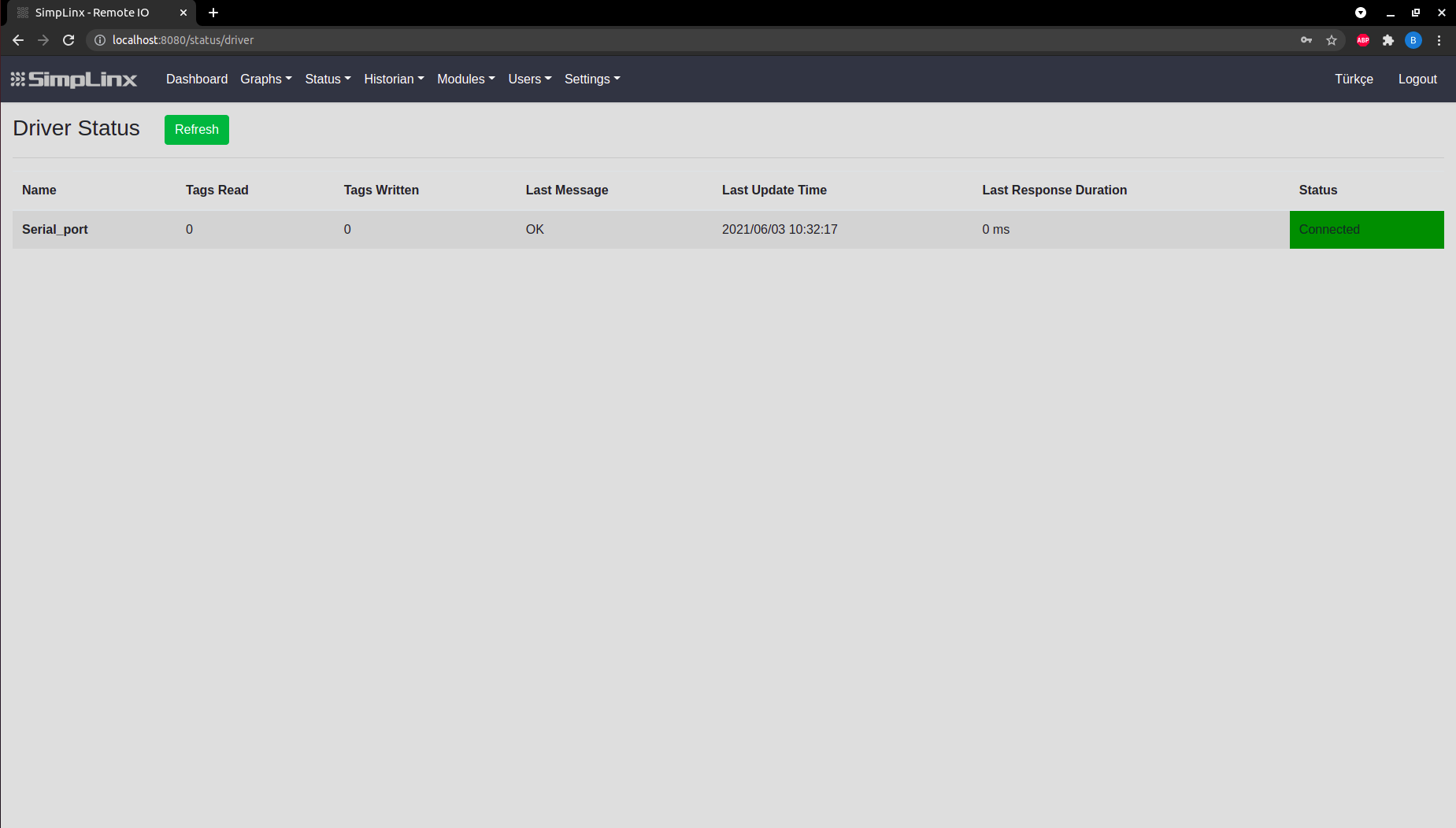 Step 5 — Status → Driver: connection confirmed
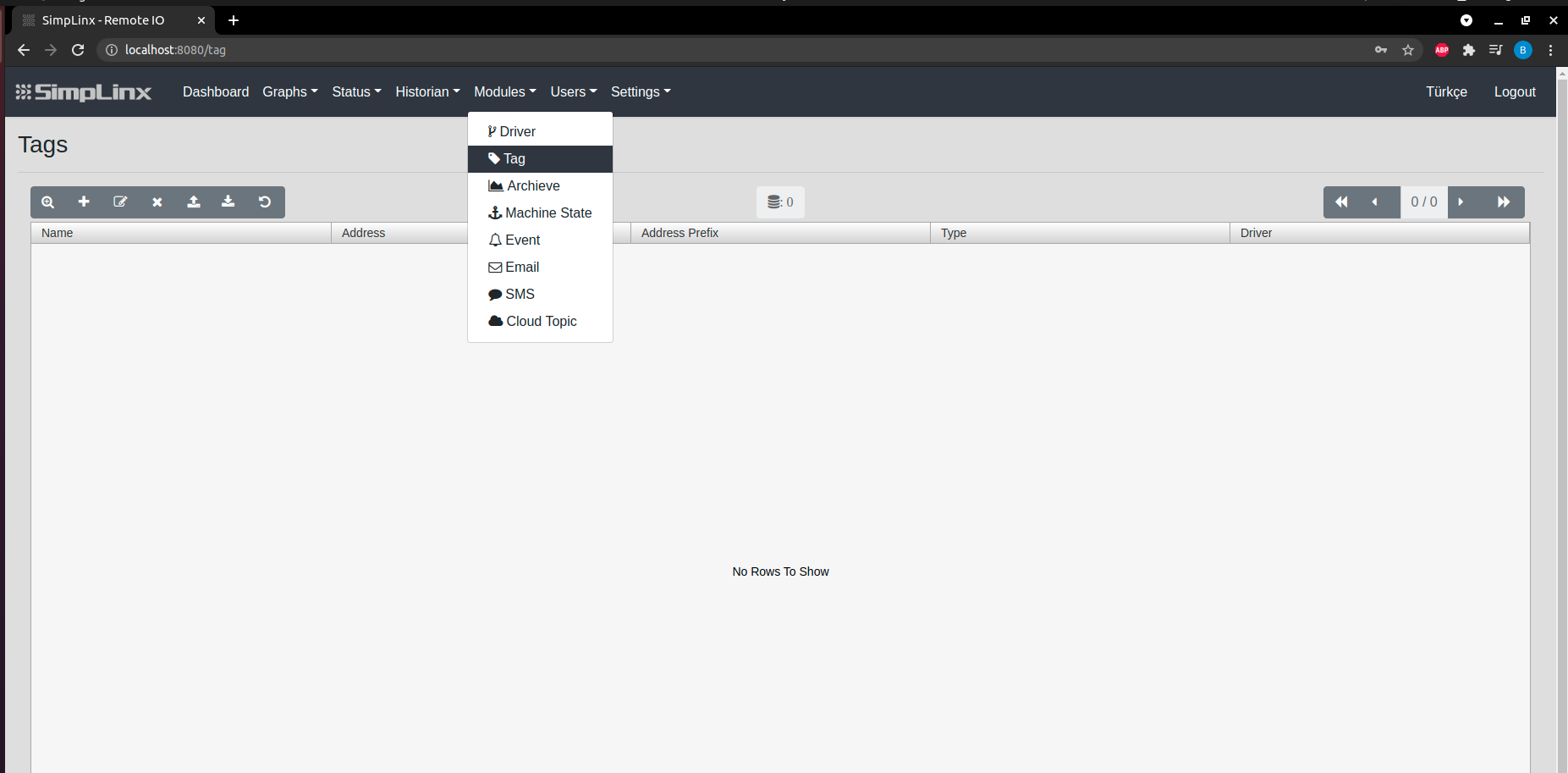 Step 6 — Modules → Tag
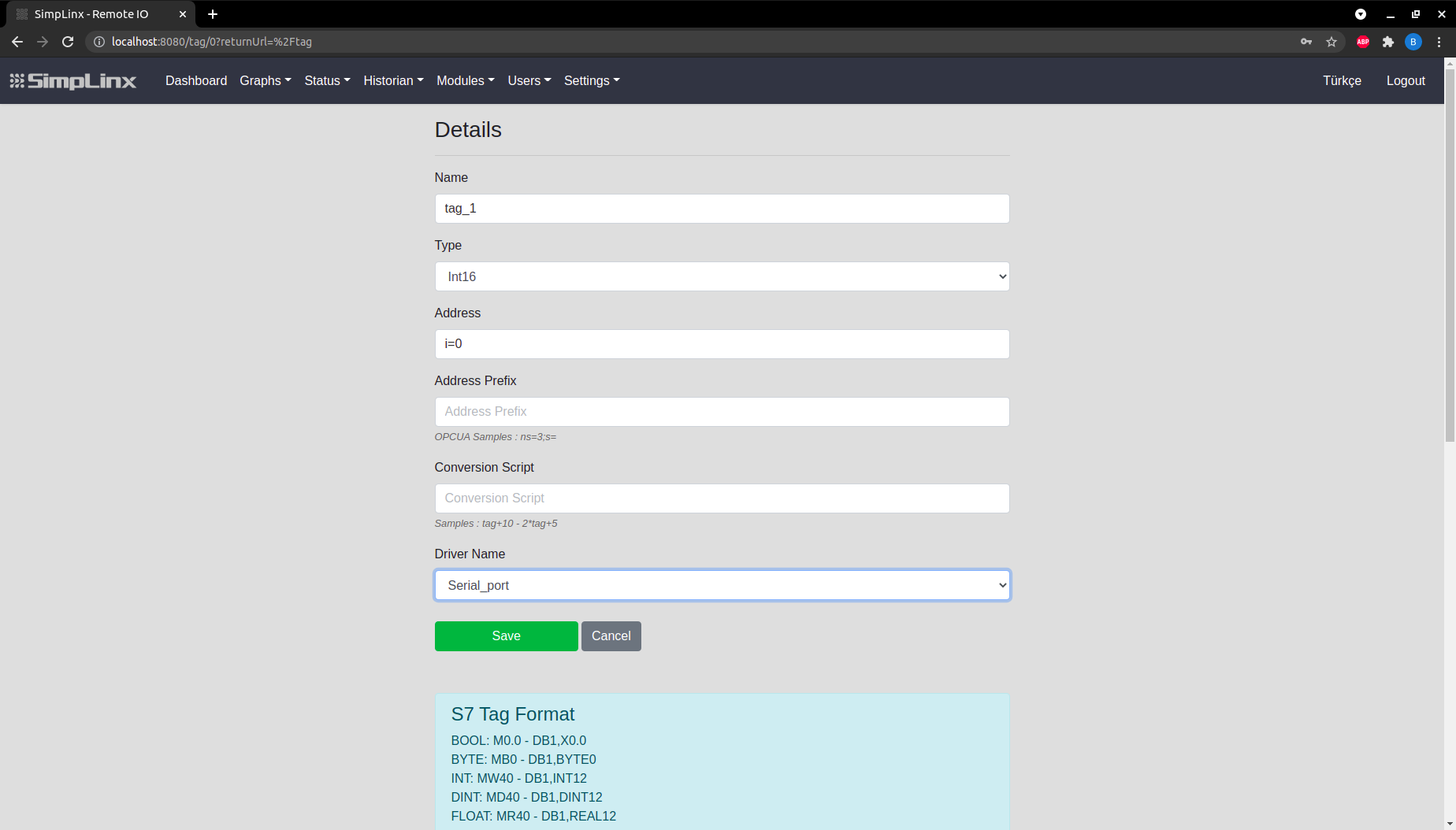 Step 7 — Tag configuration
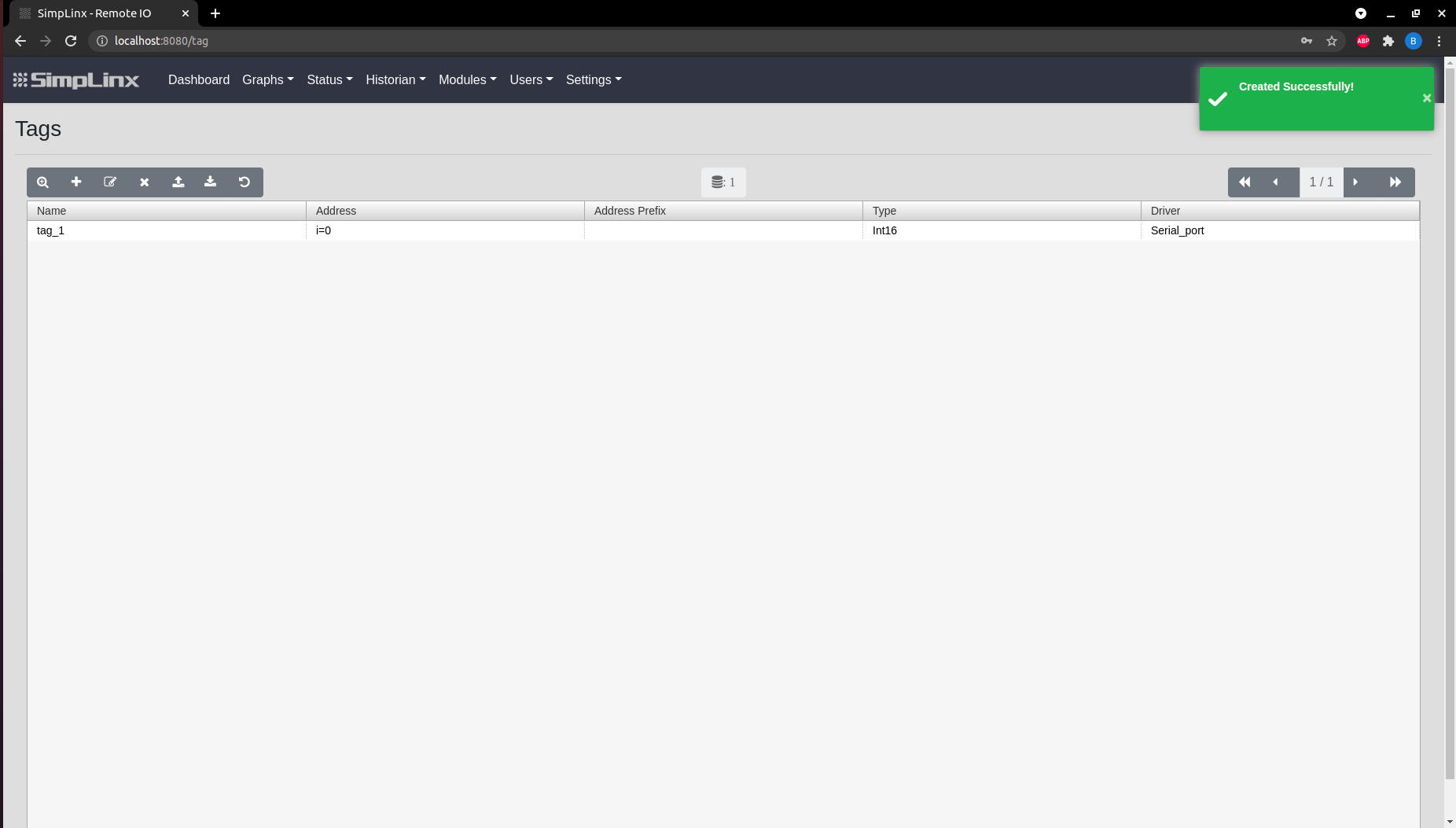 Step 8 — Save tag
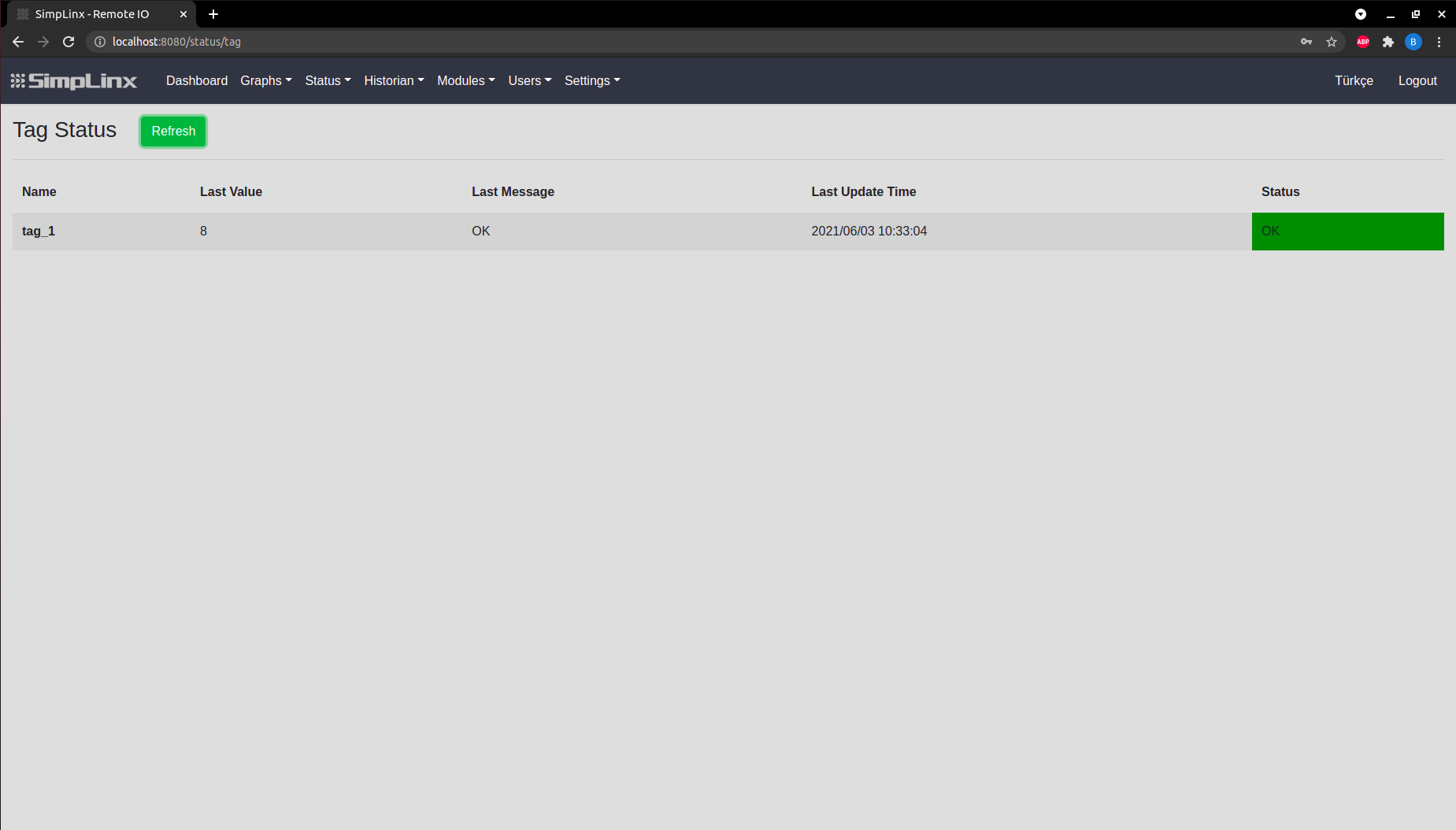 Step 9 — Status → Tag: live data from serial device